CVS - SUPER APP INTEGRATED SCHEDULING
APRIL - 2022 (24 WEEK TIMELINE)
CVS Health is the largest pharmacy chain in the United States, providing
an extensive range of healthcare services as an alternative to traditional
urgent care facilities and hospitals. The CVS mobile application serves as
the primary platform for consumers to discover, schedule, and manage these services.
With over 365 unique services offered across 9,395 physical locations and the recent
acquisition of Aetna, CVS Health is striving to become not only the largest pharmacy
but also the leading healthcare company in the world. To support this ambitious vision,
CVS requires a best-in-class mobile application and seamless scheduling experience.
Our team faced the ambitious challenge of delivering a WCAG AA-compliant, first-class
scheduling experience to millions of CVS Health customers within a tight 24-week deadline.
As the Lead User Experience Designer, I played a pivotal role in designing and integrating
the scheduling experience into the CVS super app.
Achieving this goal required close collaboration across multiple stakeholders, including
copy strategists, accessibility (A11y) designers, product owners, legal teams, and developers.
Clear and consistent communication was essential, with all parties staying informed of
updates and providing final approvals before any screens were released.
The user interface (UI) and user experience (UX) design for the scheduling feature also
needed to be seamlessly adaptable across iOS, Android, and web platforms, leveraging their
unique native components and design conventions to ensure a cohesive and intuitive experience.
03
OPENING CVS APP AND NAVIGATING TO SCHEDULING A VACCINE
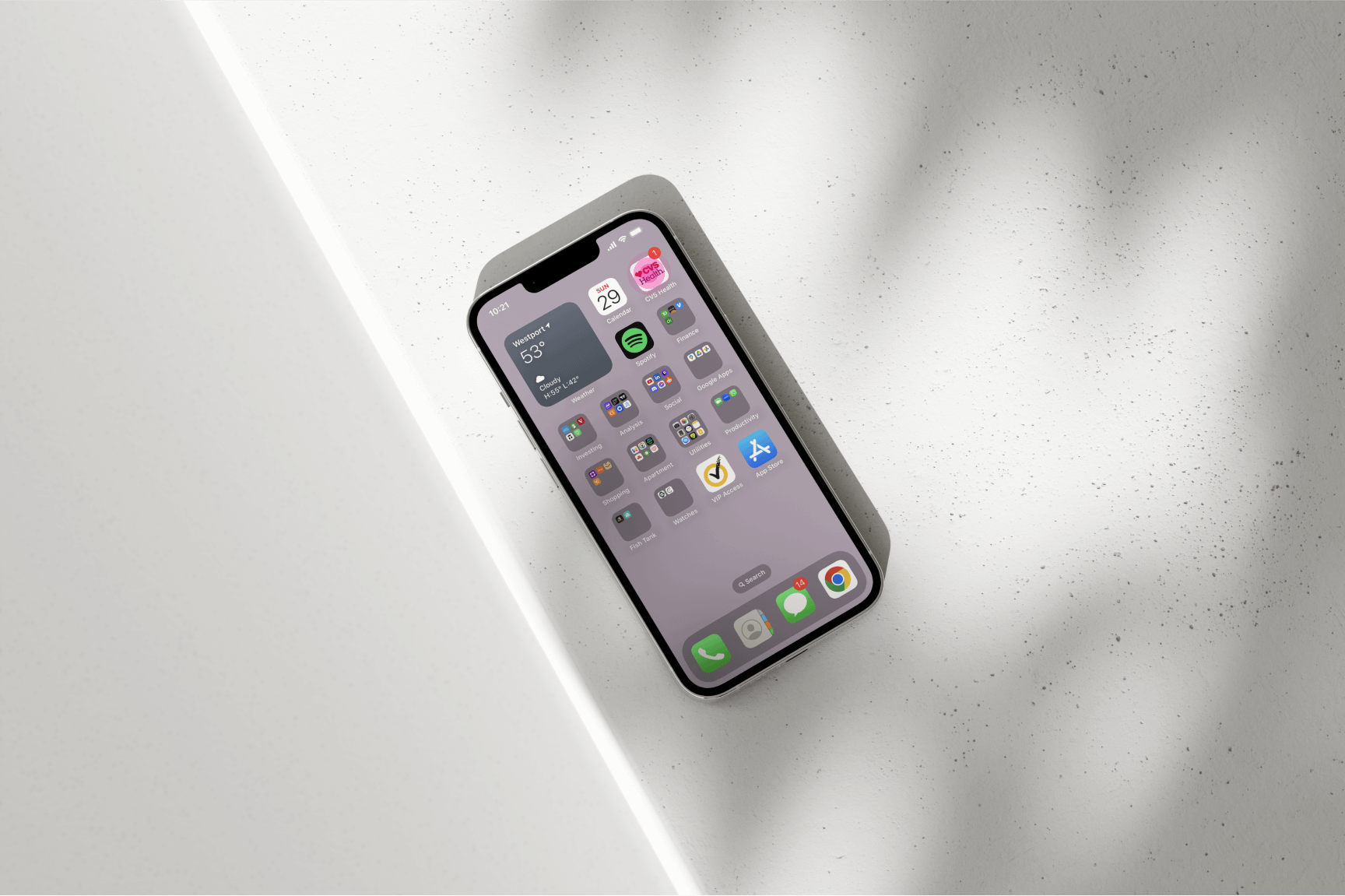
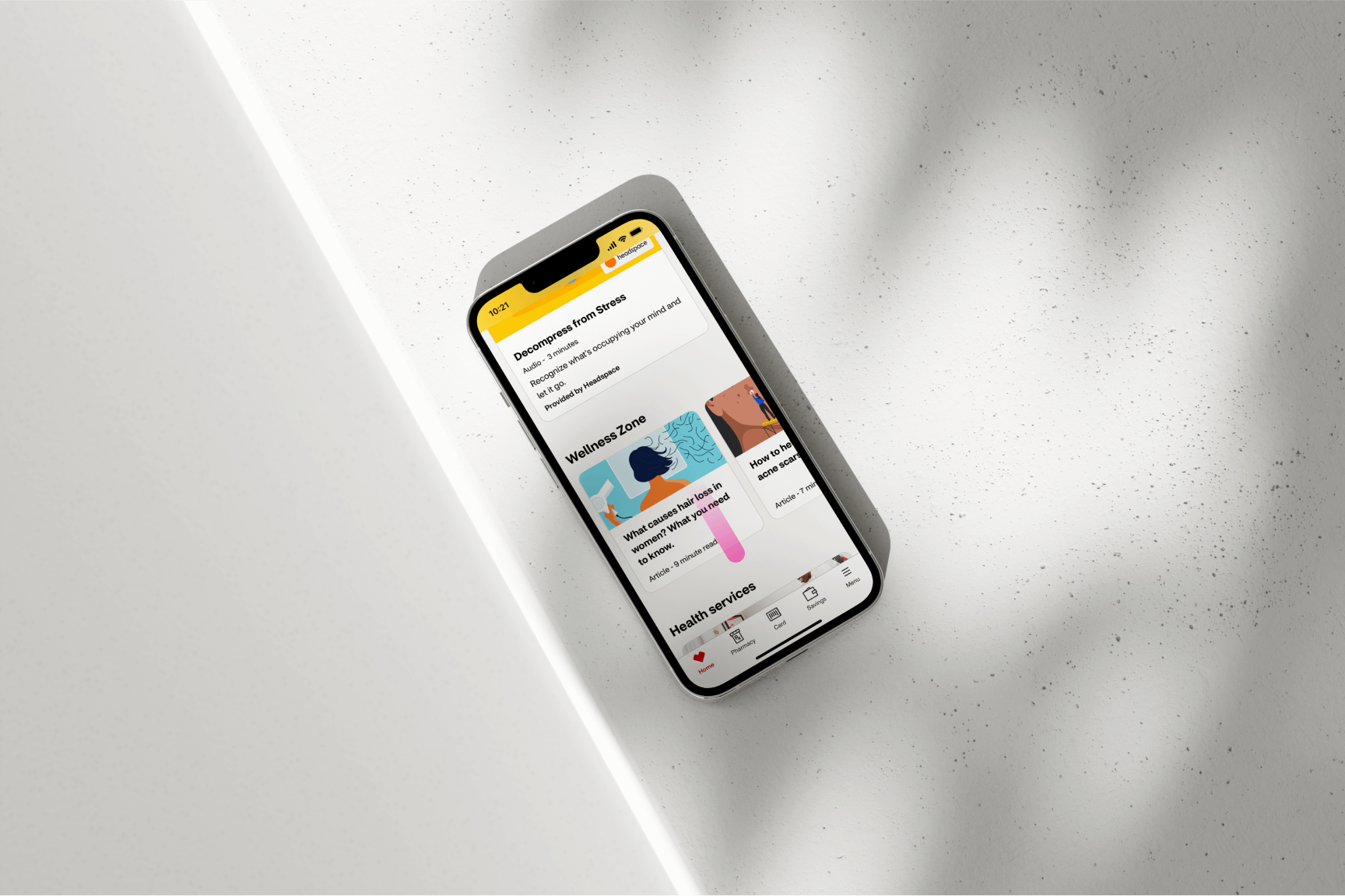
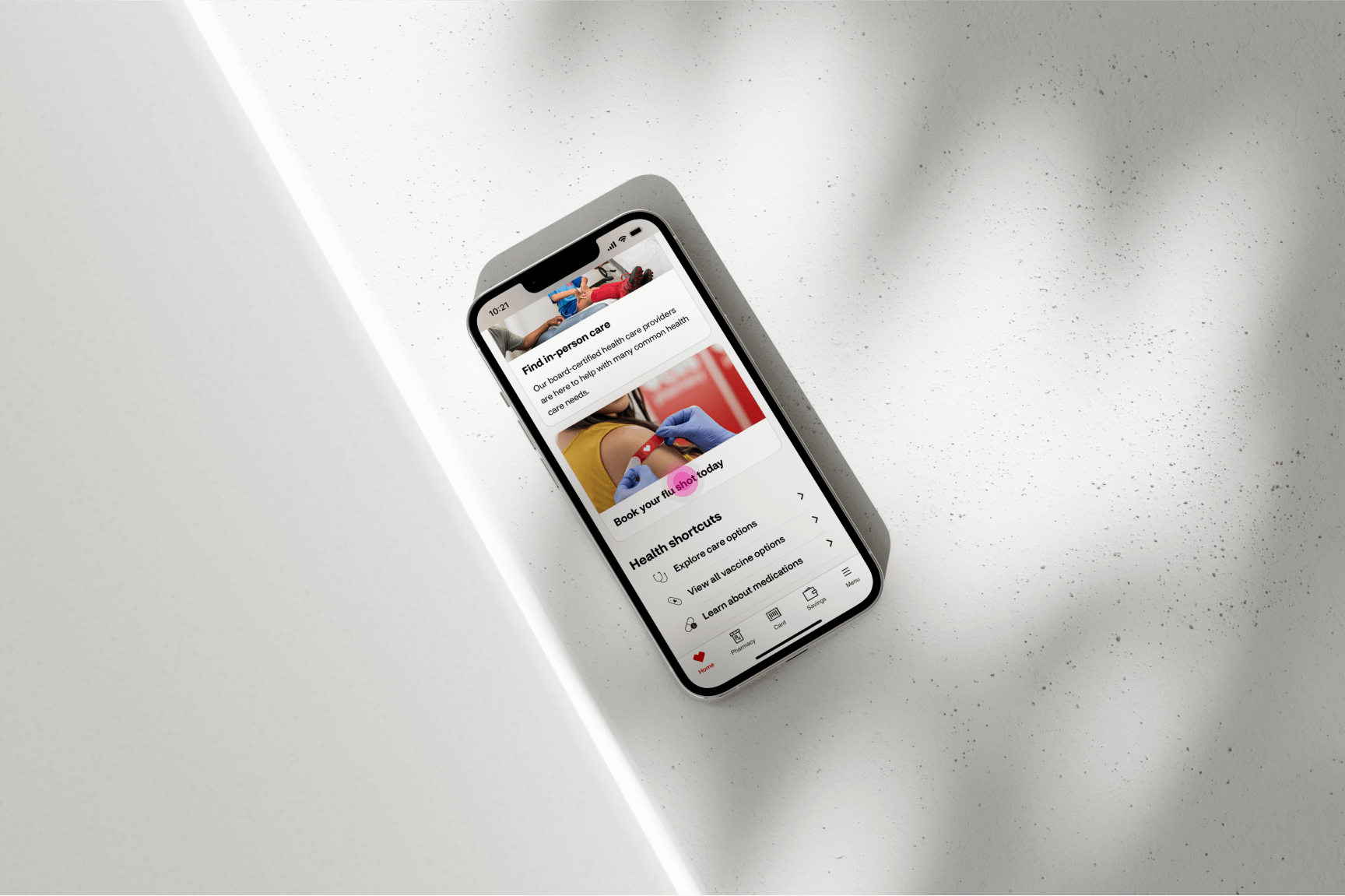
This section of the scheduling journey illustrates how users access the CVS
Health app and navigate to the “Book your flu shot today” link, which directs
them to the scheduling flow for booking a flu vaccination appointment. While
there are multiple entry points into the scheduling flow for various CVS services,
this example focuses specifically on the flu shot booking process.
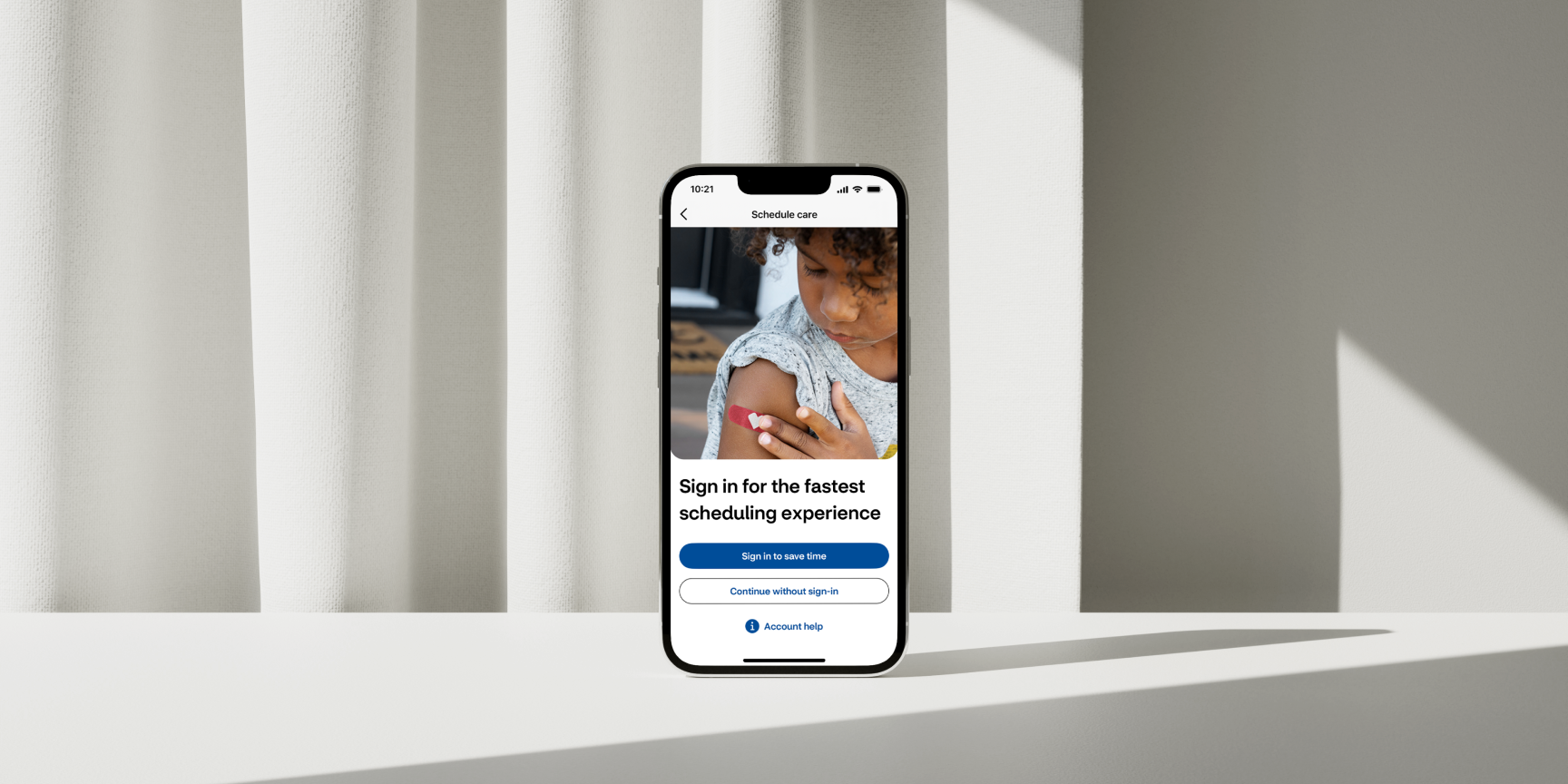
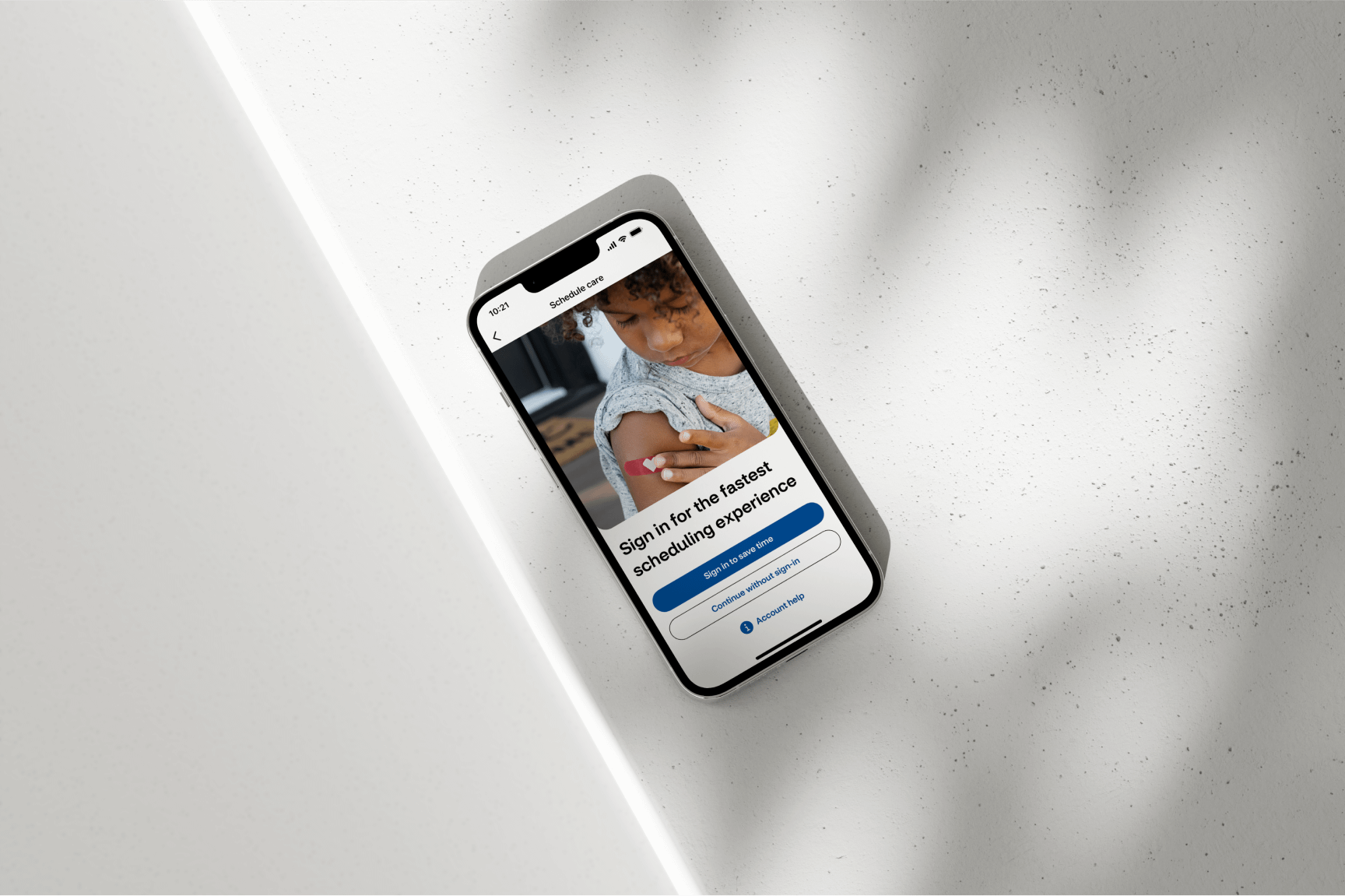
After selecting the “Book your flu shot today” link, users are taken to the initial
scheduling landing page. Here, they have the option to “Sign in to save time” if they
already have a CVS account or proceed as a guest by clicking the “Continue without
sign-in” link. For this example, we will demonstrate scheduling an appointment without signing in.
04
SUBMITTING BASIC INFORMATION TO CREATE GUEST PROFILE
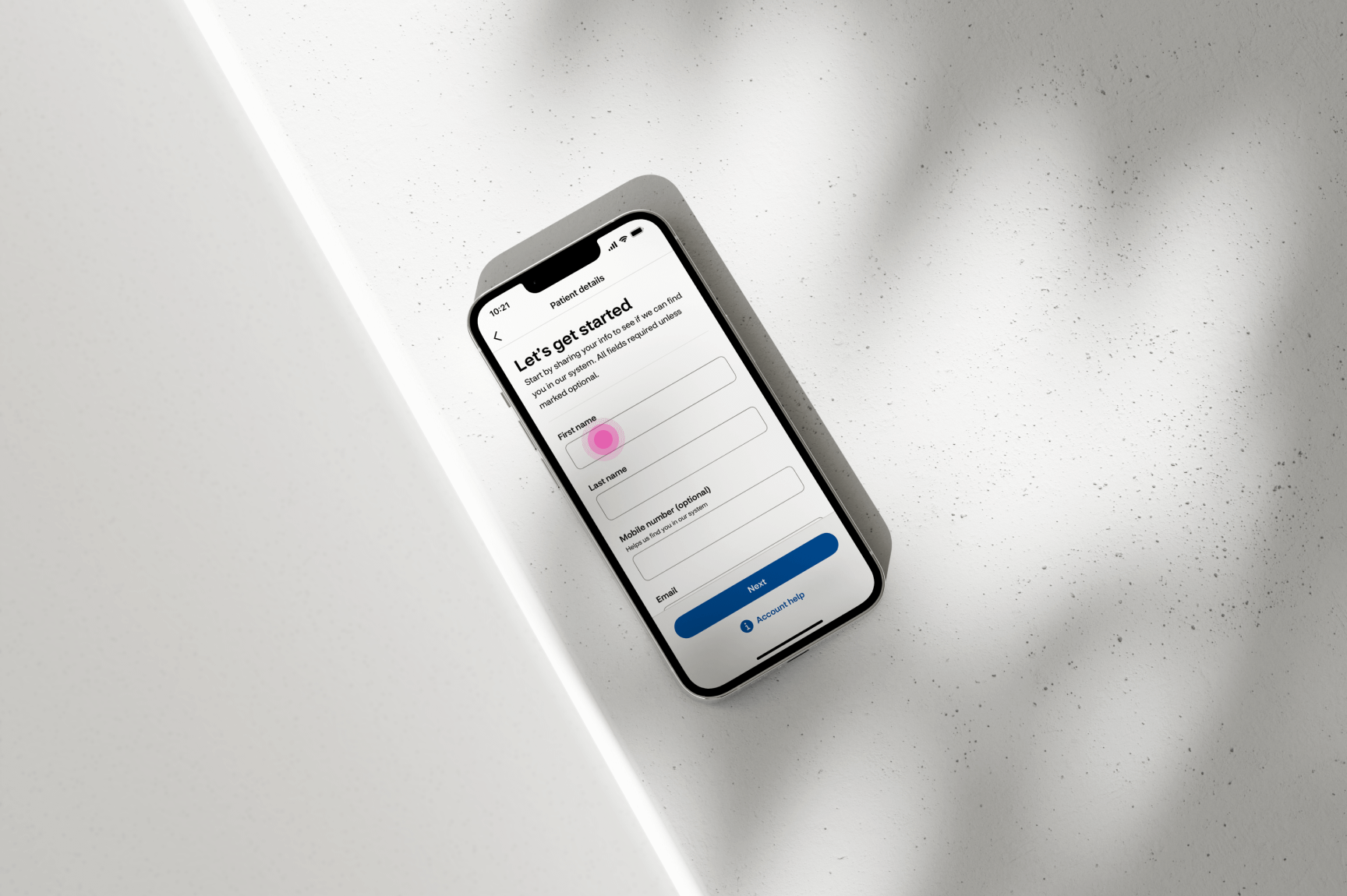
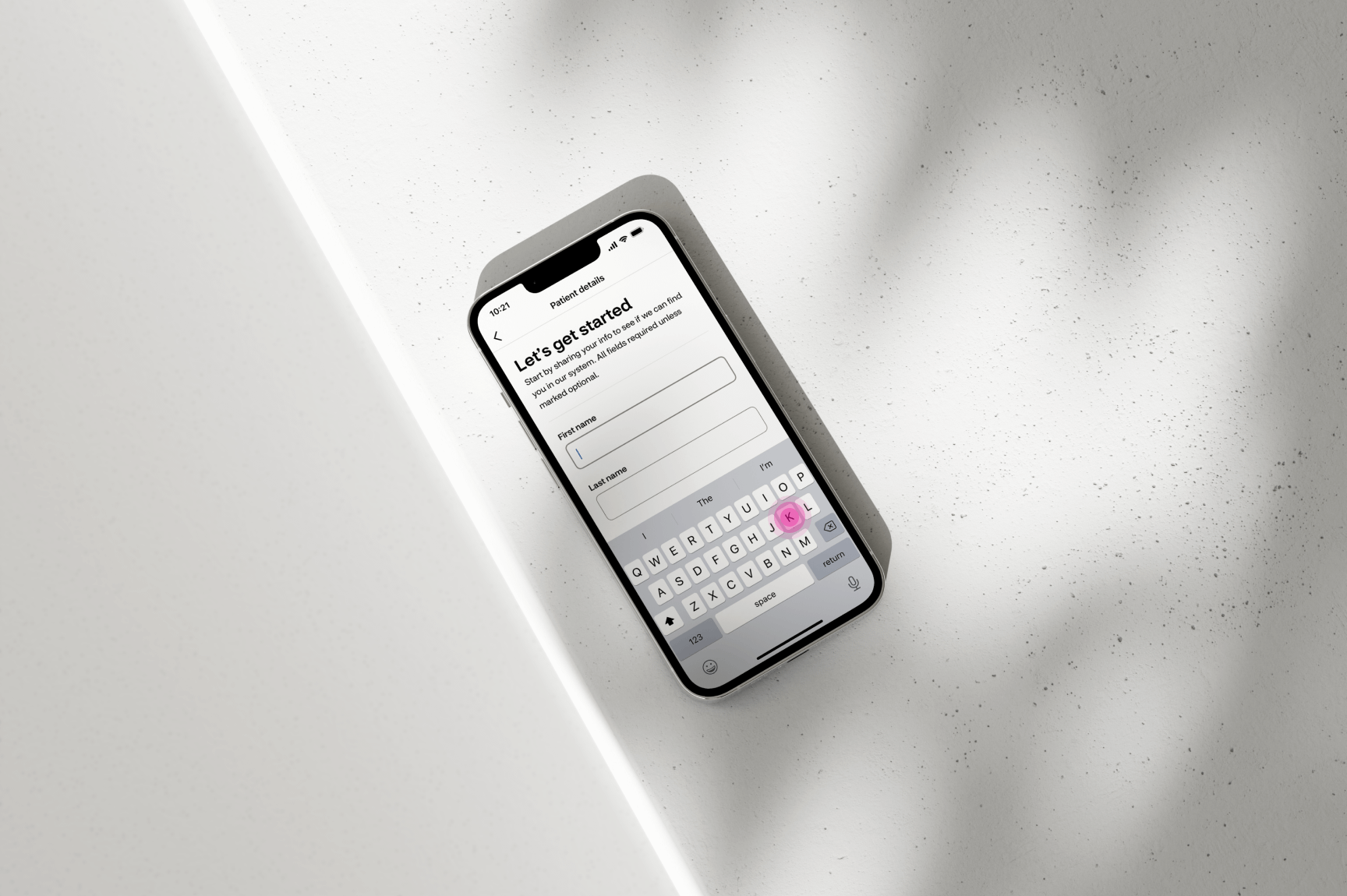
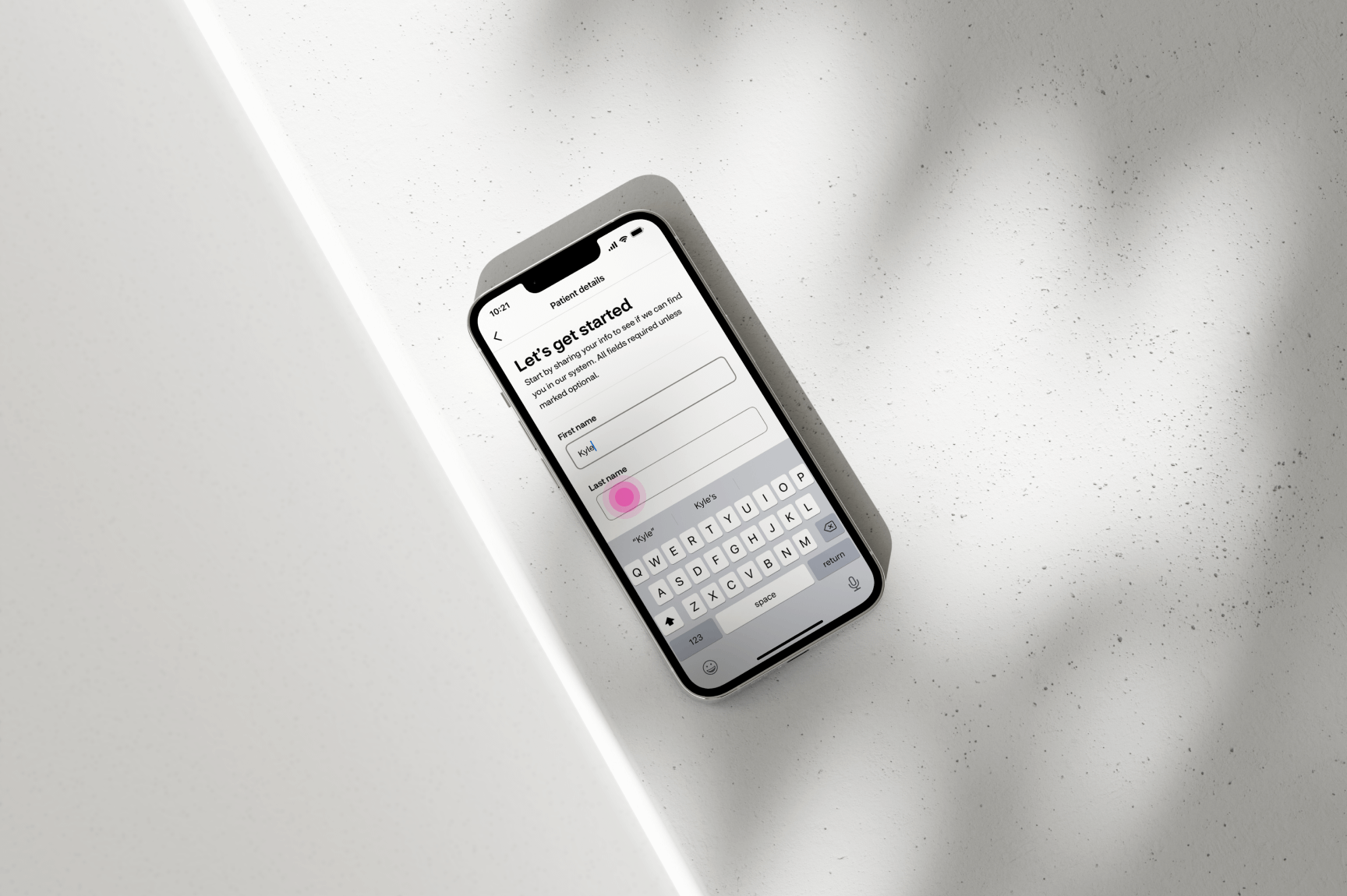
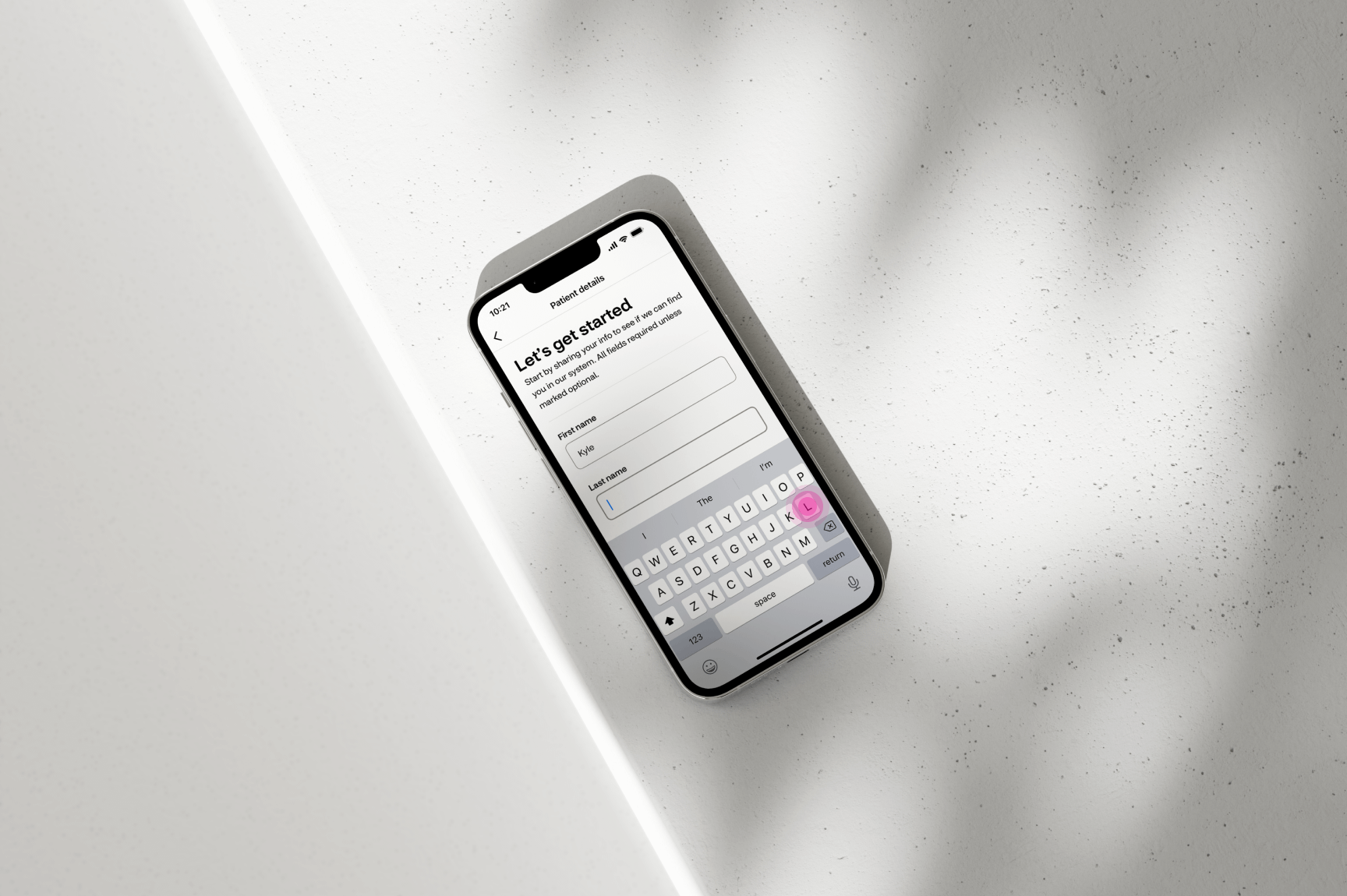
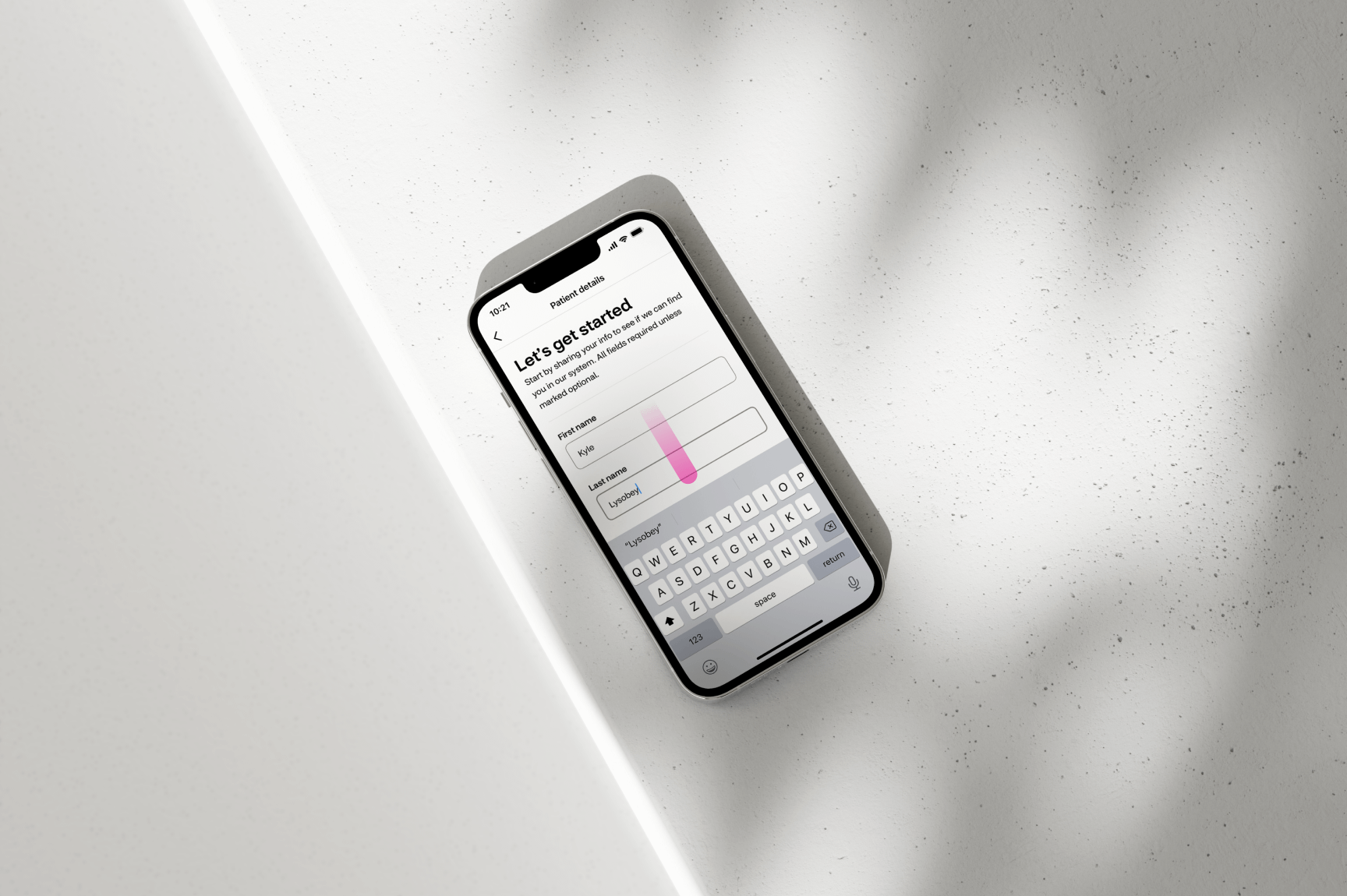
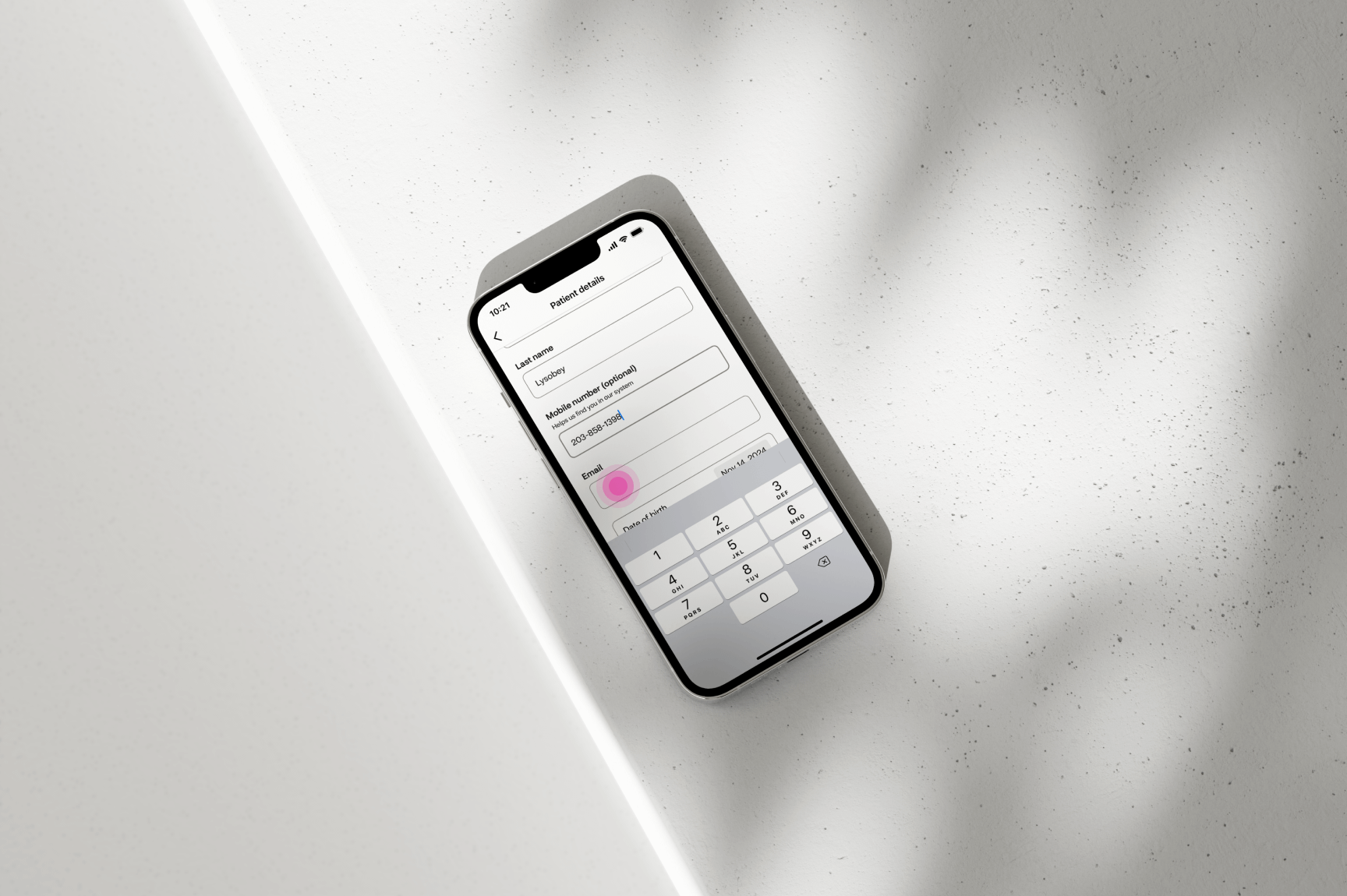
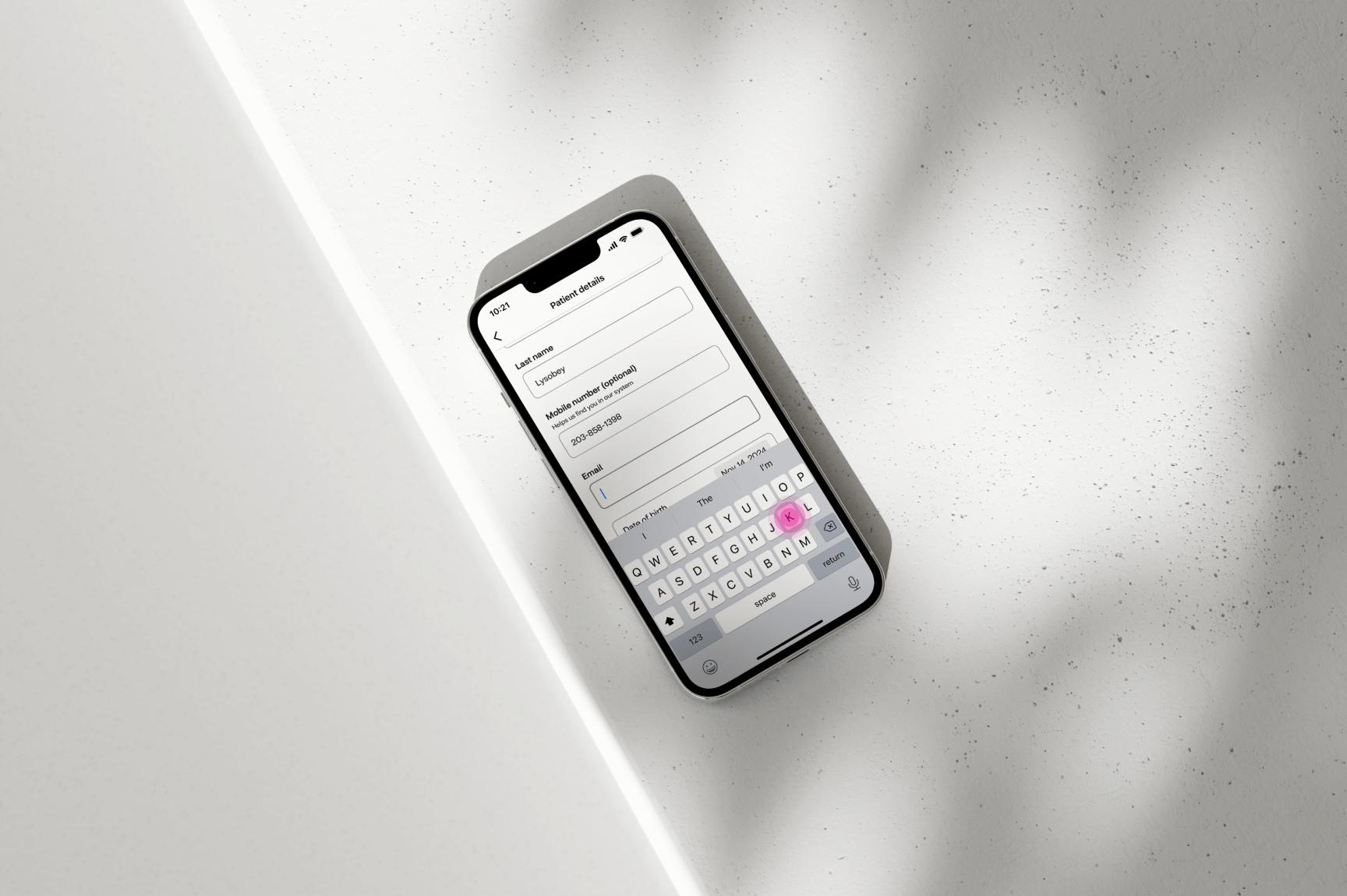
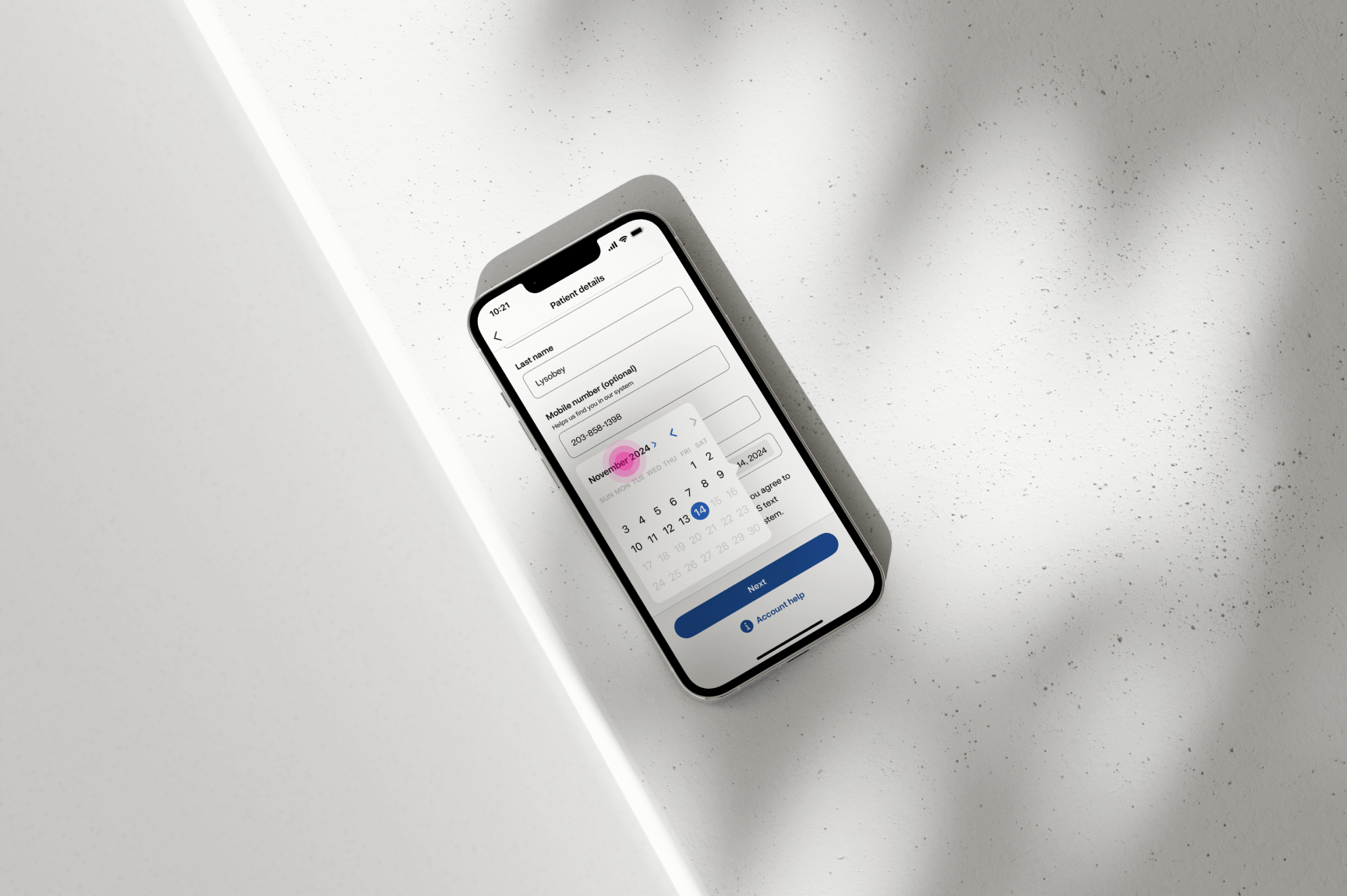
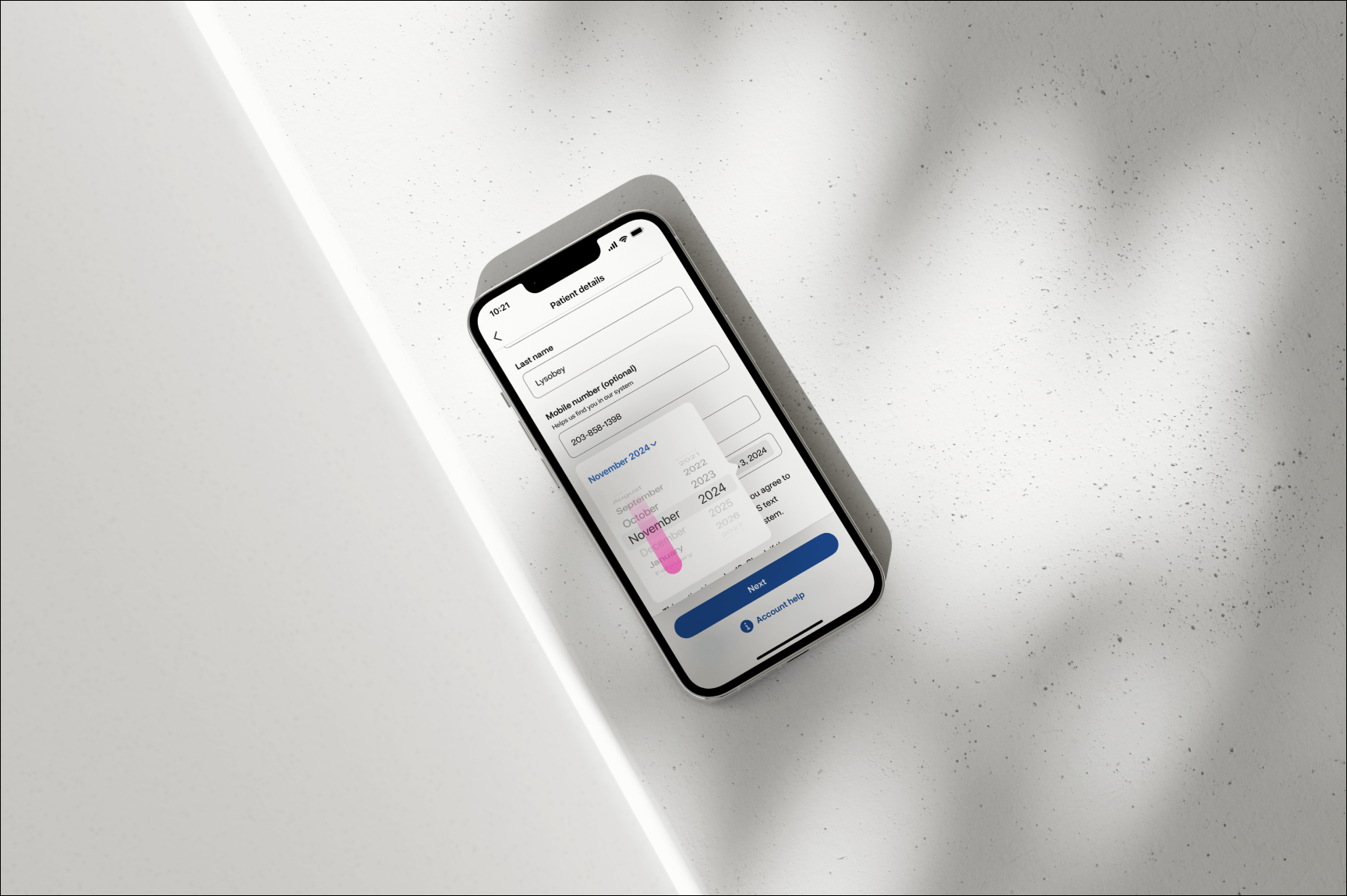
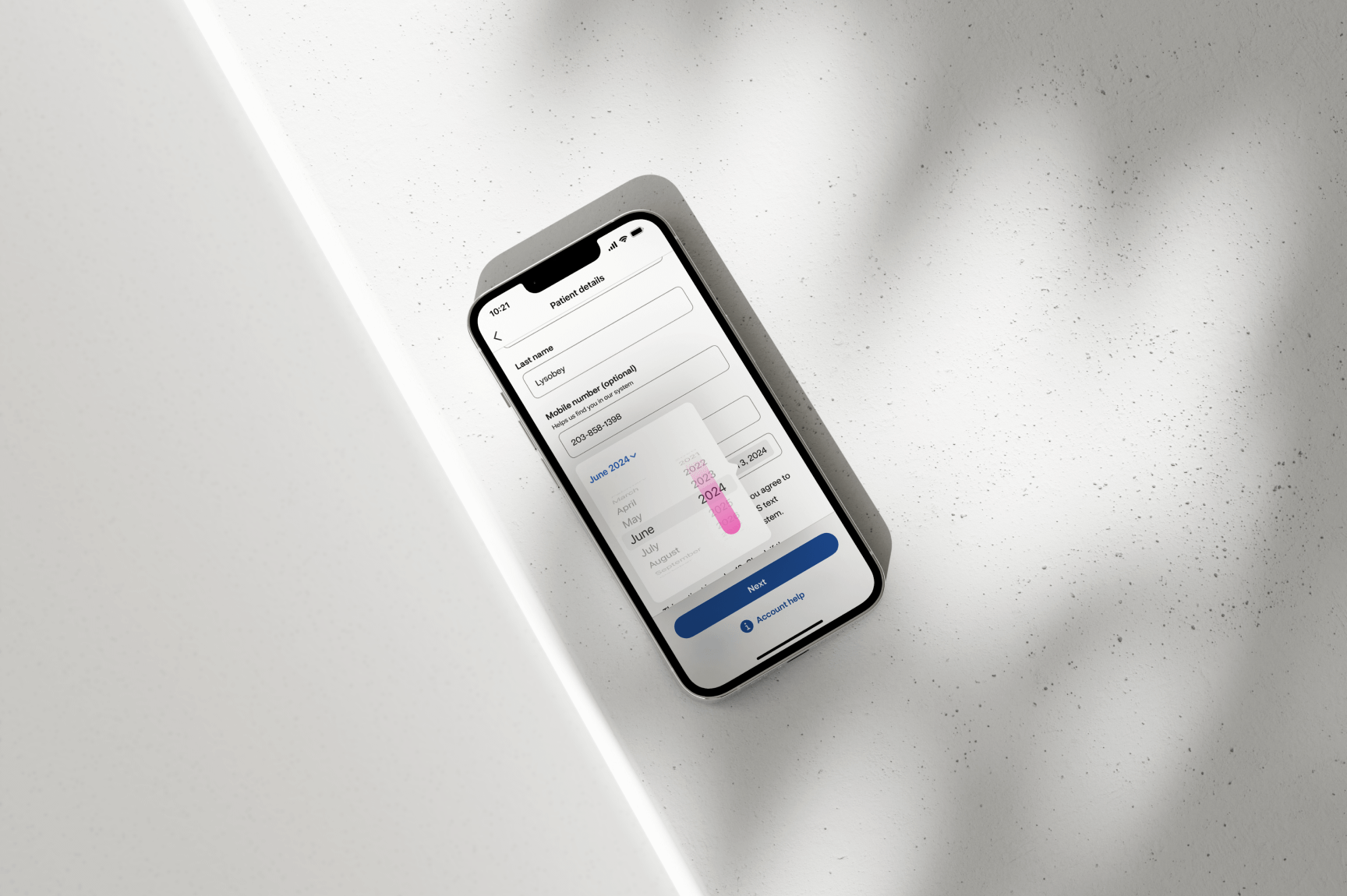
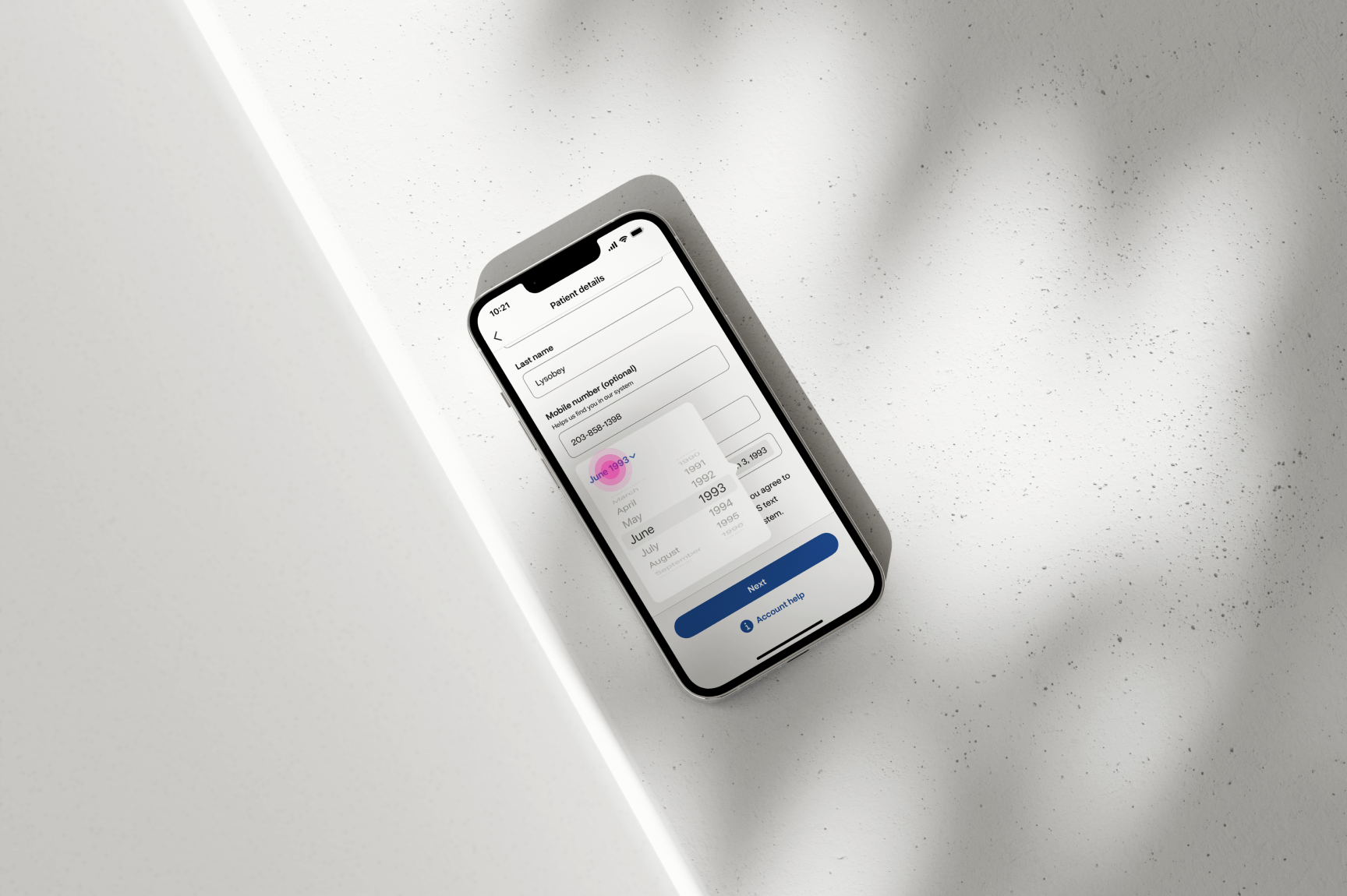
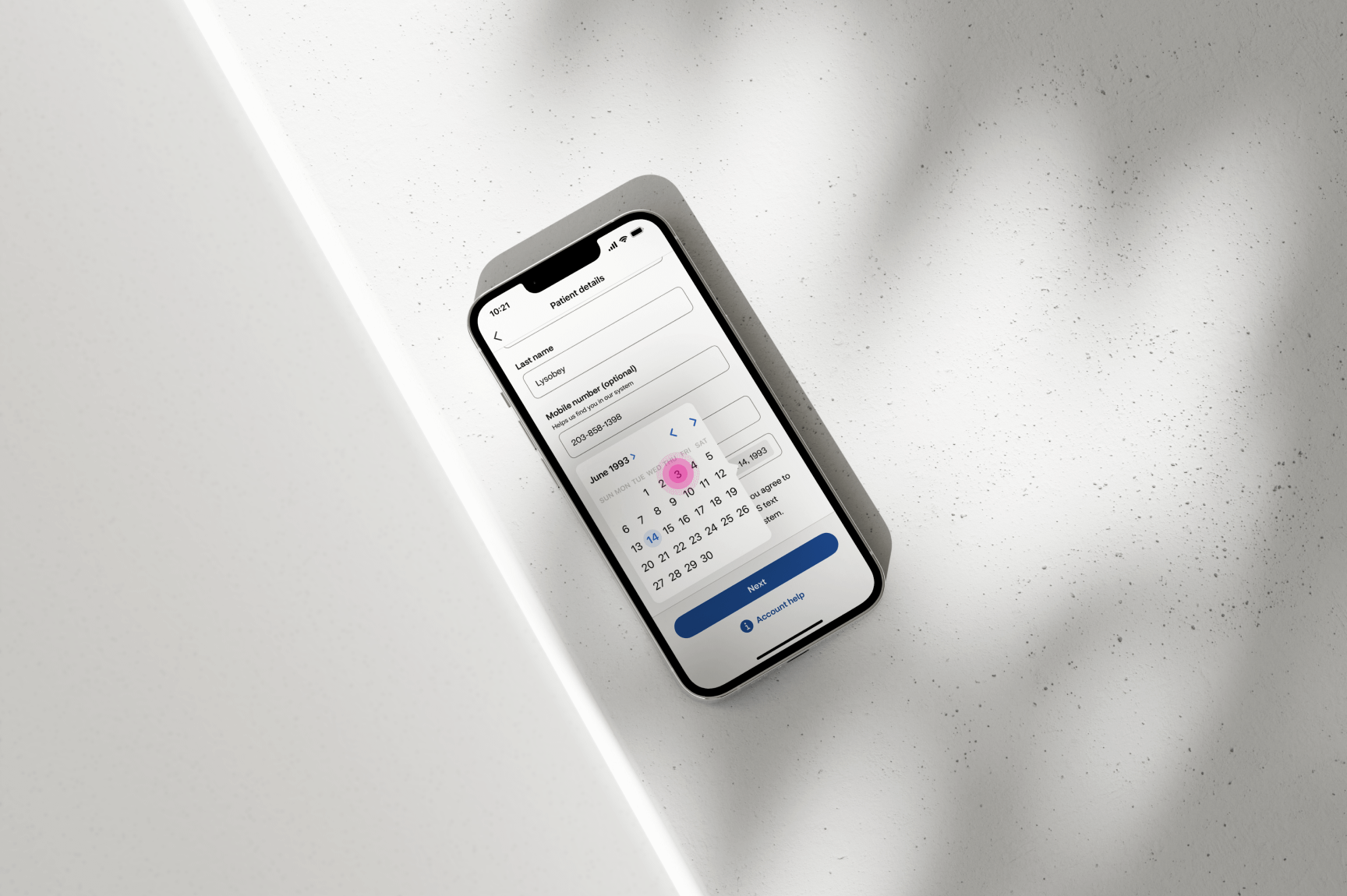
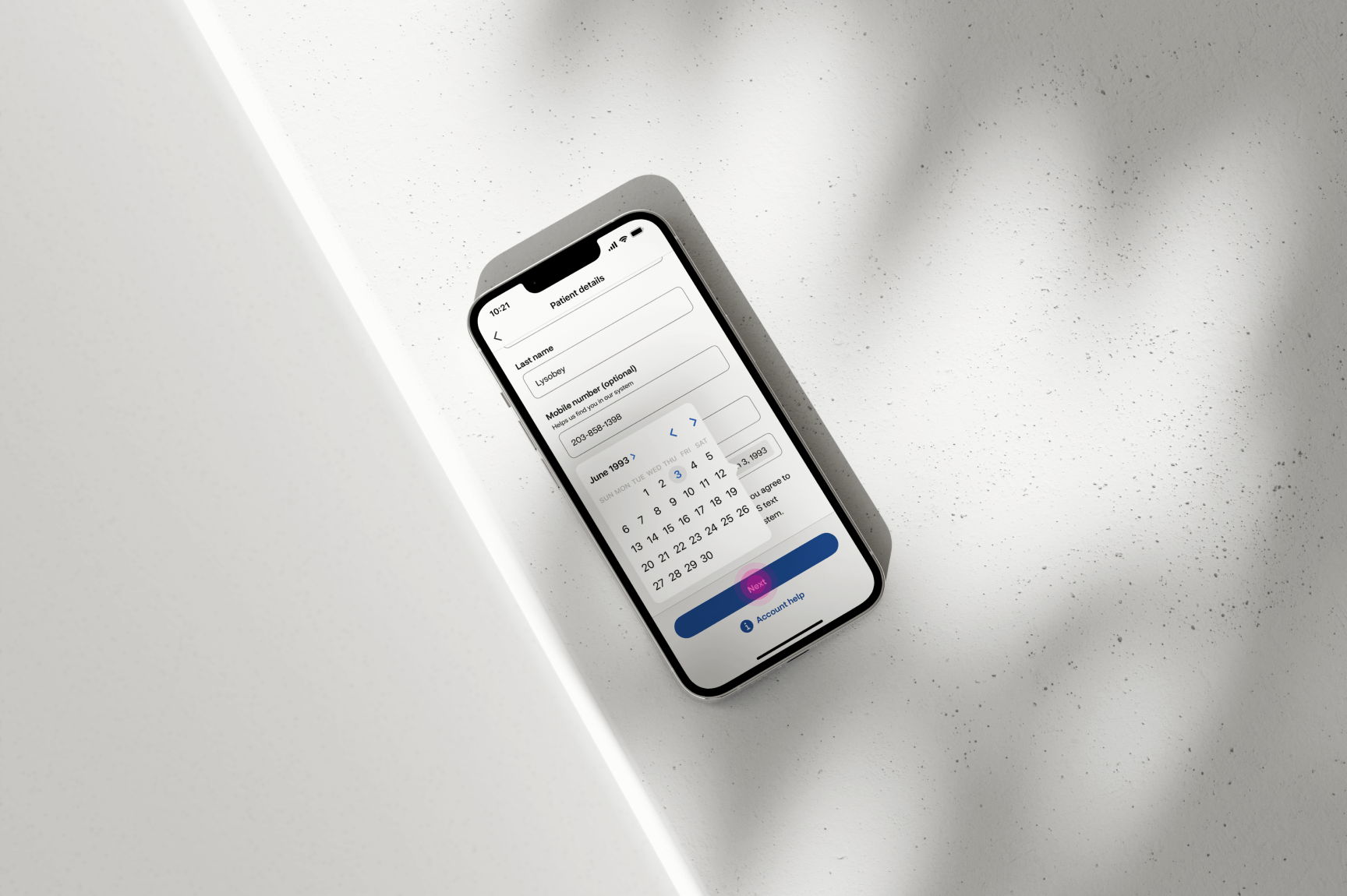
After selecting the “Continue without signing in” link, the user proceeds
to enter their basic information, enabling CVS to create a guest profile
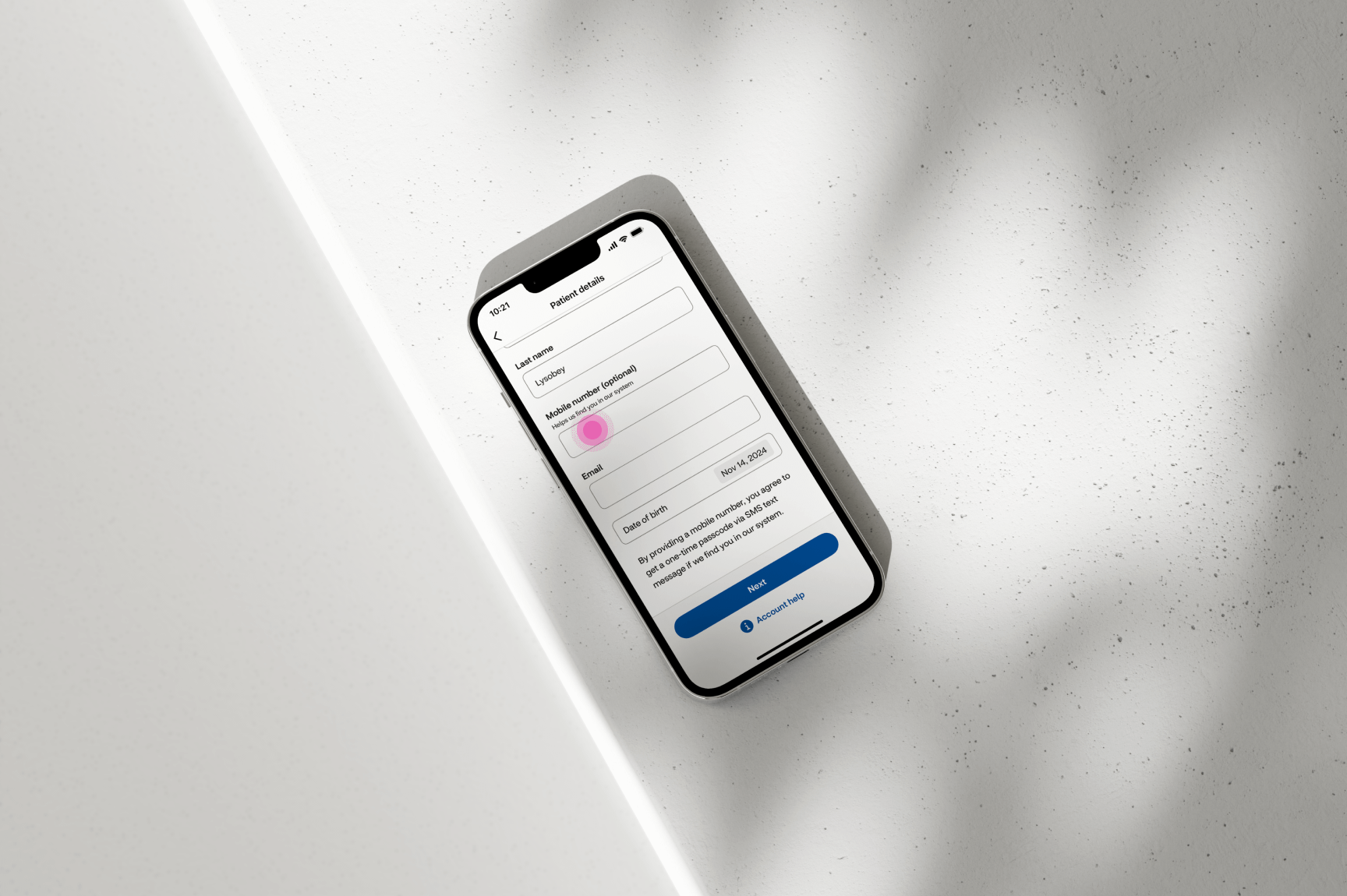
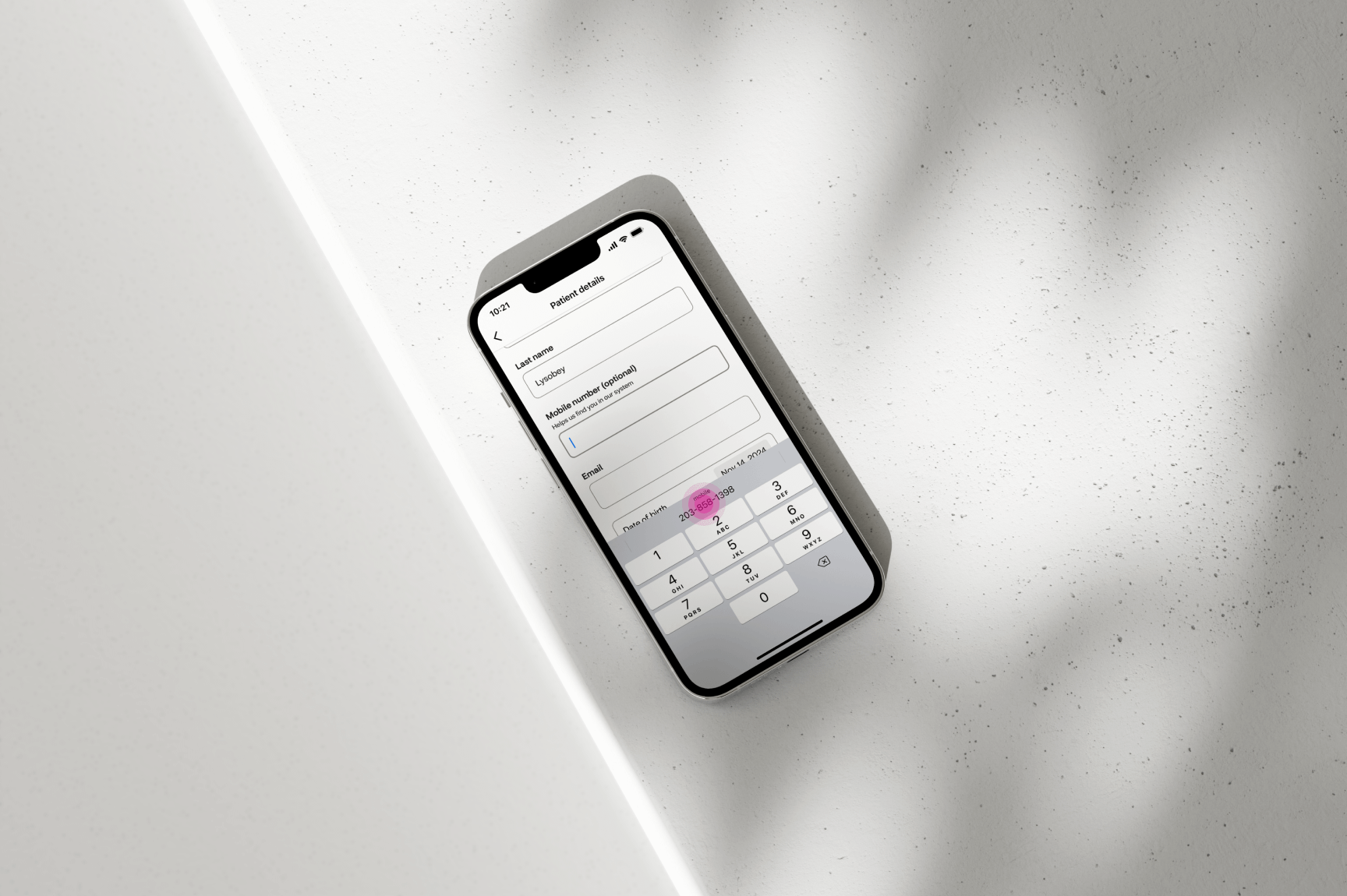
and ensure they receive the appropriate care. The required fields include
First Name, Last Name, Email, and Date of Birth, while all other fields
are optional and can be completed at the user’s discretion.
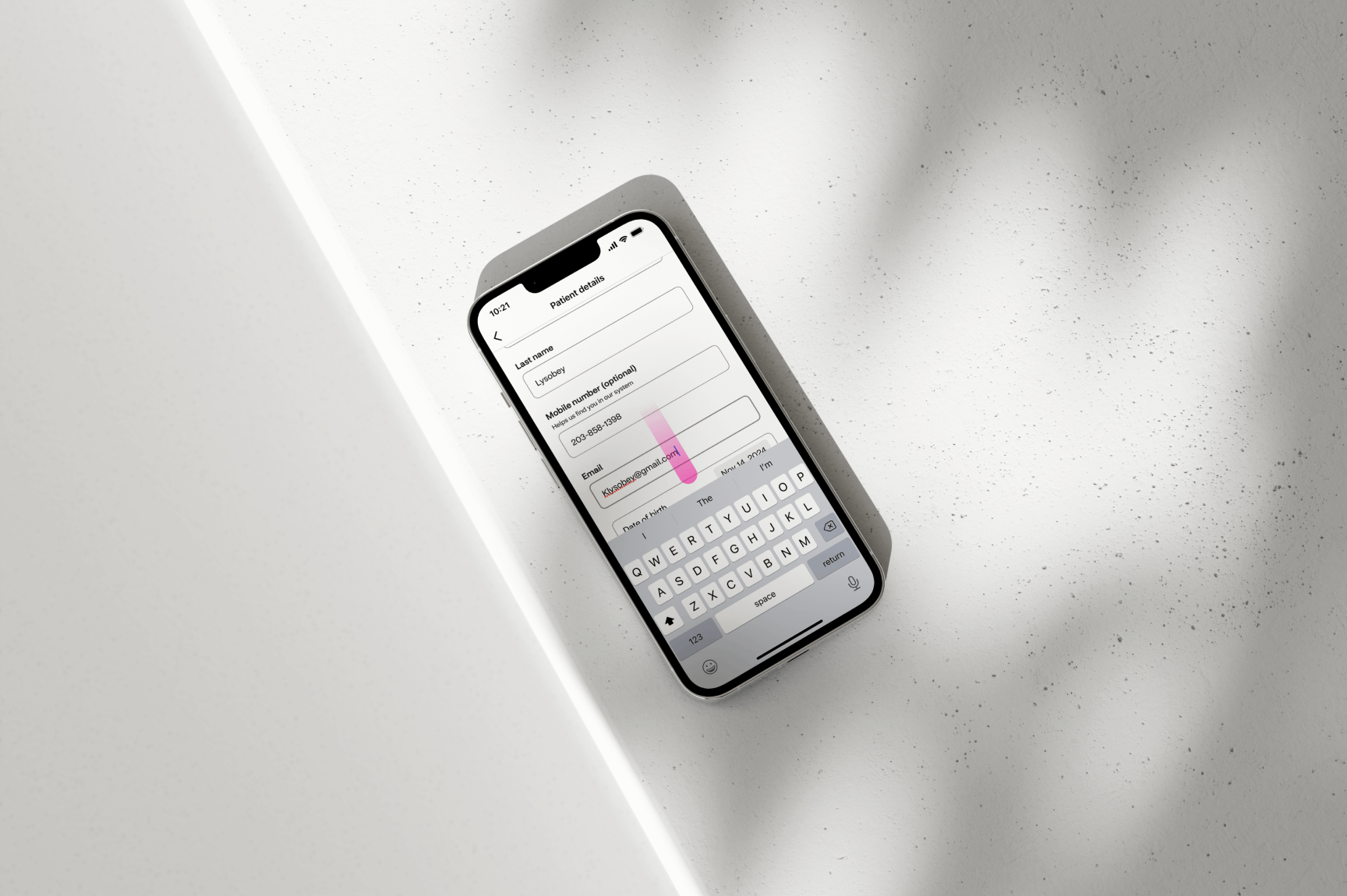
The Email field is mandatory as it serves several critical purposes: enabling
multi-factor authentication, providing a confirmation of the scheduled appointment,
and sending reminders for the upcoming appointment. Additionally, the confirmation
email allows users to conveniently cancel or reschedule their appointment if needed.
05
COMPLETING MUTLI FACTOR AUTHENTICATION
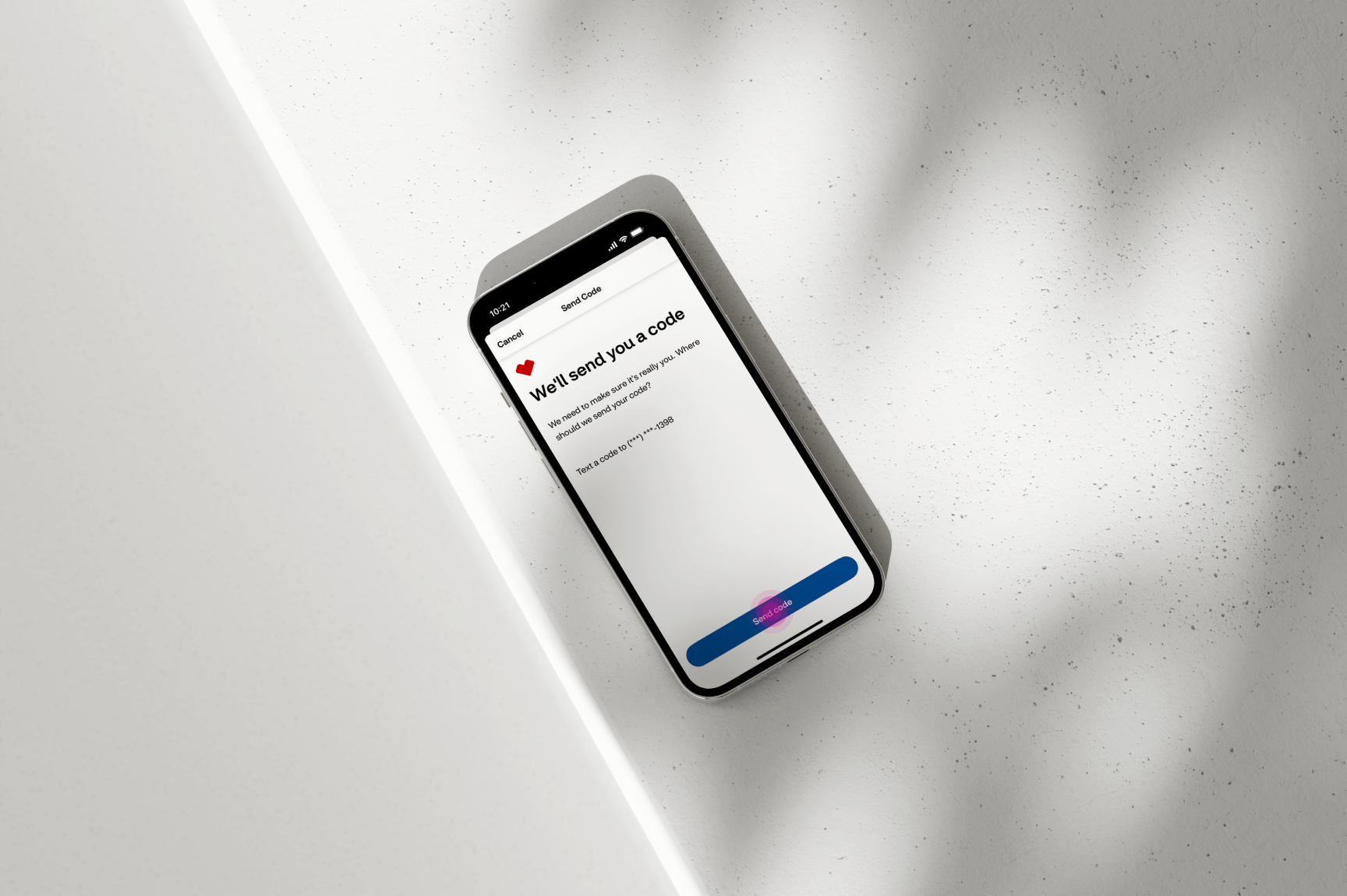
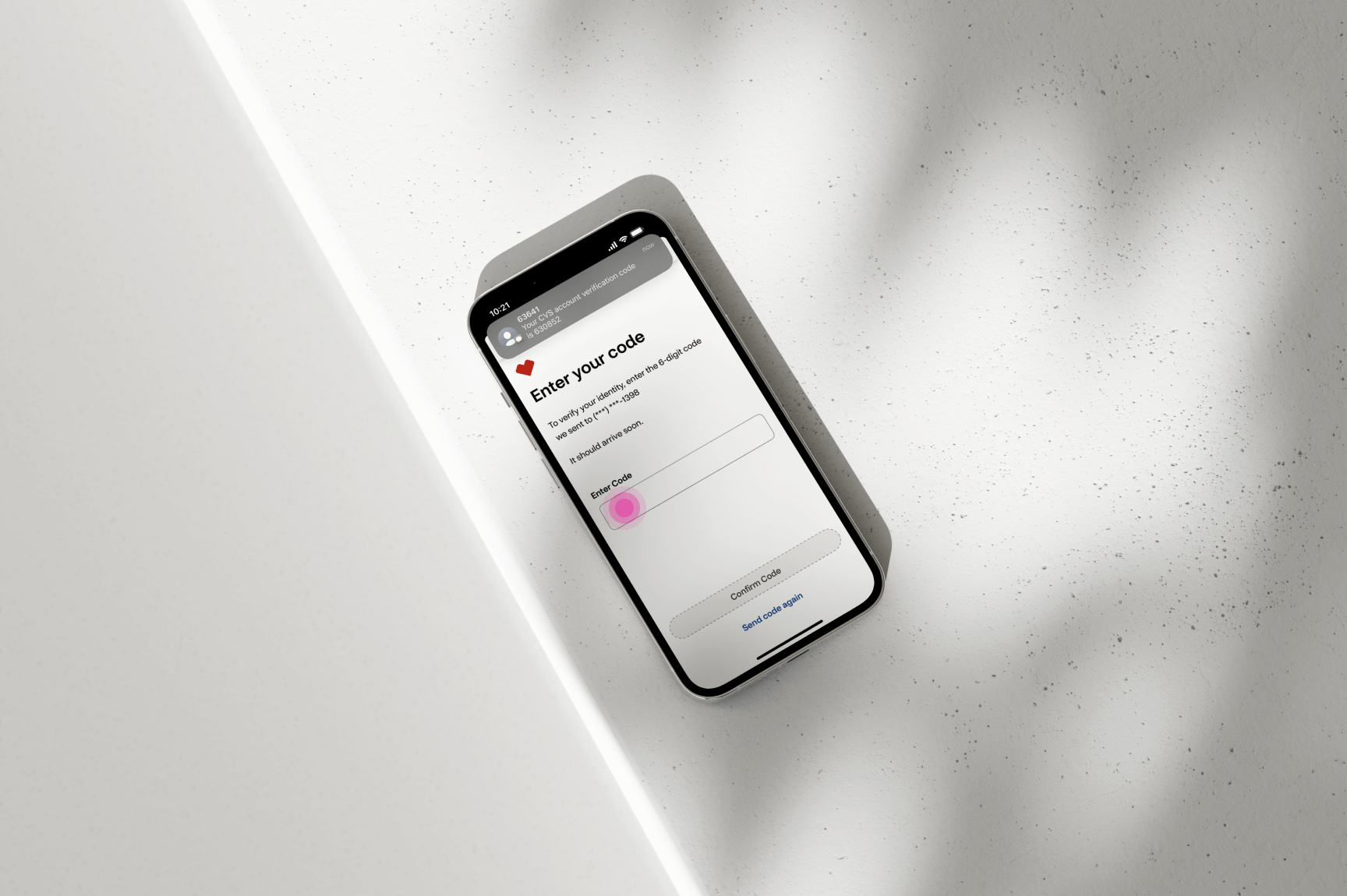
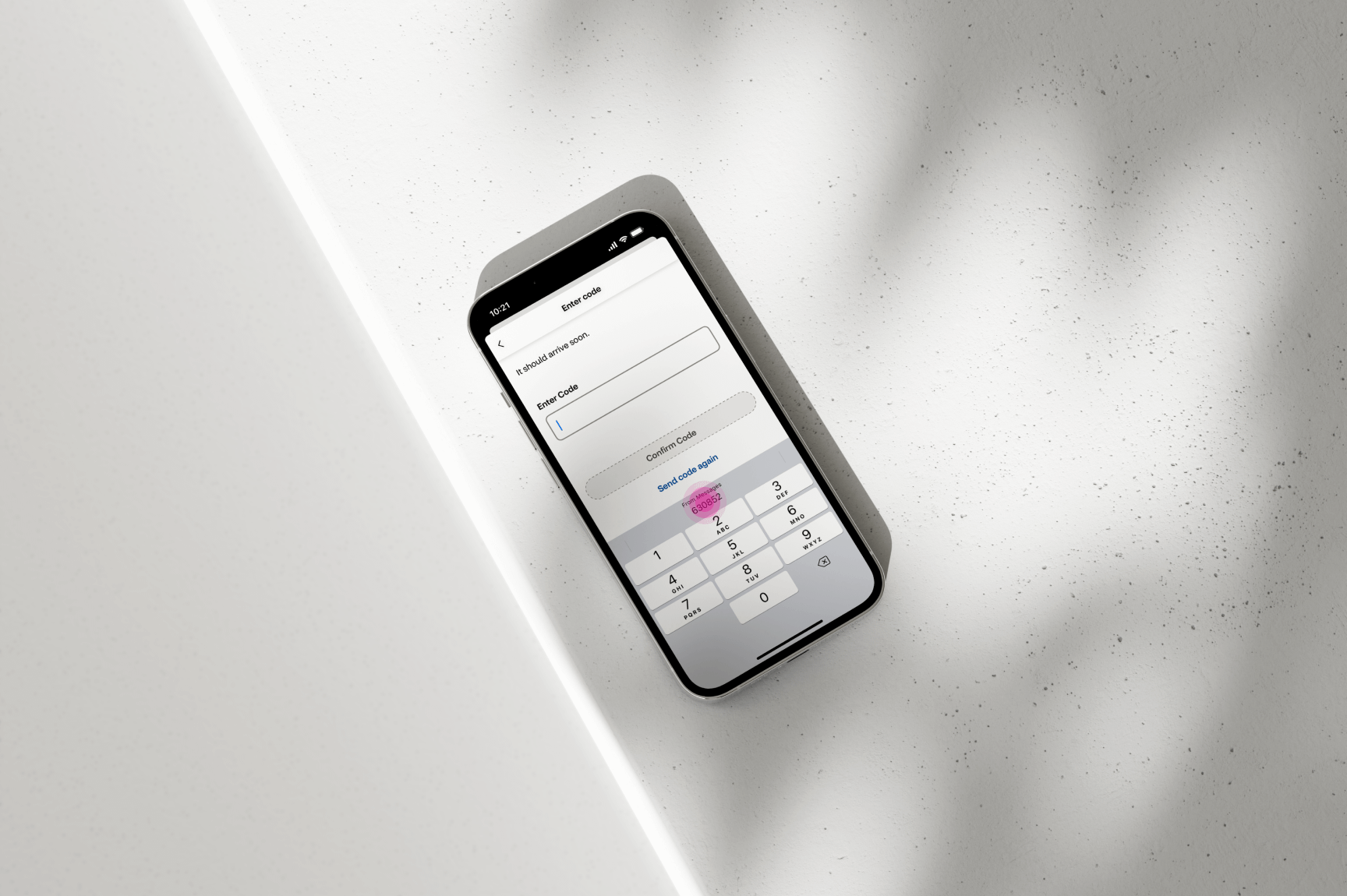
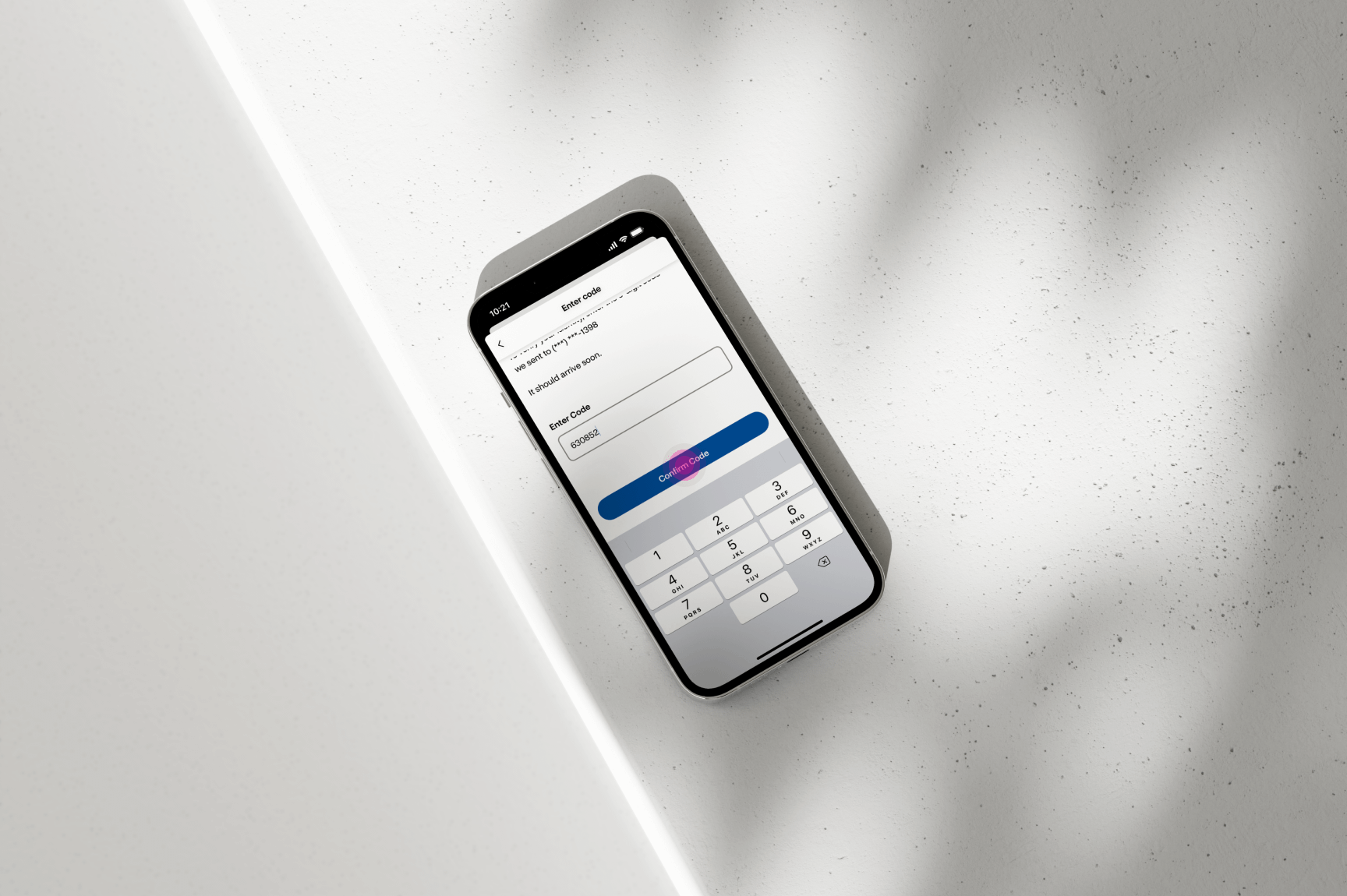
After submitting their basic information, users must complete a multi-factor authentication
(MFA) process. This step enhances security and ensures the accuracy of the contact information
provided. By verifying their details, users can receive appointment confirmations that include
all necessary visit details, as well as options to cancel or reschedule if needed.
MFA also ensures that CVS can reliably contact the user if necessary. In the example above,
authentication is completed via SMS. If the user only provides an email address, the
authentication process is conducted through email instead.
06
SELECTING SERVICE TO SCHEDULE
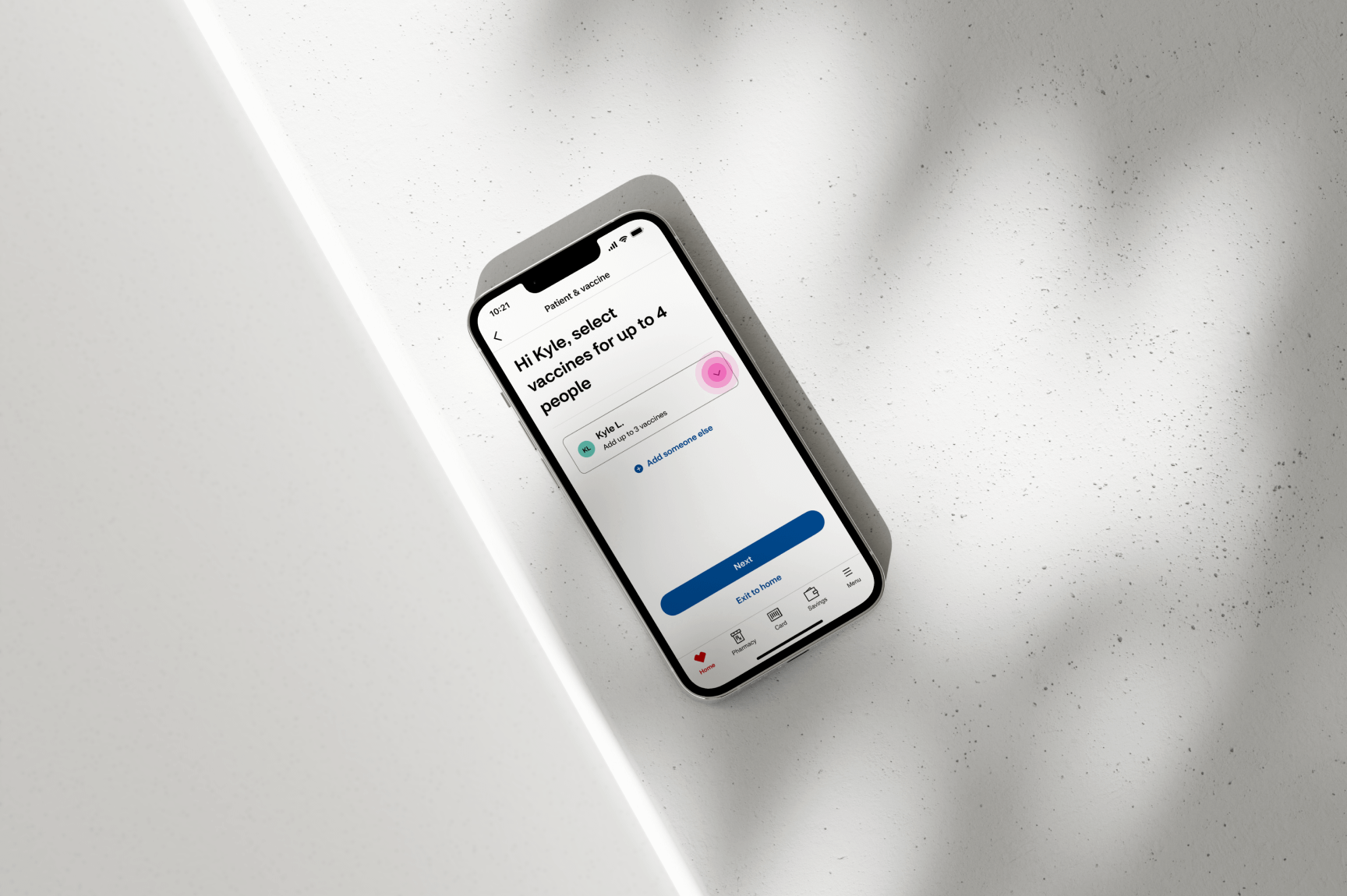
After the user’s identity and contact information have been verified, they are directed
to the “Patient and Vaccine” screen. Since the initial link was specific to flu vaccinations,
this flow emphasizes the various vaccines CVS offers.
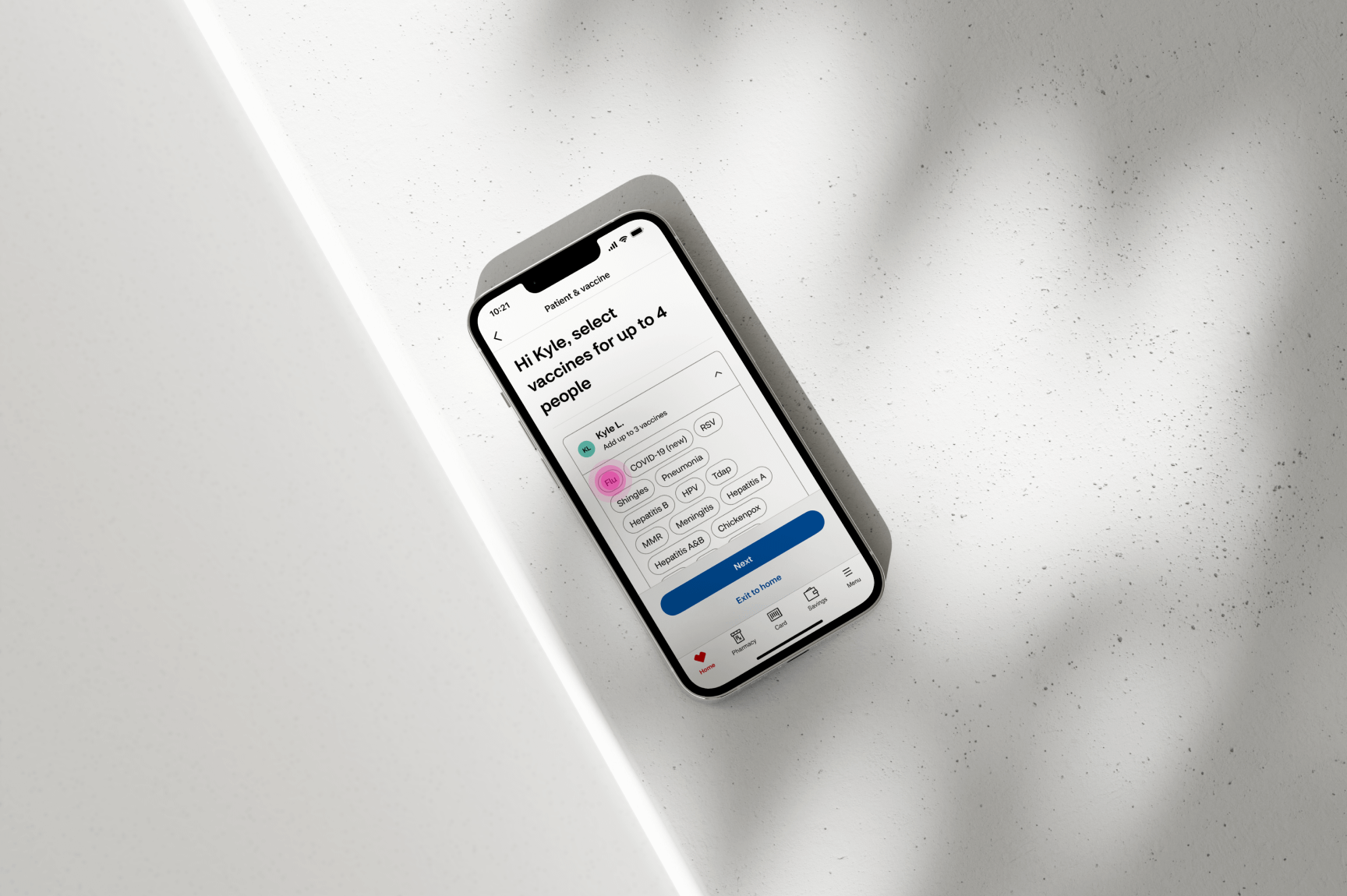
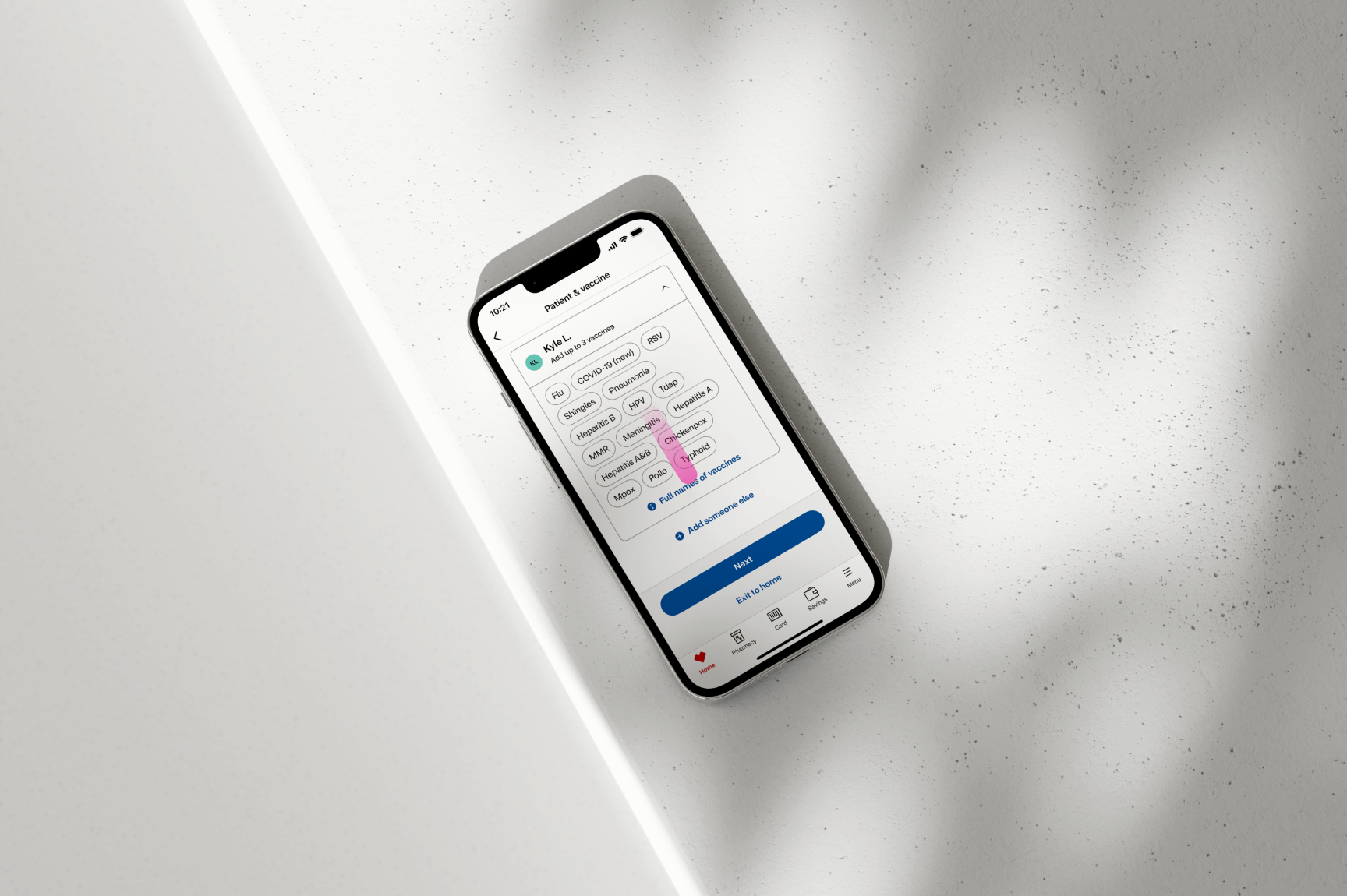
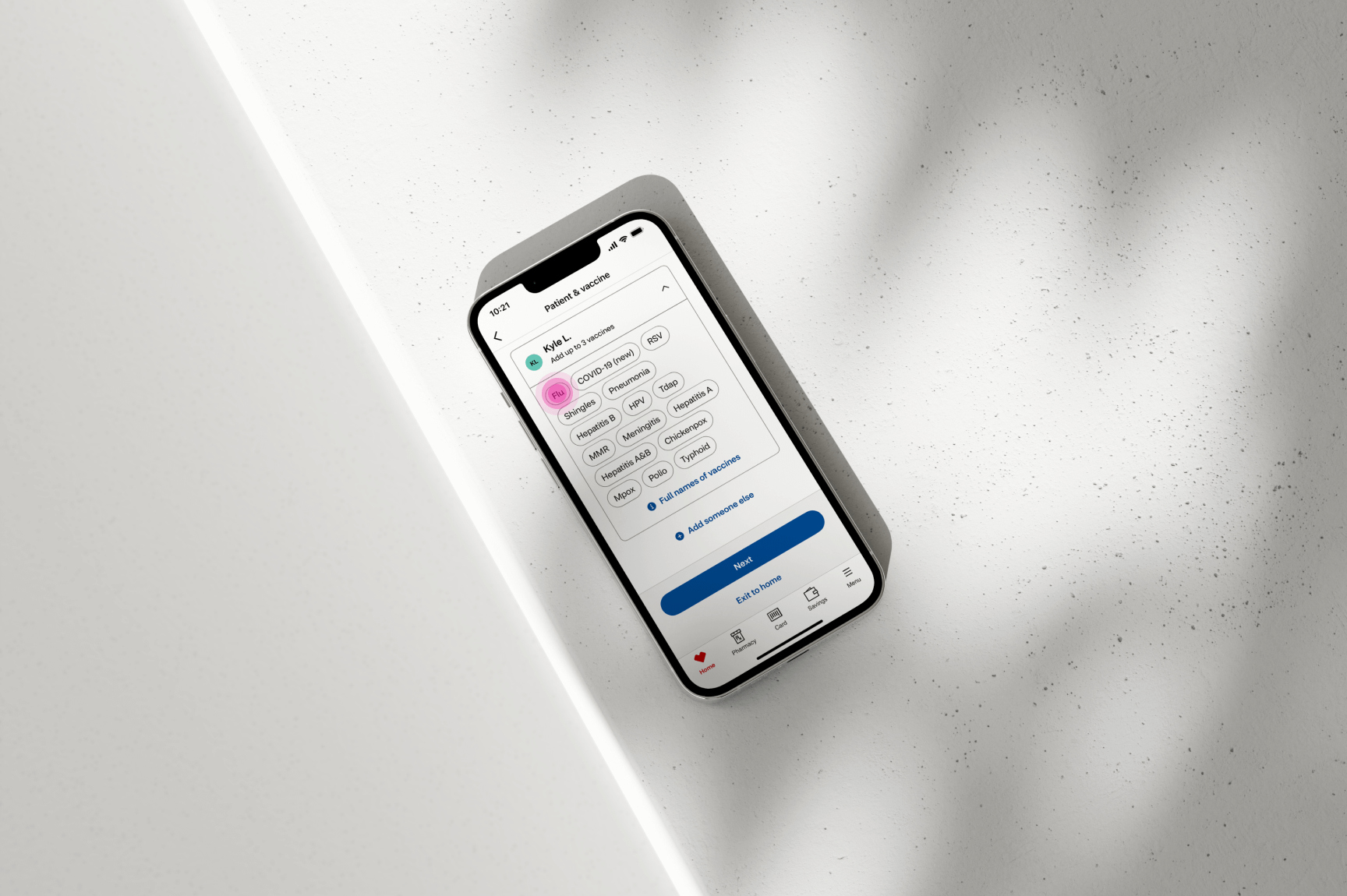
By selecting the section of the card displaying the user’s name and the dropdown icon, users can
expand the view to explore the available vaccines. They can select up to three vaccines to receive
during a single visit. Once a vaccine is chosen—for example, “Flu”—the corresponding button will
display an active state. Additionally, the selected vaccine will appear in text below the user’s
name, and a green checkmark will be shown to the right of the user’s name as further confirmation.
After selecting the desired vaccines, users can proceed by clicking the “Next” button. At this stage,
they are presented with recommended vaccines tailored to their needs. These recommendations may vary
based on seasonal relevance or if the user’s area is experiencing an uptick in illnesses for which CVS offers vaccines.
07
CHOOSING TIME AND LOCATION OF APPOINTMENT
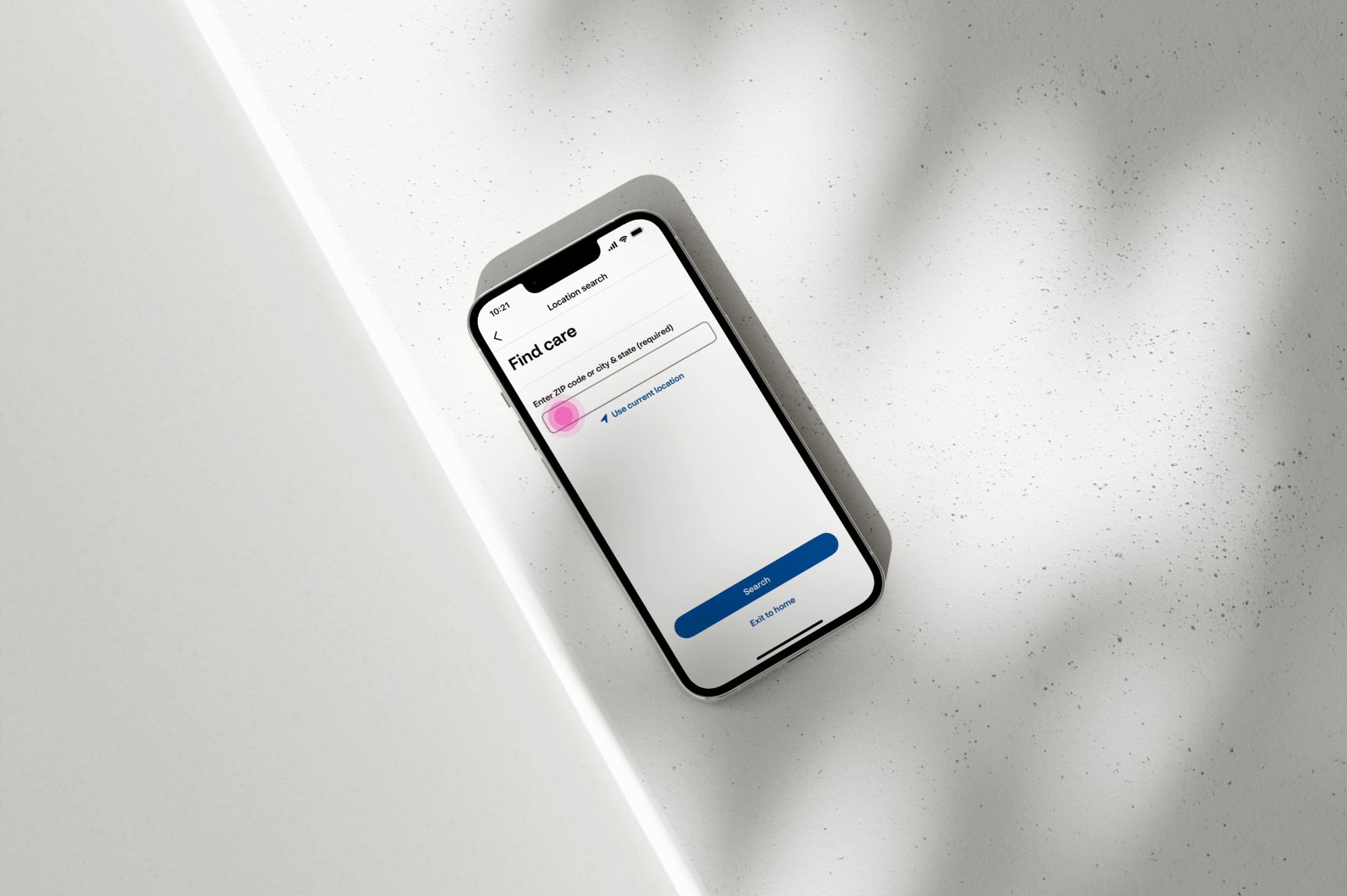
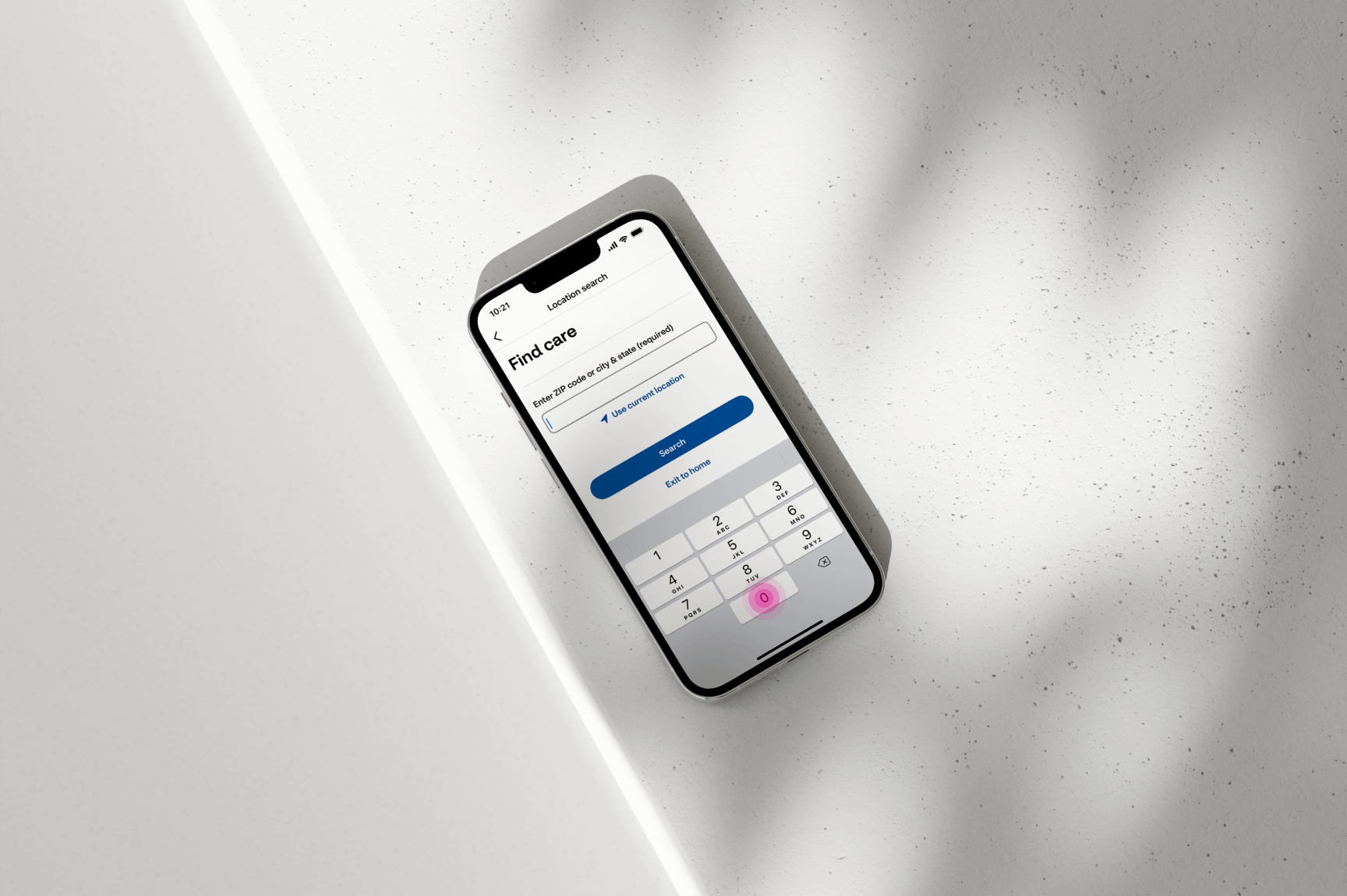
After selecting their desired vaccine, users can choose a time and location that best suits their
needs. They can either enter a ZIP code manually or select “Use current location,” which
automatically inputs their location into the CVS app and proceeds to the next step.
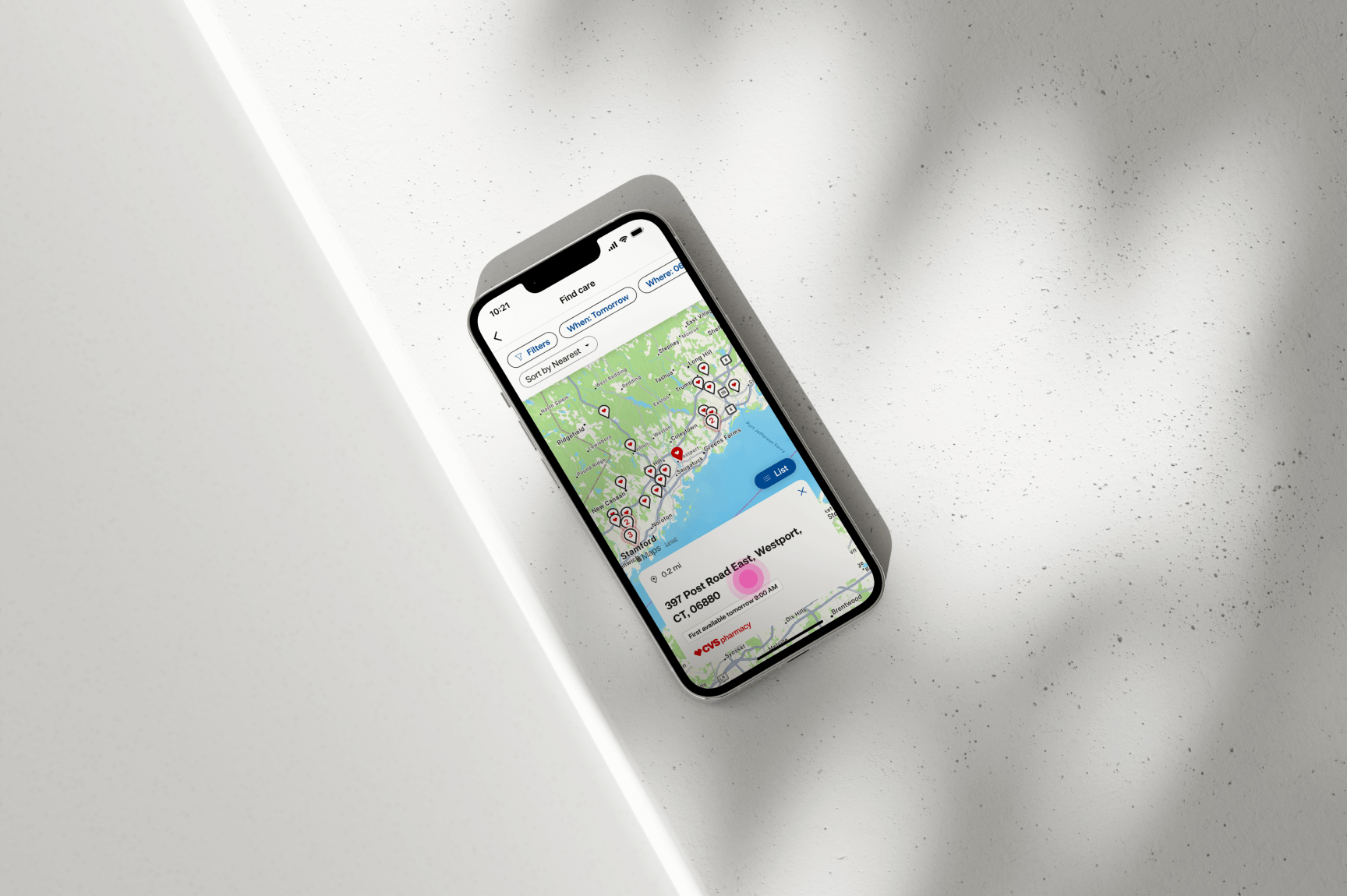
At this stage, users are presented with a map displaying pins for nearby CVS locations. By default,
the app highlights the closest location with available appointments. Users can explore other options
by selecting different pins on the map or scrolling through the list of recommended locations.
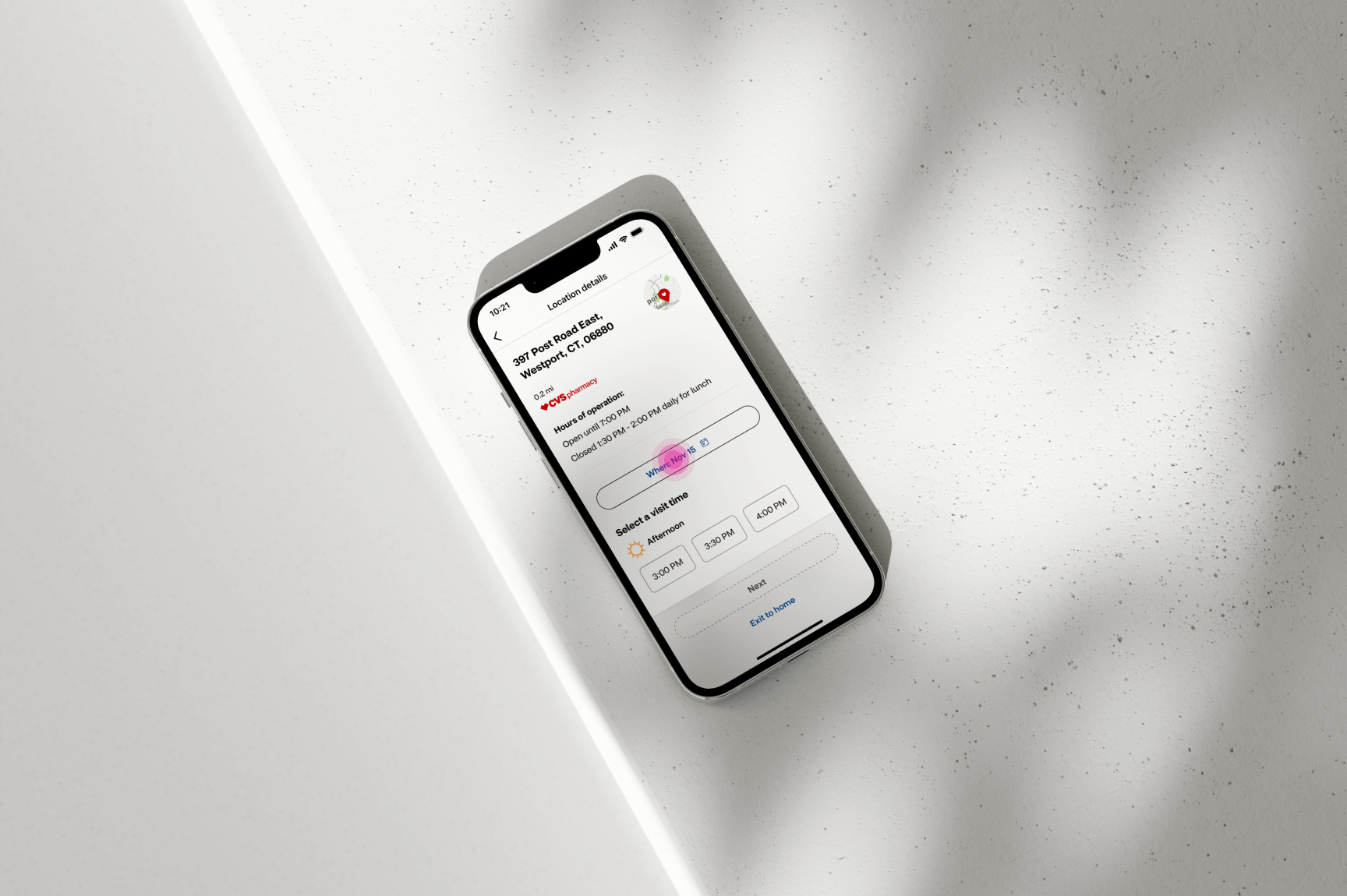
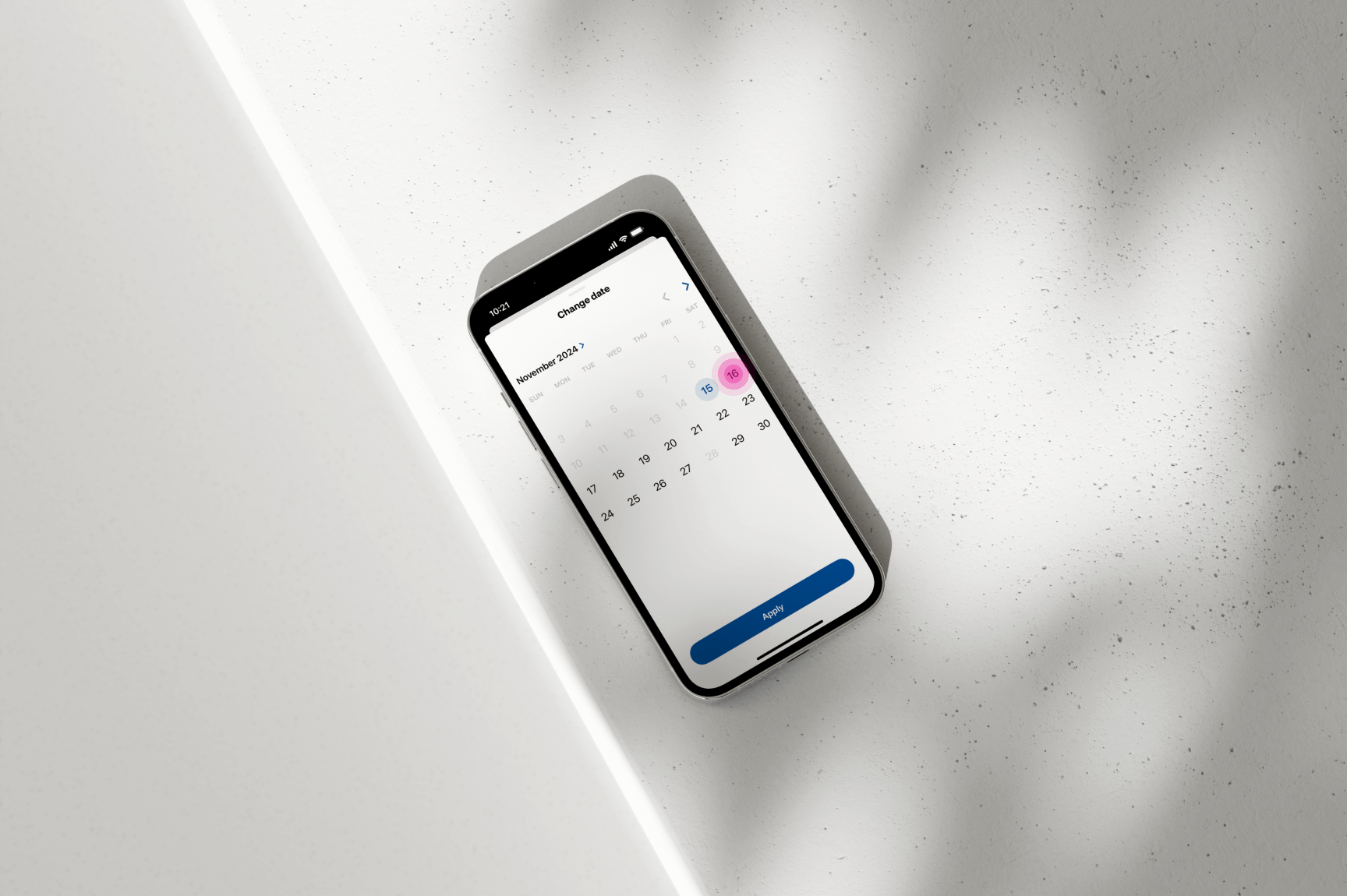
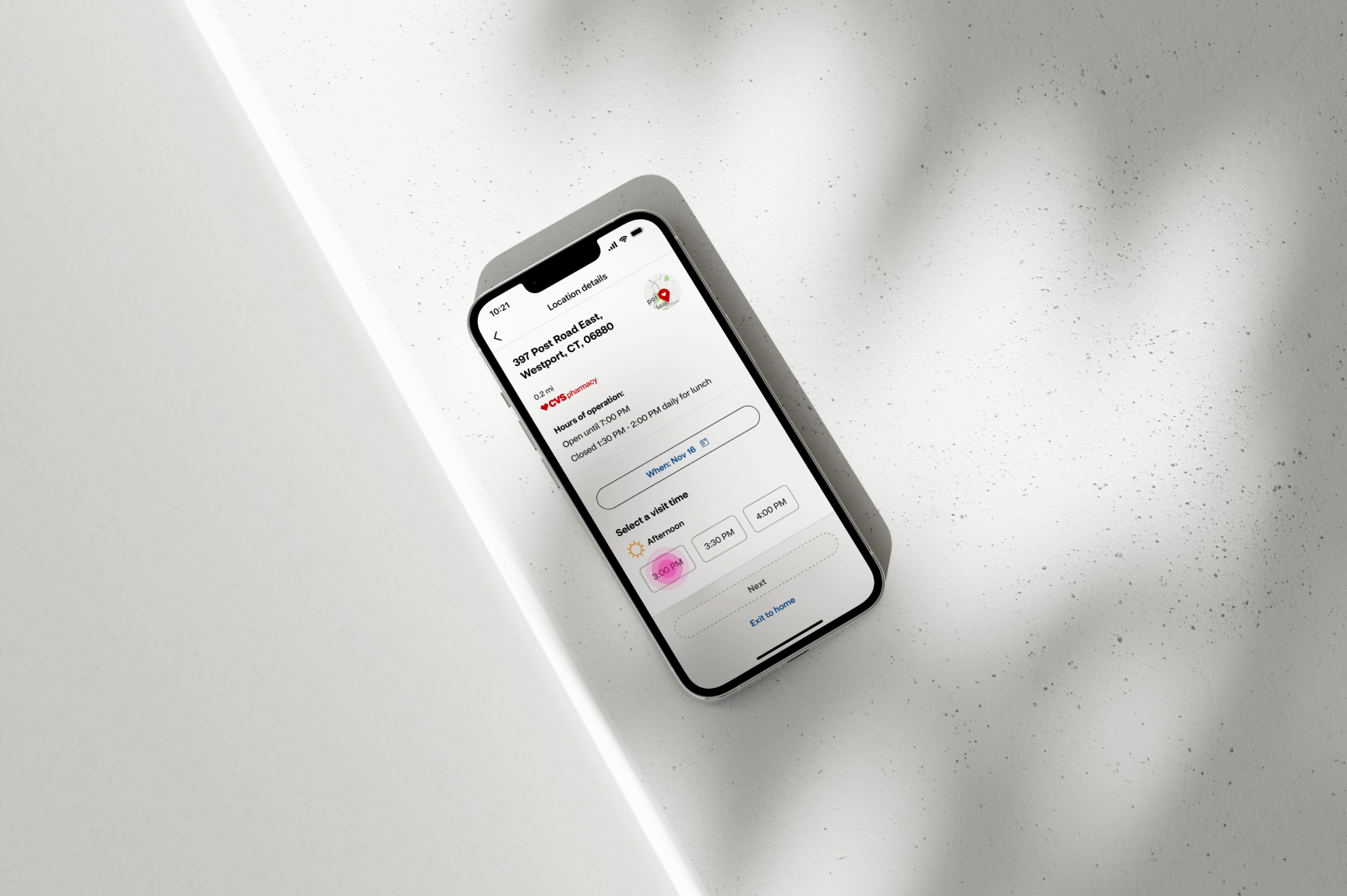
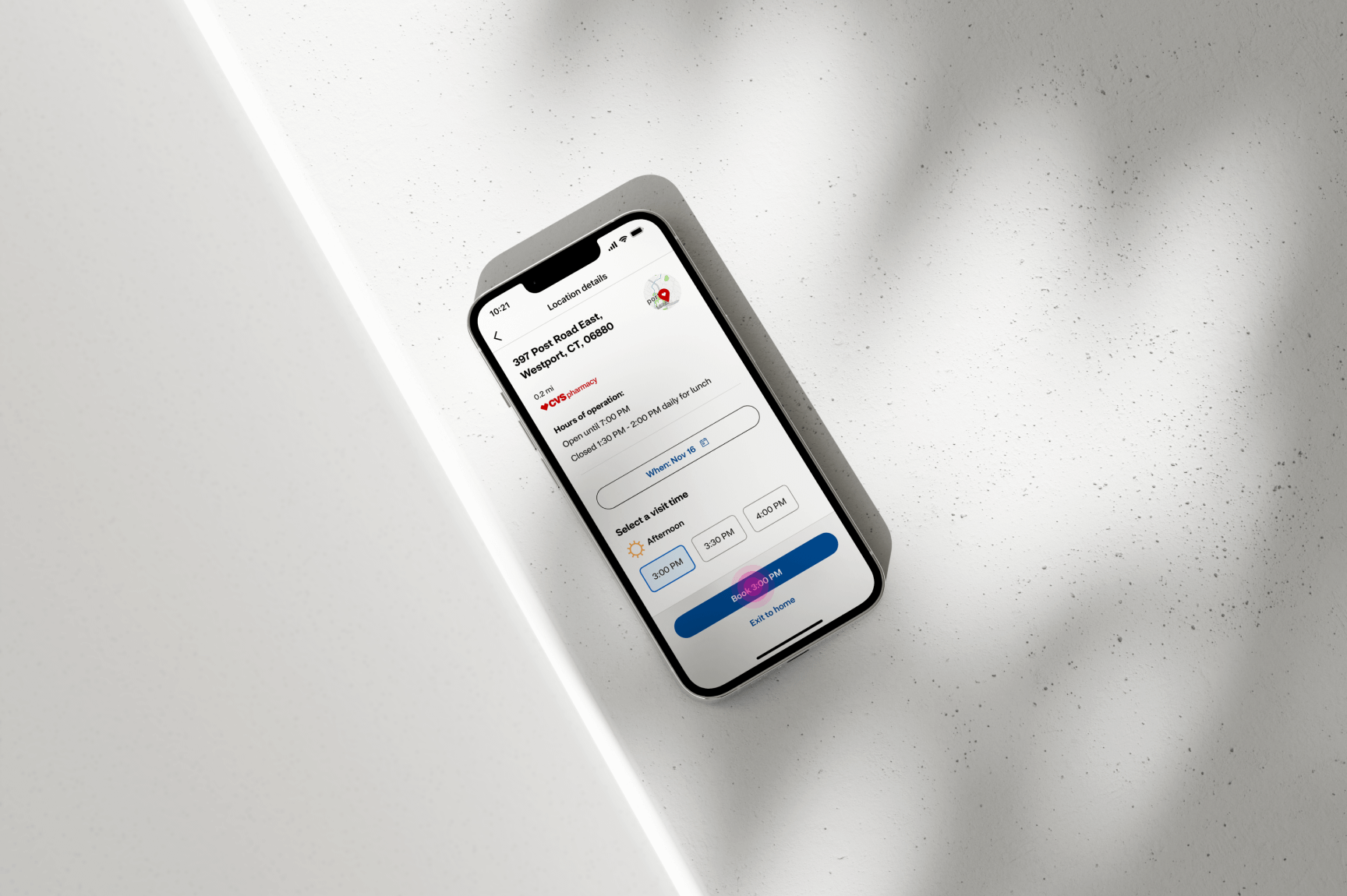
In this example, the user selects the recommended location at “397 Post Road East, Westport, CT,
06880.” Once a location is chosen, the user proceeds to select a preferred date and time for their
appointment. After confirming both the location and time, they simply click the “Book” button to
move on to the next step.
08
GATHERING SOME MORE BASIC INFORMATION
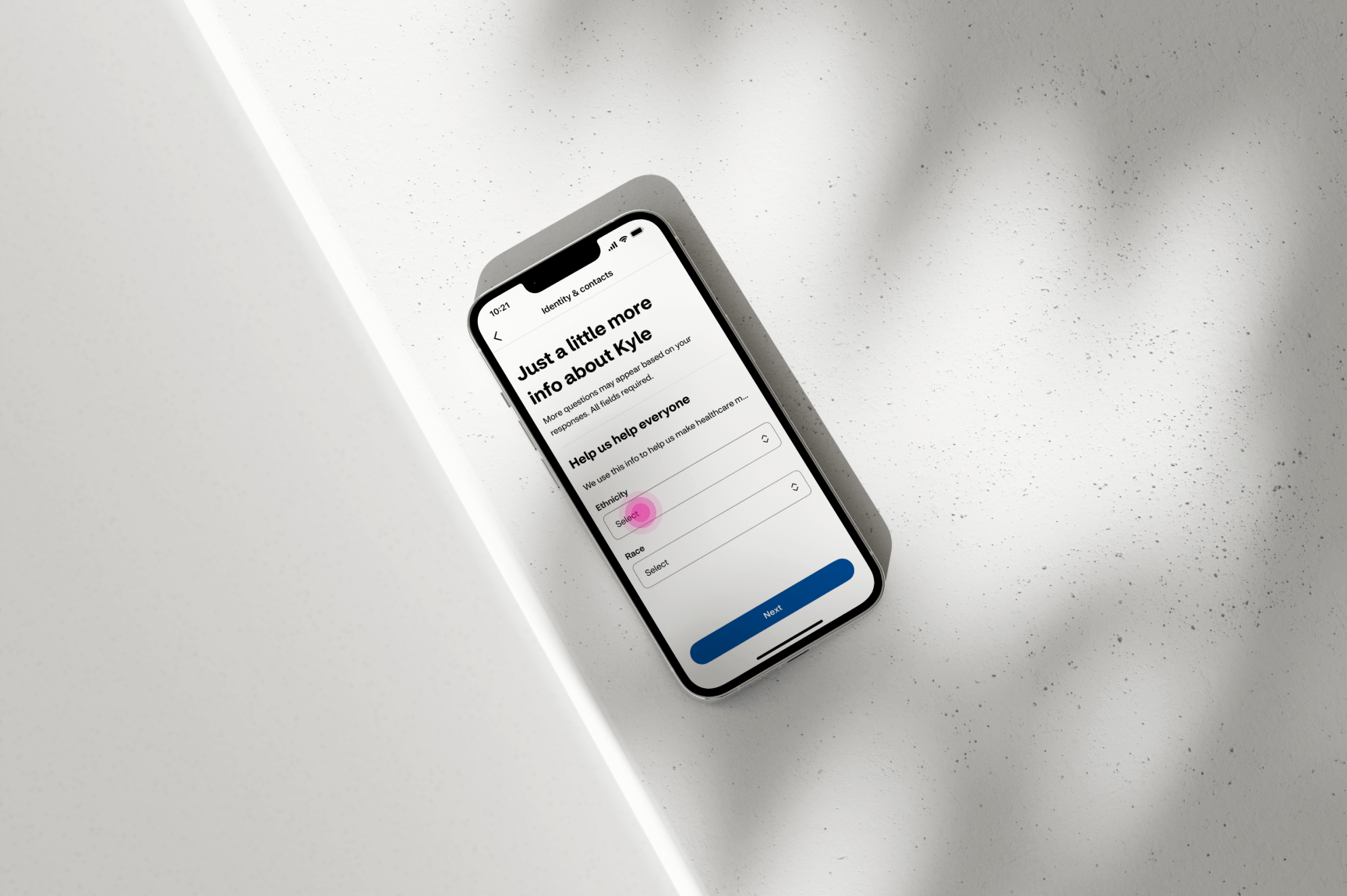
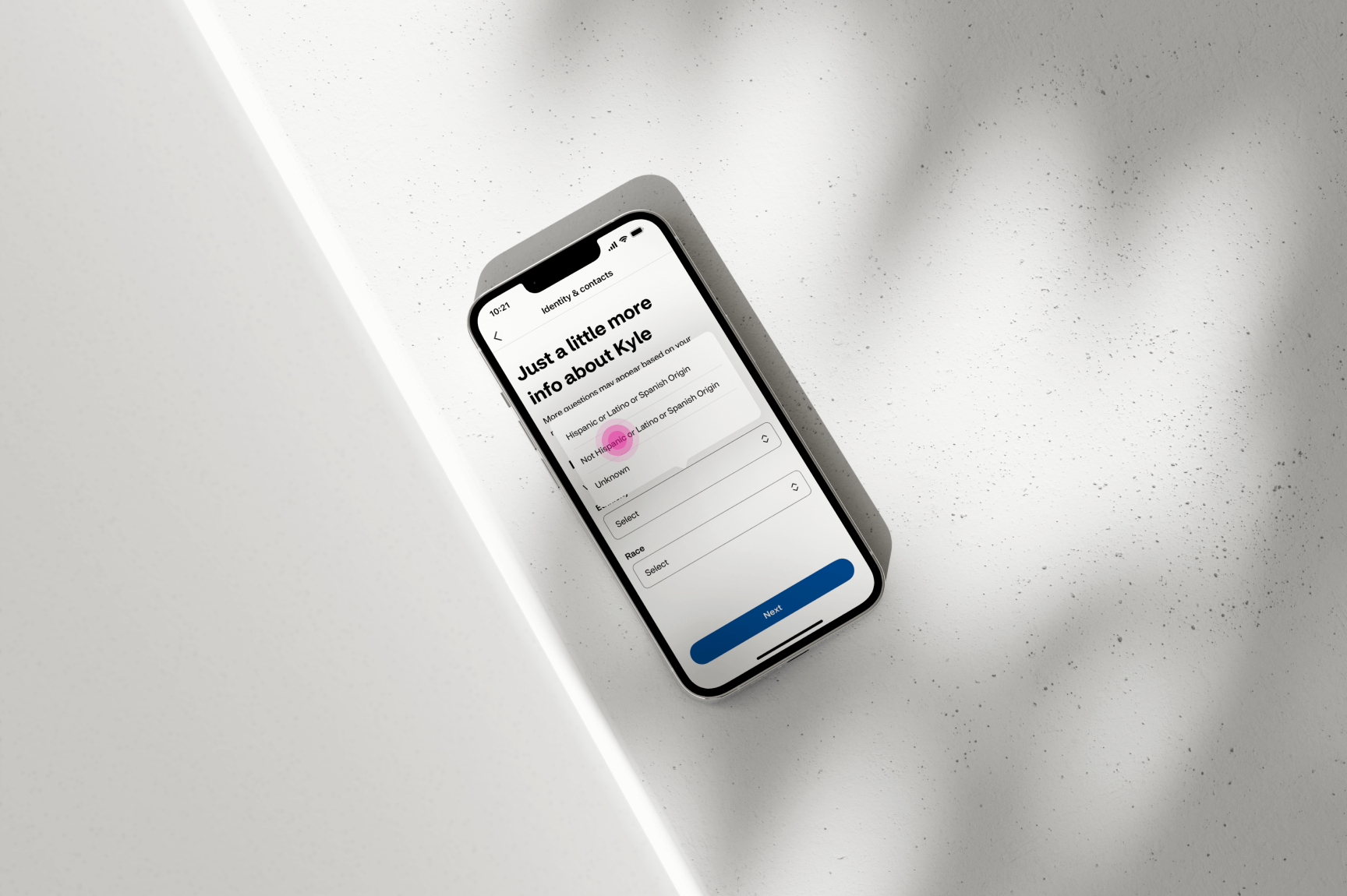
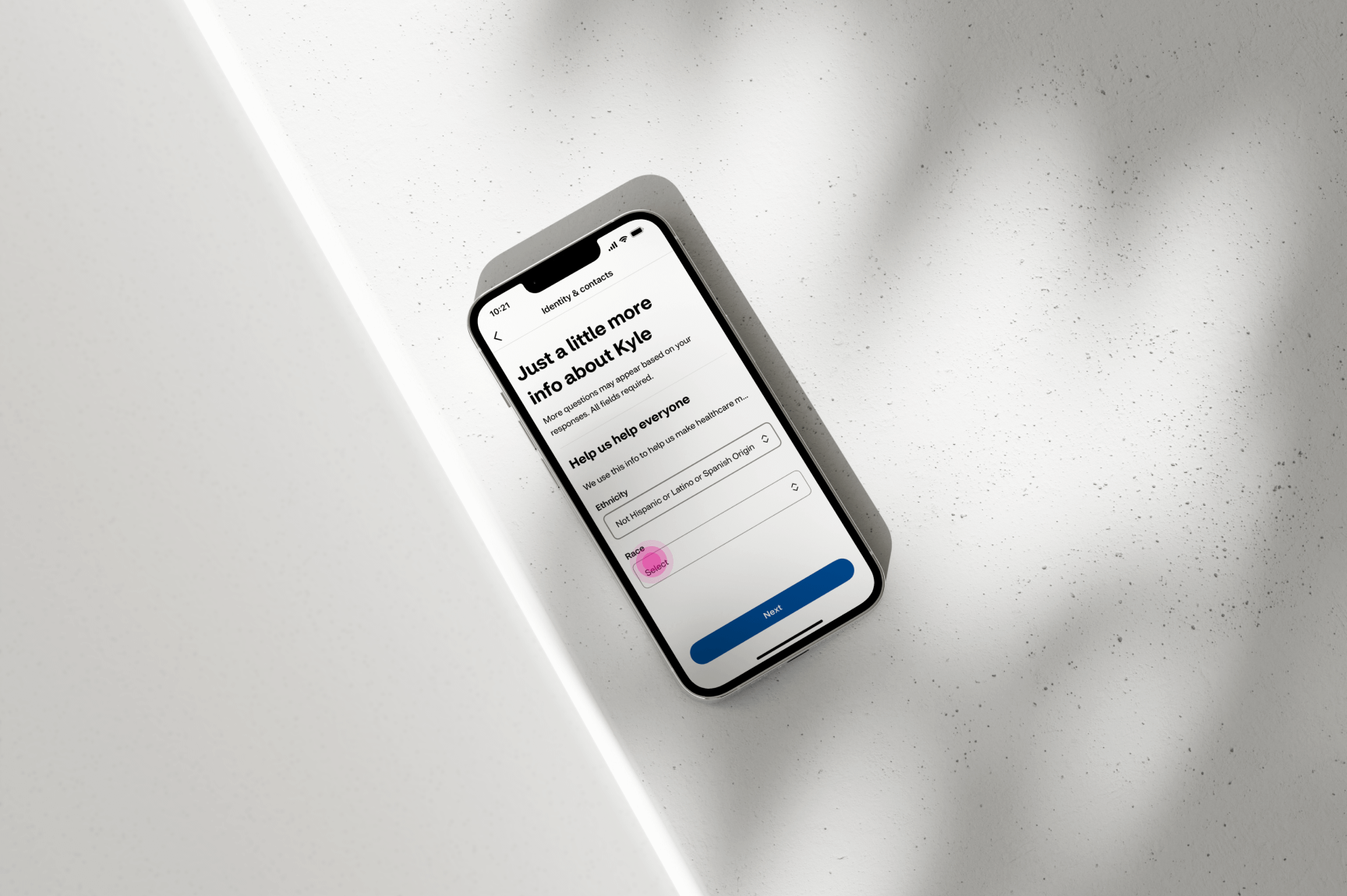
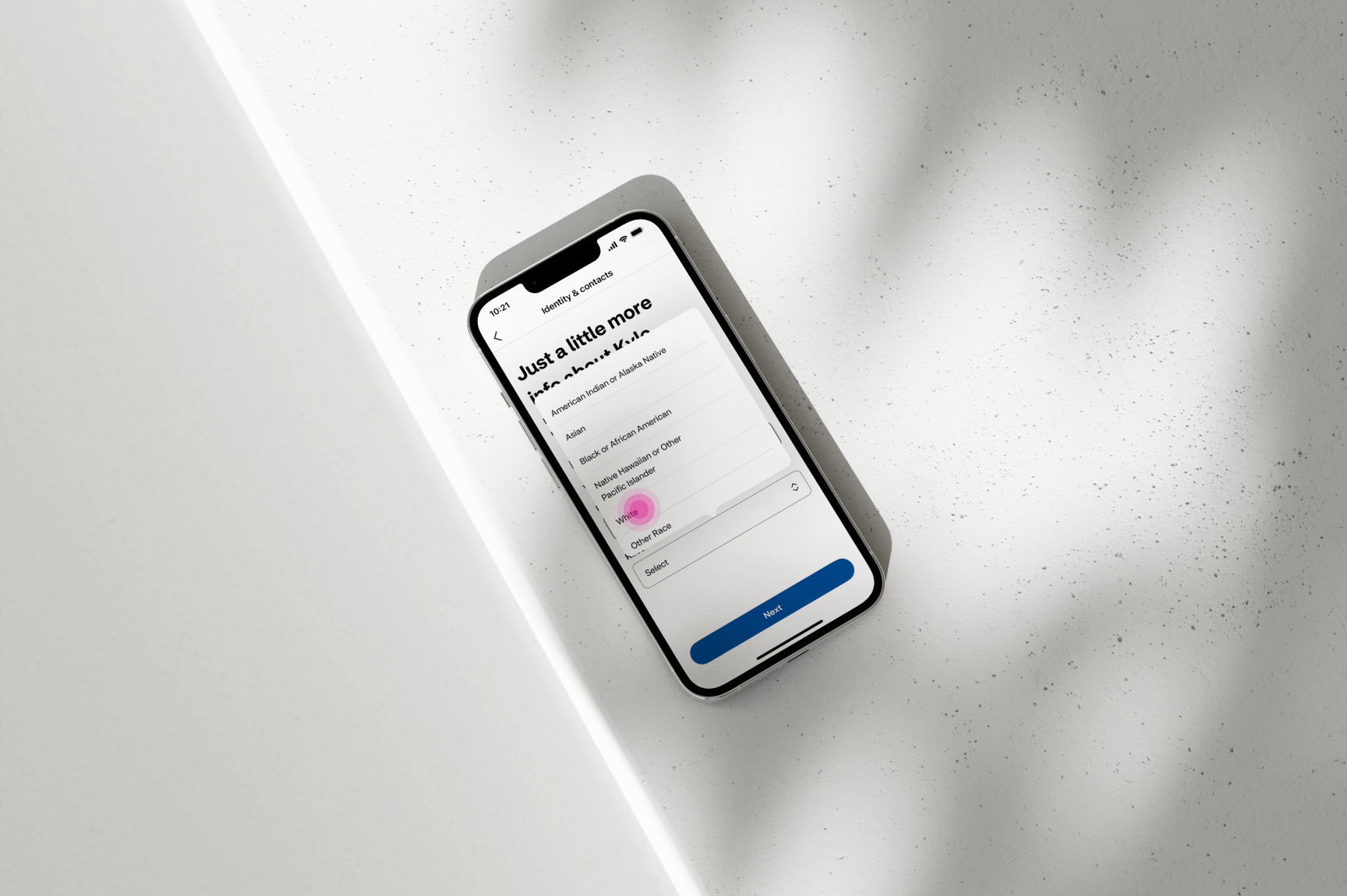
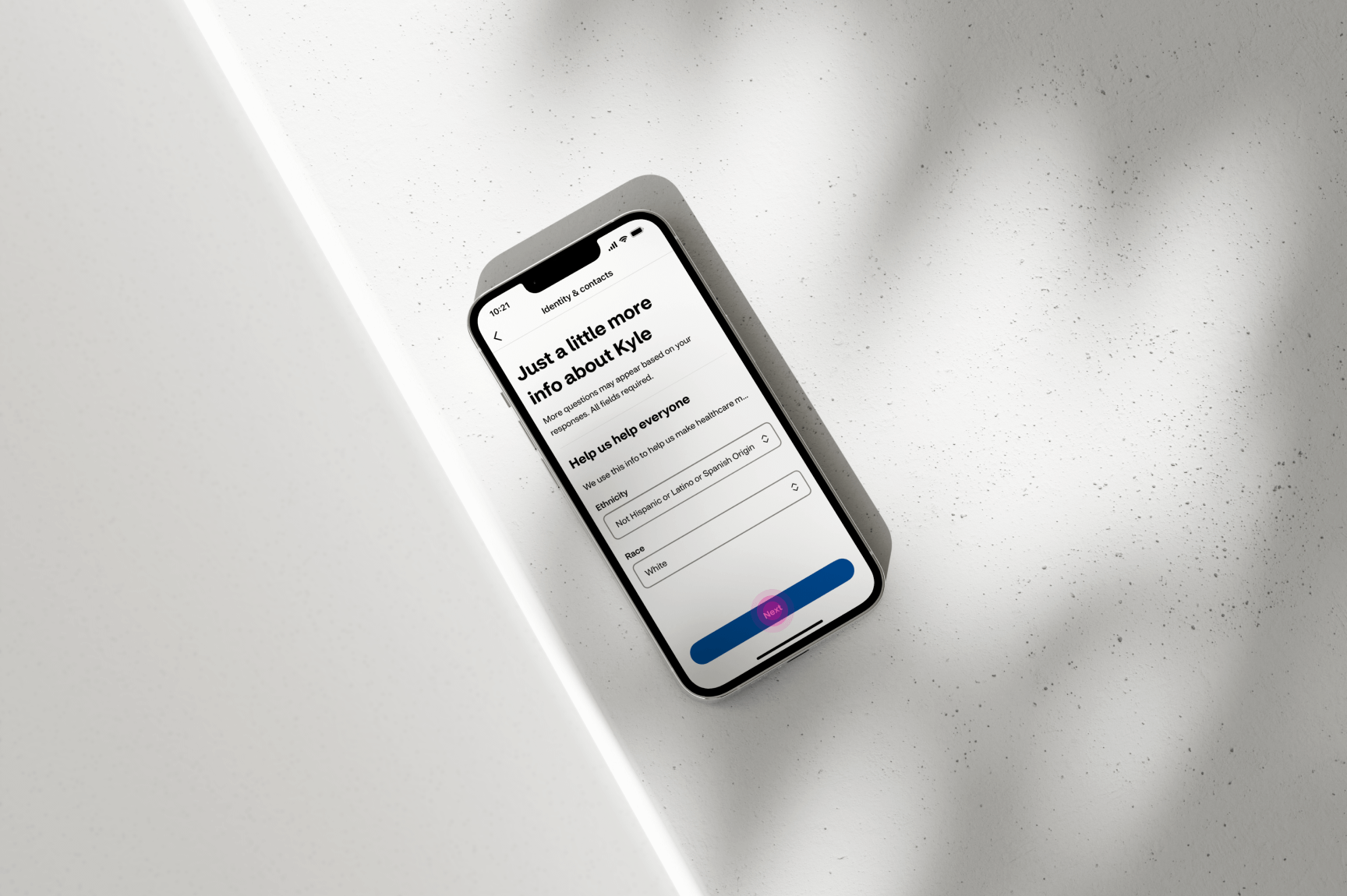
The next step involves gathering additional details from the user for legal purposes and to ensure
they receive the best possible care. To provide their ethnicity and race, the user simply clicks the
input field, which displays a list of options to choose from. Once these details are entered, the user
can click the “Next” button to proceed to the following screen.
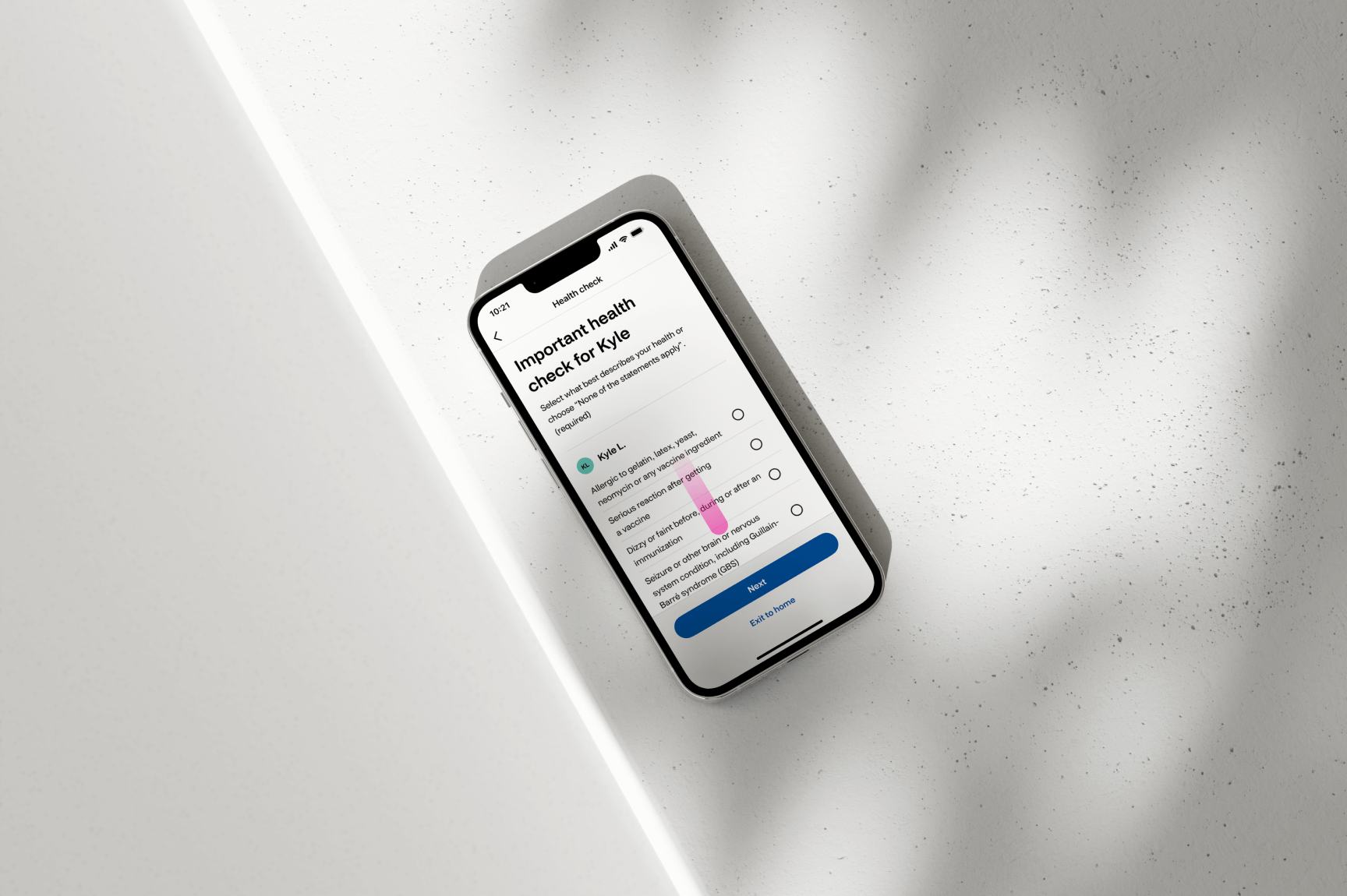
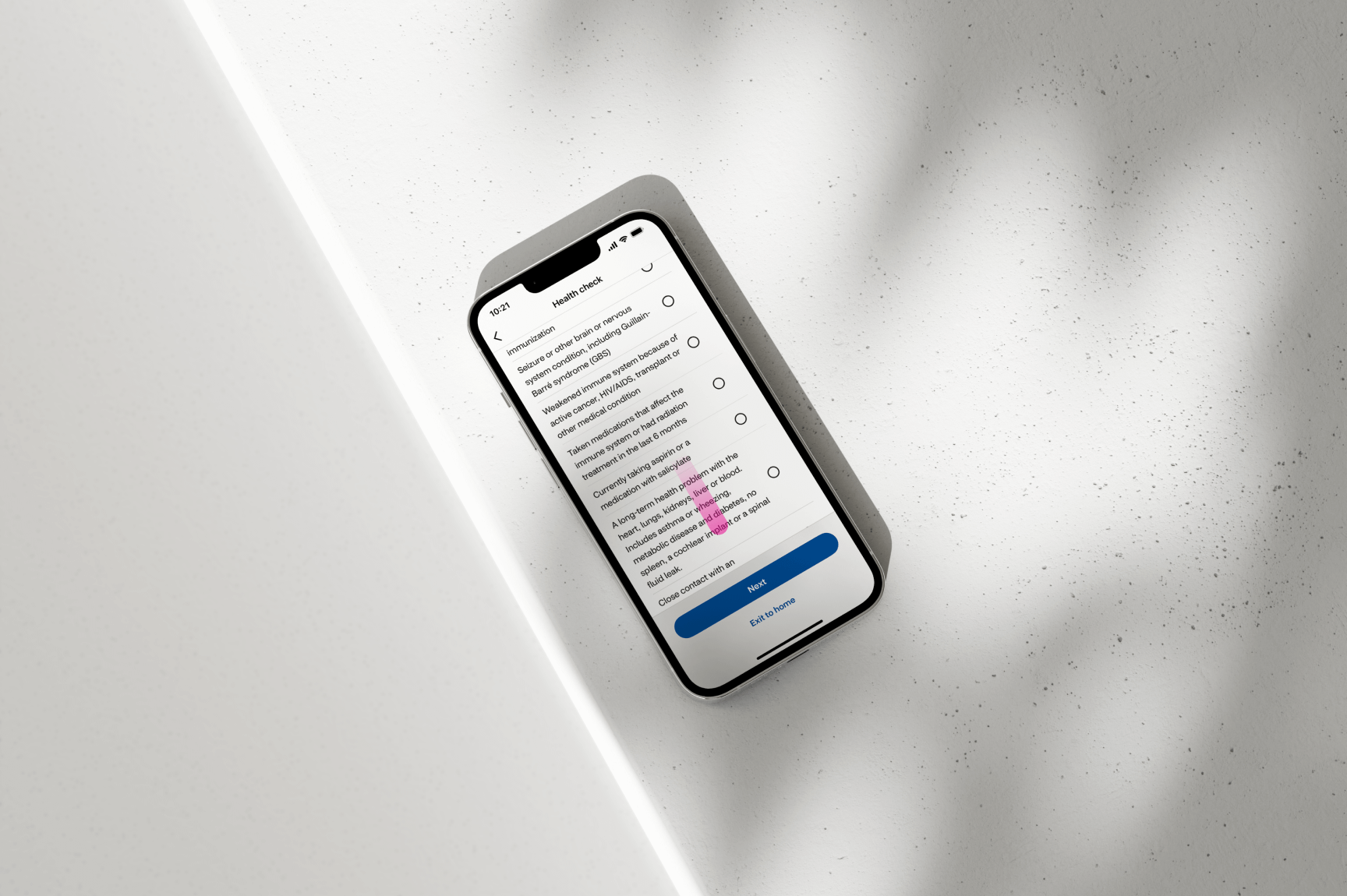
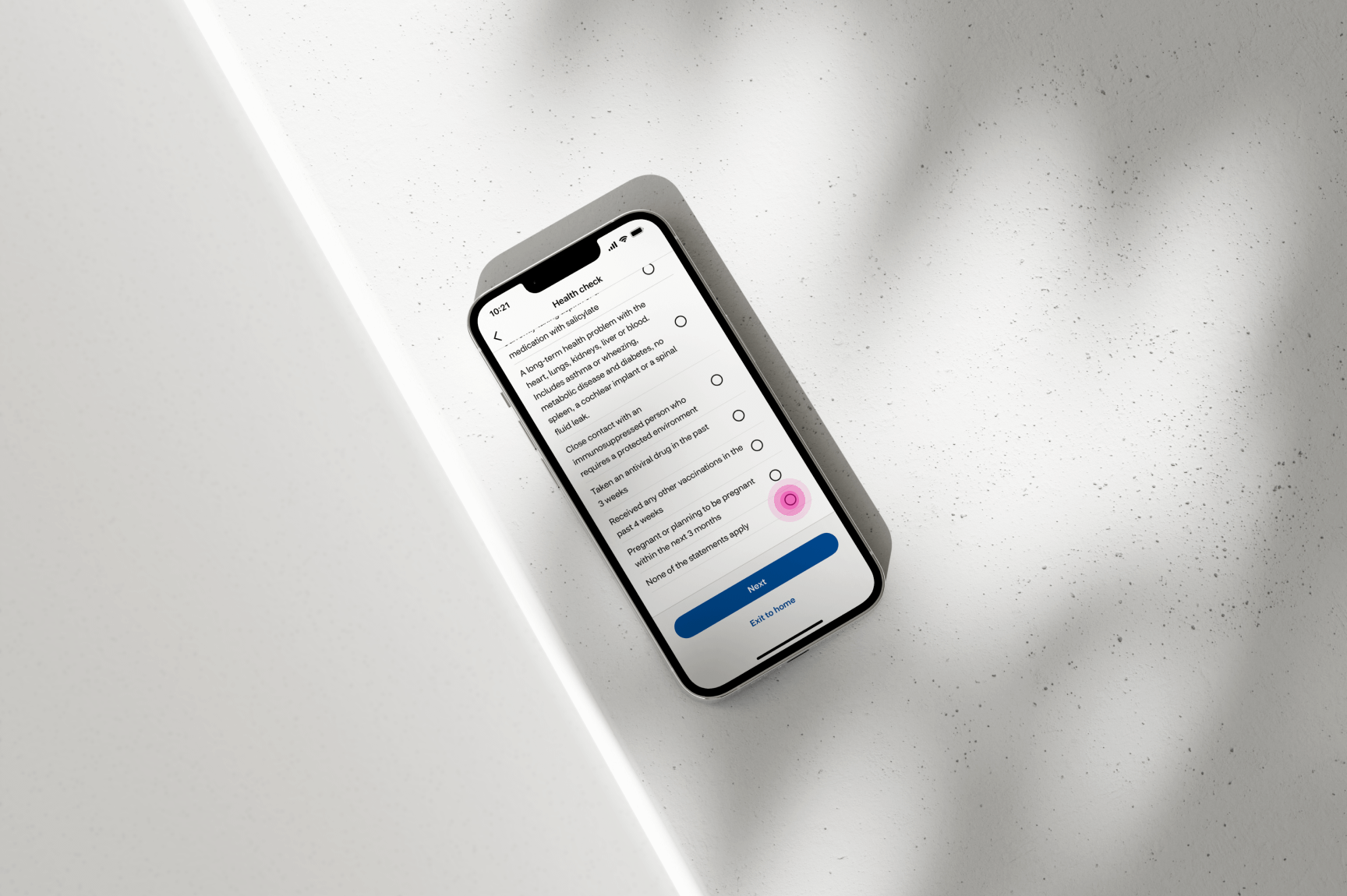
To proceed, the user is required to select any applicable options to inform the Nurse Practitioner
of any pre-existing conditions that may require attention or could interact with the treatment. If
none of the options apply, the user can select the “None of the statements apply” option, as shown
in the example above.
10
CONSENTS AND APPOINTMENT REVIEW
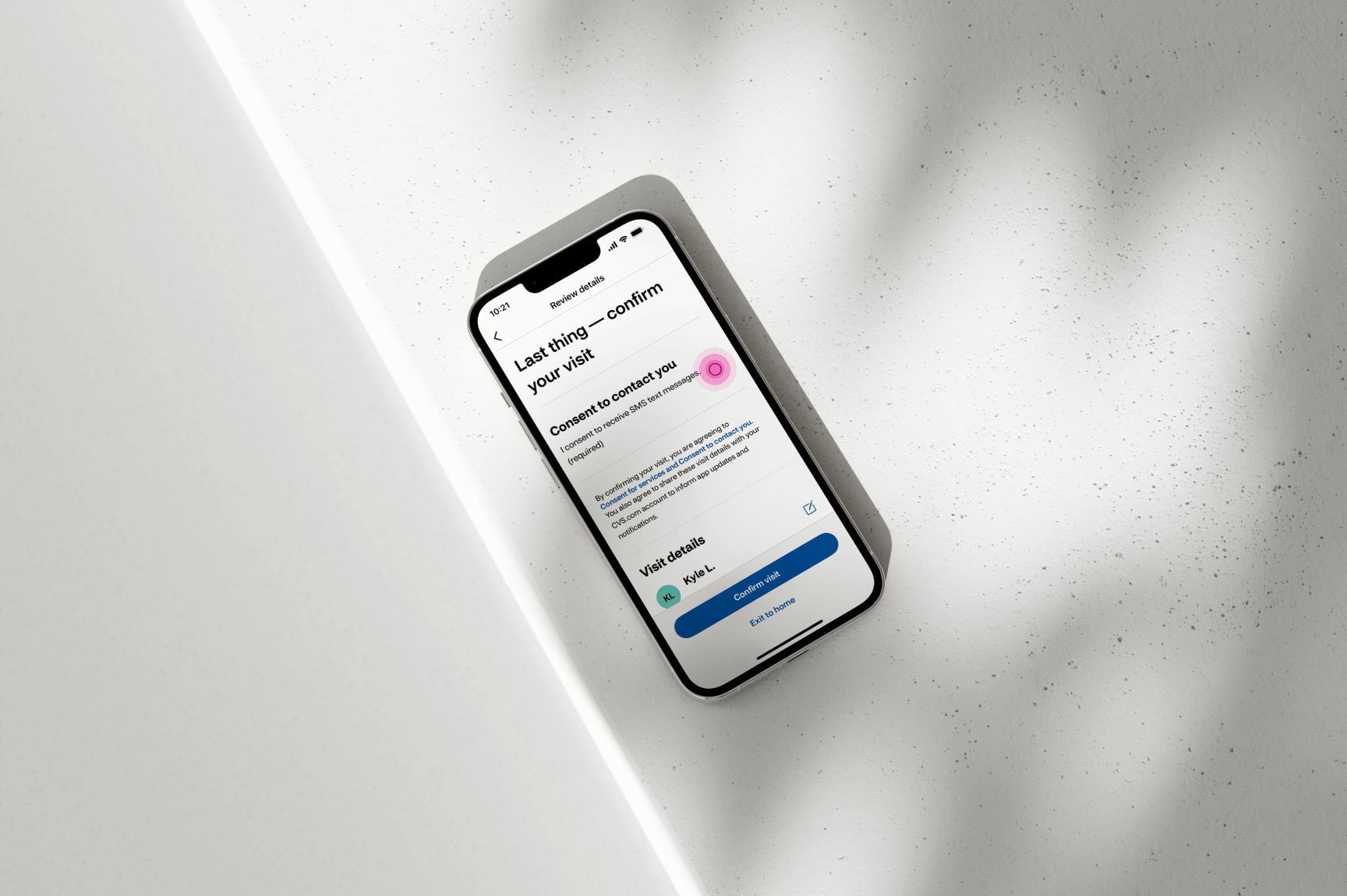
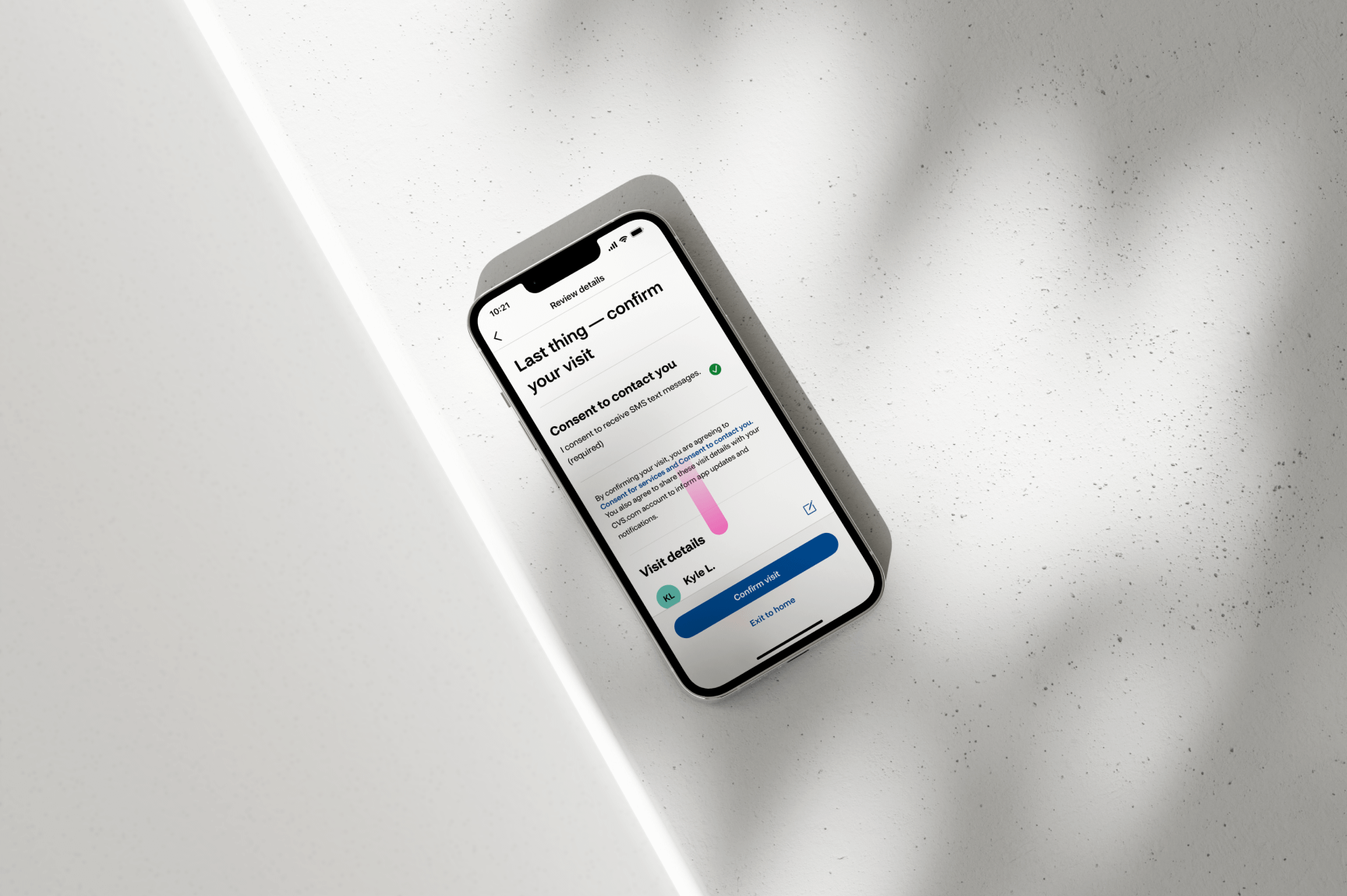
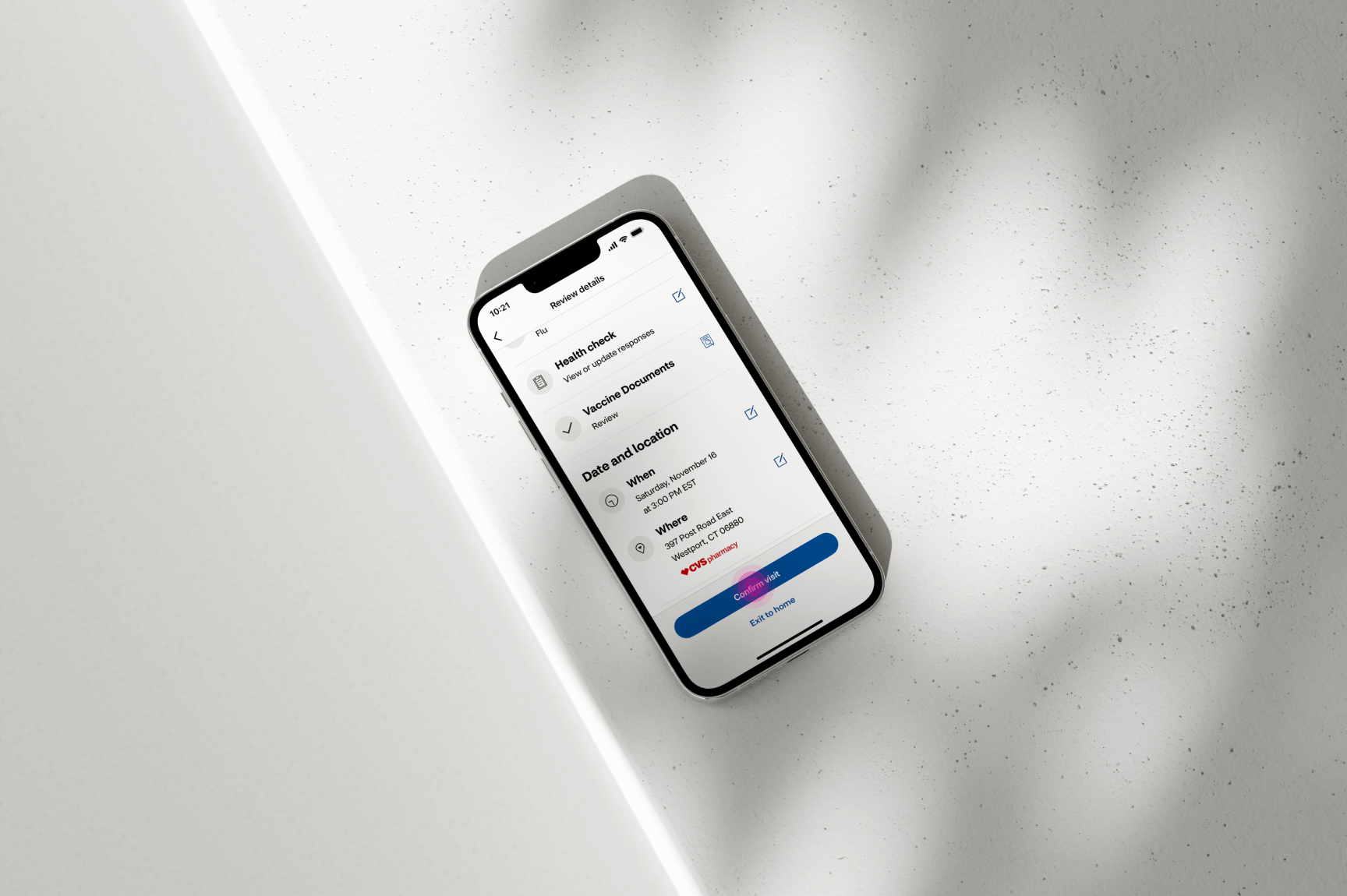
The final step in scheduling an appointment requires the user to agree to the “Consent
to Contact You” option, allowing CVS to send appointment updates and reminders.
The user must also review their appointment details under the “Visit Details” section
to ensure all information is correct. If any details are incorrect, they can update the
information by selecting the icon next to the displayed data. Once the consent is given
and the visit details are reviewed, the user can select “Confirm Visit” to finalize and
schedule their appointment.
Once the appointment is successfully scheduled, the user is directed to the
“Visit Confirmation” screen. An email confirmation will also be sent, along
with an SMS if a mobile number was provided. The Visit Confirmation screen
displays all appointment details, along with options to add the visit to the
user’s native calendar or get directions to the selected appointment location.
If the user needs to cancel or reschedule the appointment for any reason, they
can do so directly through the email and SMS confirmations they received.
In total, over 200 screens were designed and thoroughly vetted by all disciplines
involved in the project. These included releases for web, iOS, and Android platforms,
encompassing primary user flows, error states, fallback scenarios, as well as cancelation
and rescheduling functionalities.
In addition to the standard designs, comprehensive design annotations and accessibility
(A11y) annotations were created to ensure seamless implementation during development.
These annotations were critical in verifying that all screens functioned as intended
while meeting WCAG AA-compliant standards.
The redesigned scheduling experience resulted in a 46% increase in combined conversions
and flow completion across web, iOS, and Android platforms.
The revamped scheduling flow achieved a 97% increase in conversion rates for completing
the appointment process, from entering patient information to the final review step.
“A designer knows he has achieved perfection not when there is nothing left to add,
but when there is nothing left to take away." Antoine de Saint-Exupery
“A designer knows he has achieved perfection not when there is nothing left to add,
but when there is nothing left to take away." Antoine de Saint-Exupery