CUDDLEFISH - PILOT APP SERIES A
MARCH - 2018 (12 WEEK TIMELINE)
Cuddlefish is a blockchain-based application designed for peer-to-peer international
money transfers and micro-investing. The platform allows users to earn a small profit
on transactions instead of paying traditional transfer fees, promoting financial inclusion
in developing countries through micro financing opportunities funded by international
workers in developed nations.
As the Lead Product Designer and Head of UI/UX, I was responsible for designing and developing
the pre-seed beta application, which served as a proof of concept for securing Series A funding.
This funding was intended to cover application development expenses, regulatory requirements
such as EEA-authorized Payment Institution and U.S. (NY and NJ) money transmitter licenses,
capital requirements, micro finance partnership expenses, and advertising costs.
Since the Cuddlefish application is designed for international money transfers among
friends and families, it must cater to a broad and diverse user demographic. The app
needs to support multiple languages with unique character structures while remaining
intuitive and accessible, particularly for older, non-tech-savvy users. The primary
design challenge lies in developing a design language that balances the complexity
of financial functions with a user-friendly experience that minimizes cognitive
overload. For the prototype, the following core functionalities were identified:
01
Internal Wallet Transfers: Enable users to transfer funds from connected
payment methods to Cuddlefish’s internal wallet.
02
Peer-to-Peer Transfers: Provide the ability to send money to connections within
the app, including specifying the currency type for the transaction.
03
Transaction History: Offer users the ability to review past transactions and view
detailed information for individual transactions.
04
Invitation Feature: Allow users to invite friends and family to join the app.
These features form the foundation of the prototype, designed to demonstrate the app’s value
and functionality to potential investors and users.
Additionally, the Cuddlefish team is globally distributed across vastly different time zones.
This requires prioritizing clear communication and seamless collaboration to ensure the
prototype is completed on time for submission and funding consideration.
03
SENDING MONEY TO FIREND/FAMILY MEMBER AND SELECTING CURRENCY AND PAYMENT METHOD
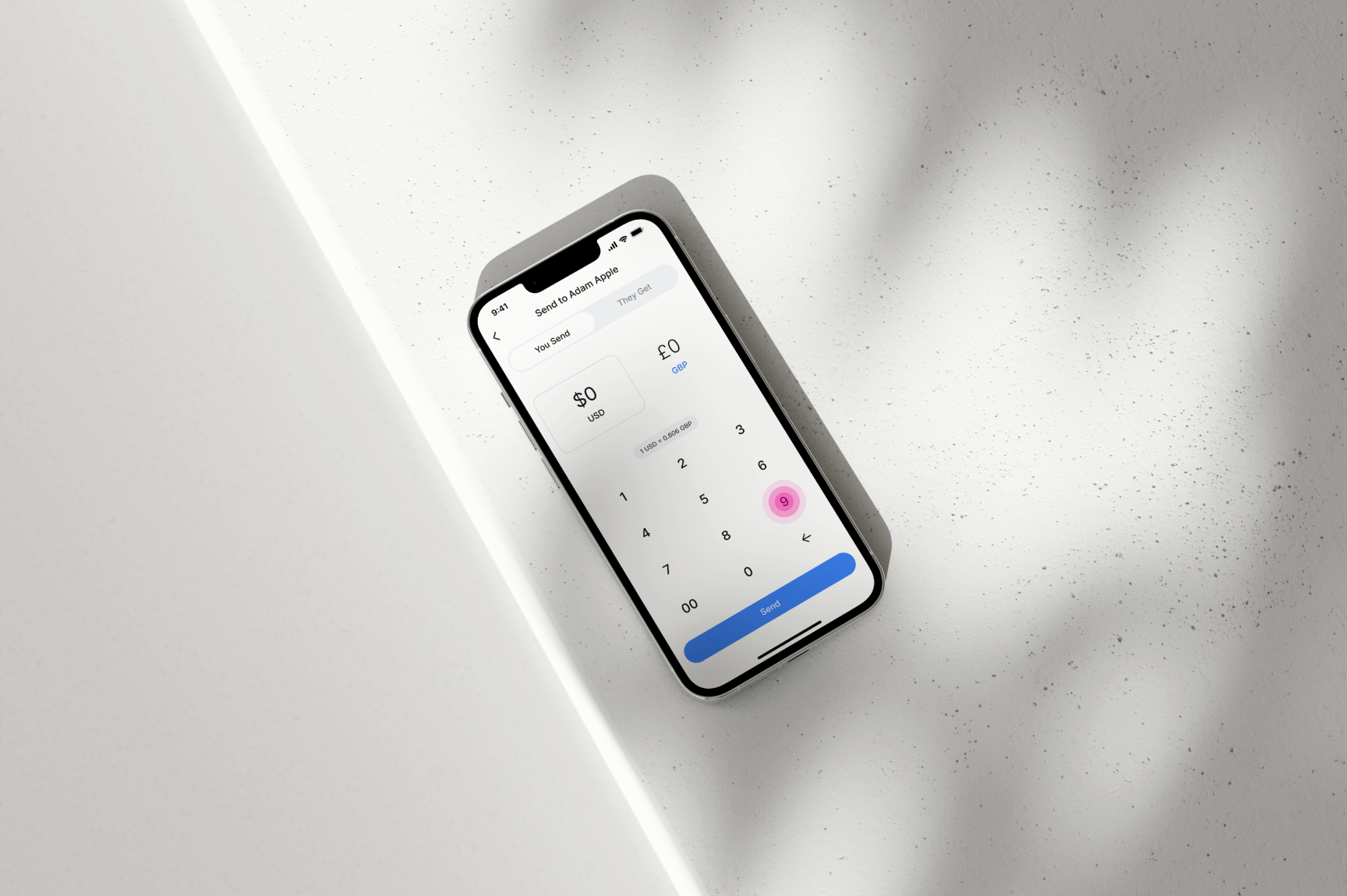
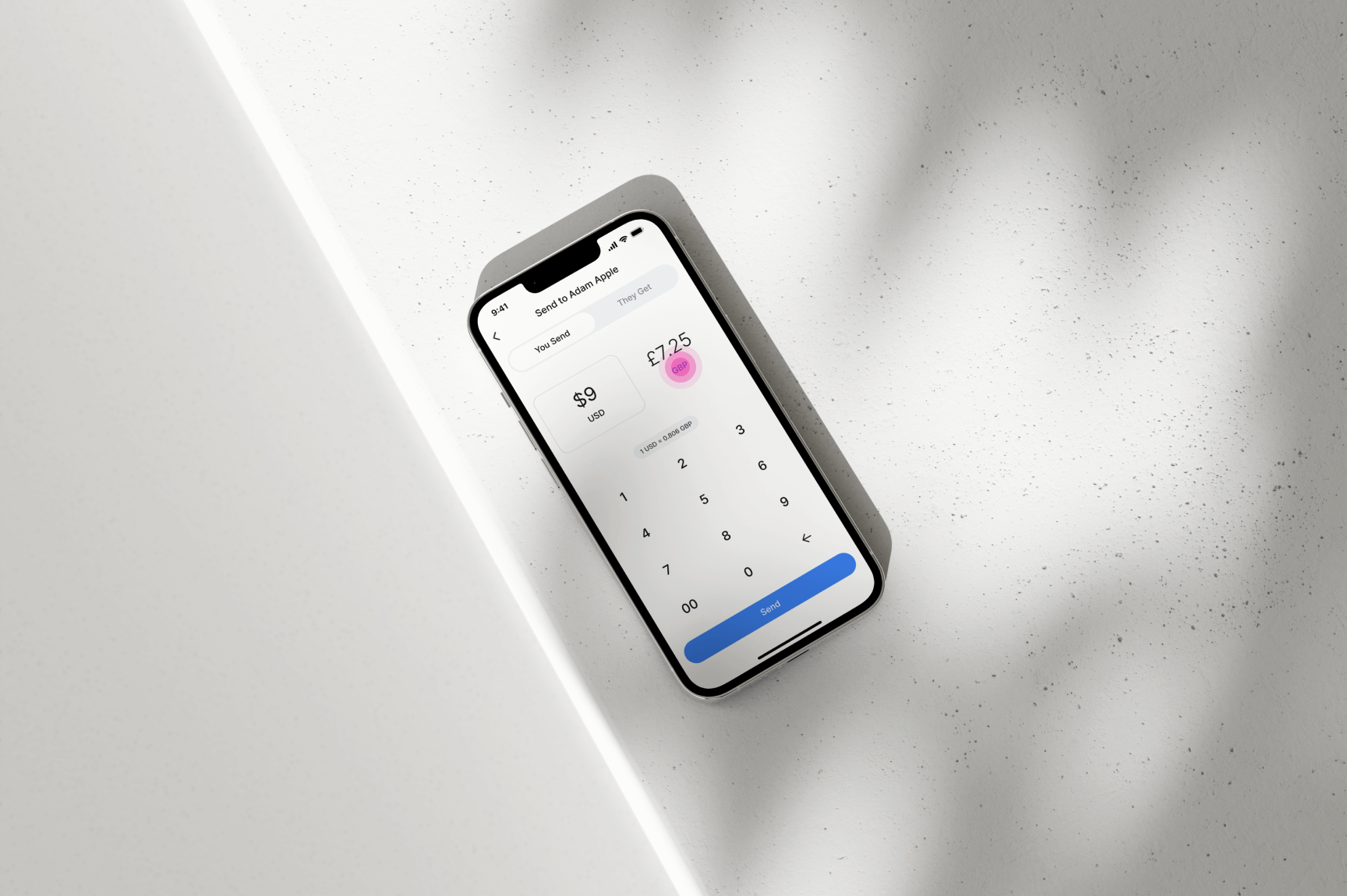
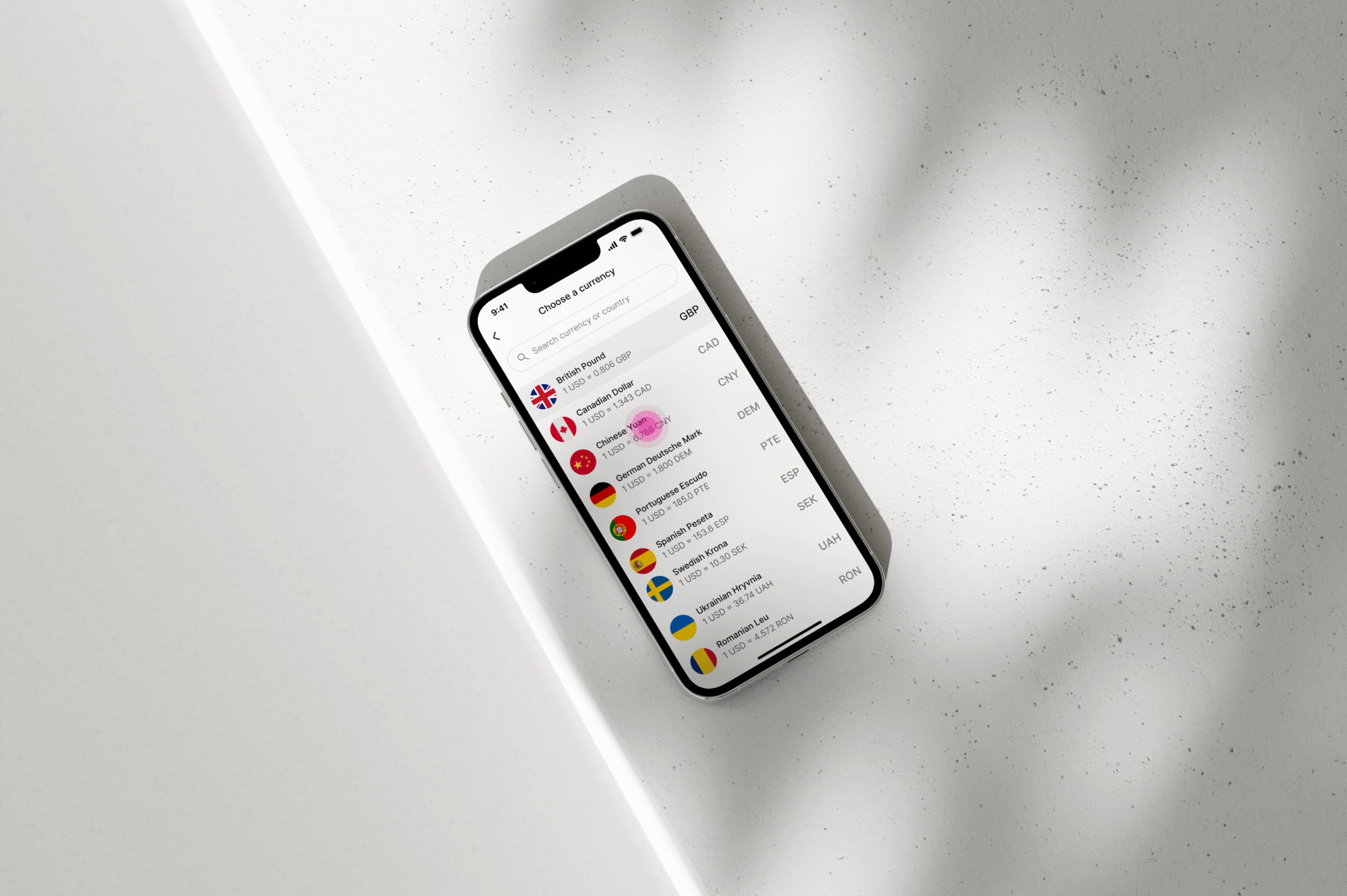
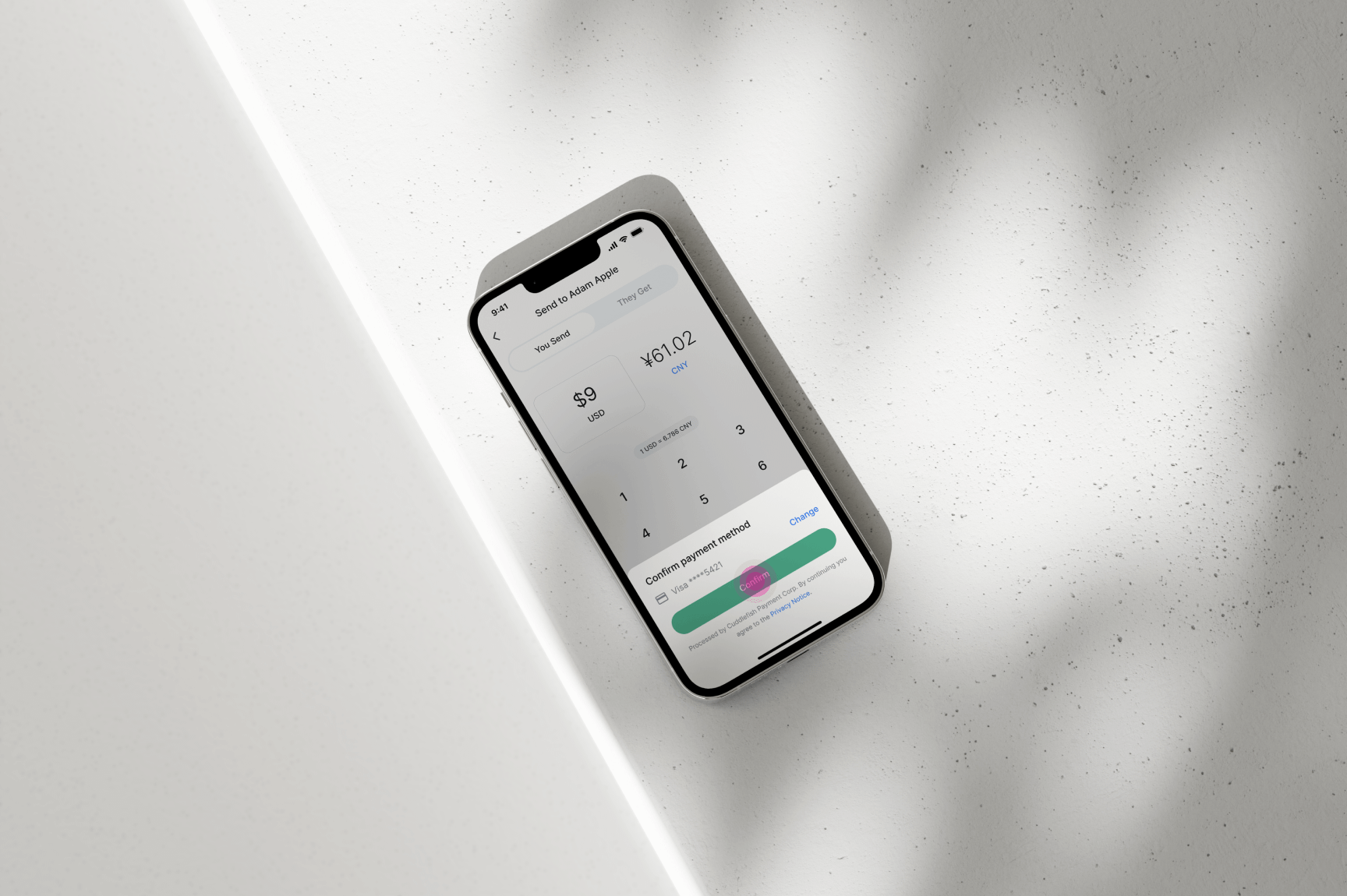
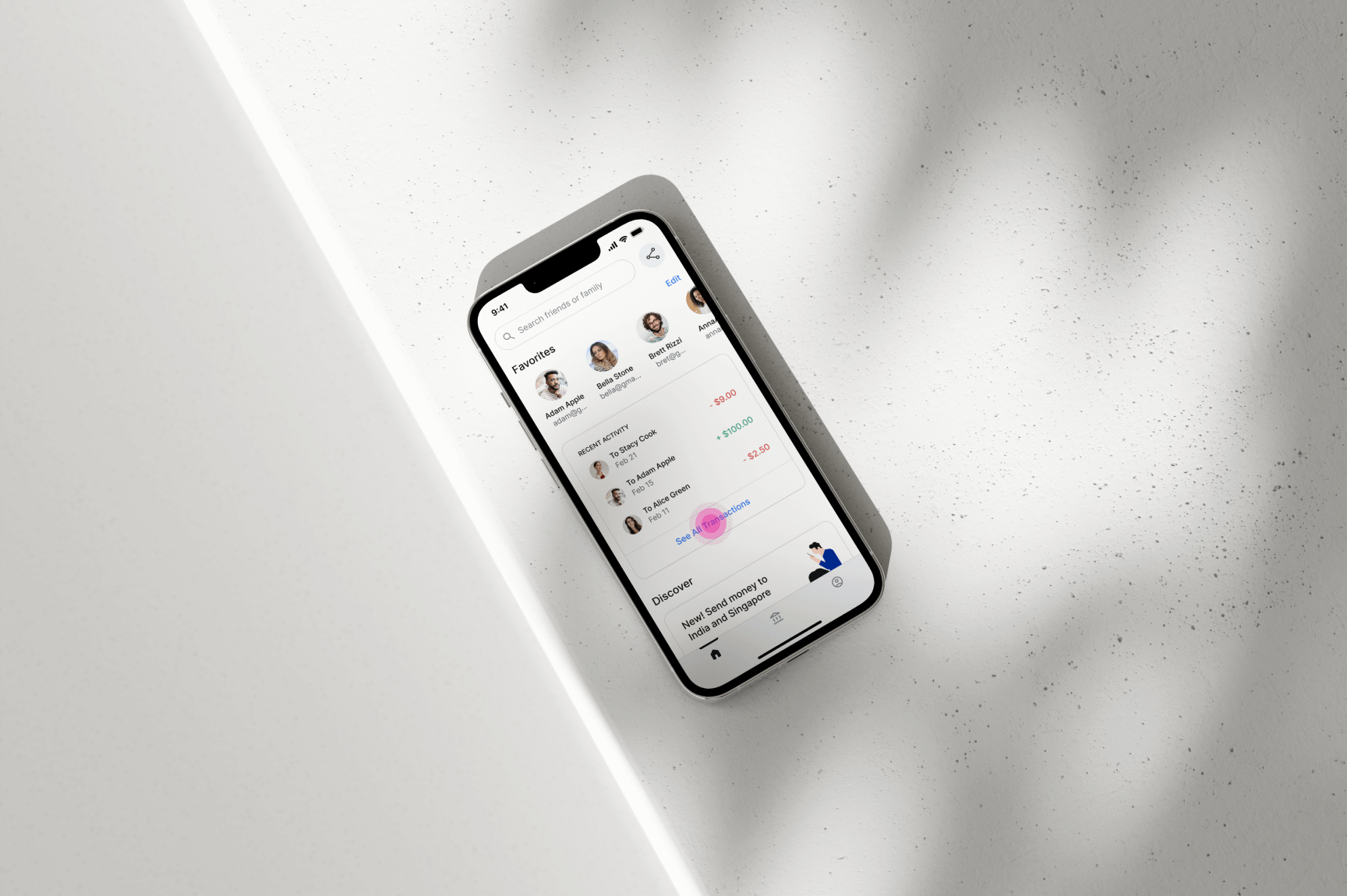
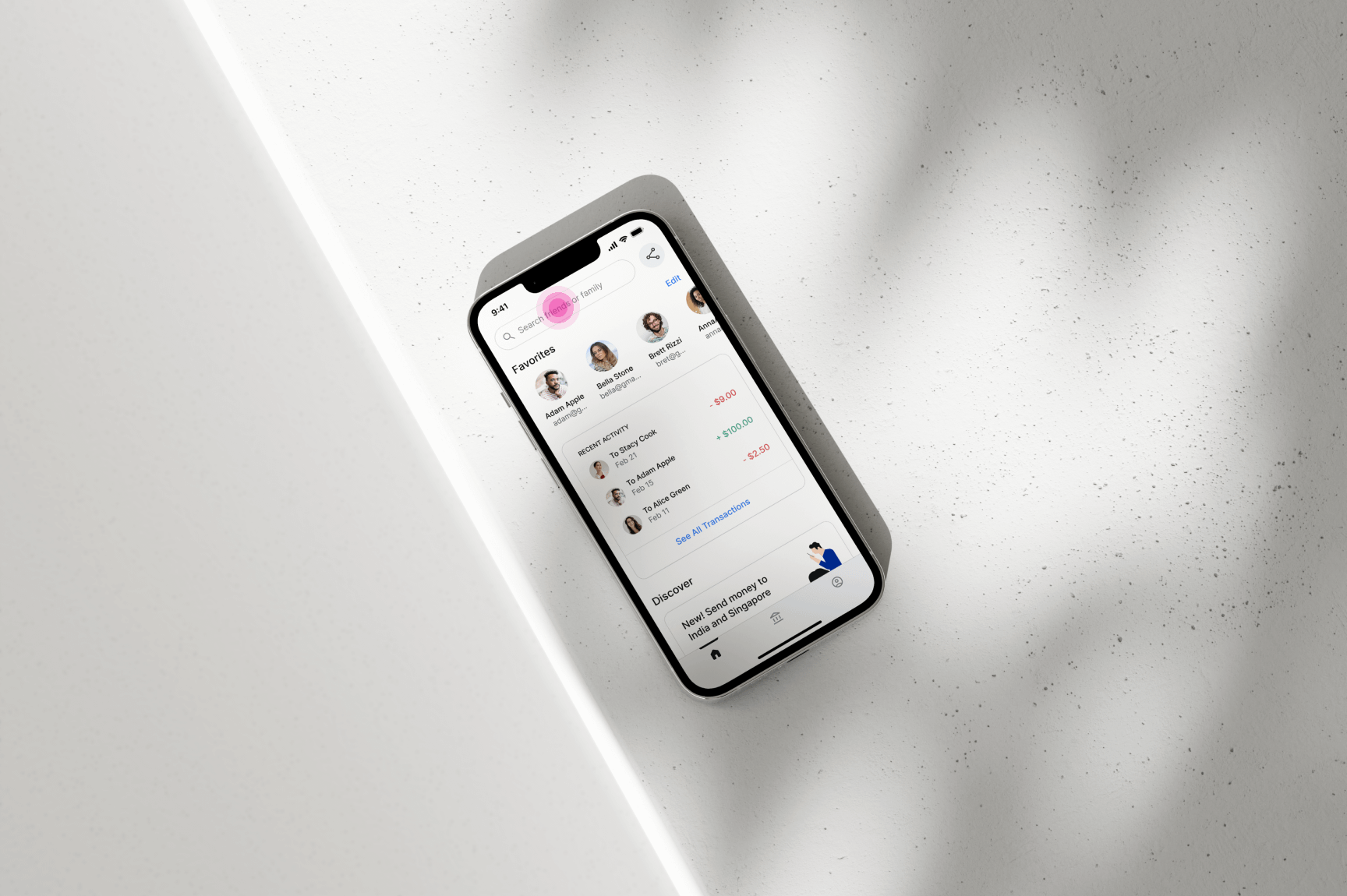
This section demonstrates how users can select a friend or family member to send money to within
the app. After selecting a recipient, users can choose the desired currency to convert from USD.
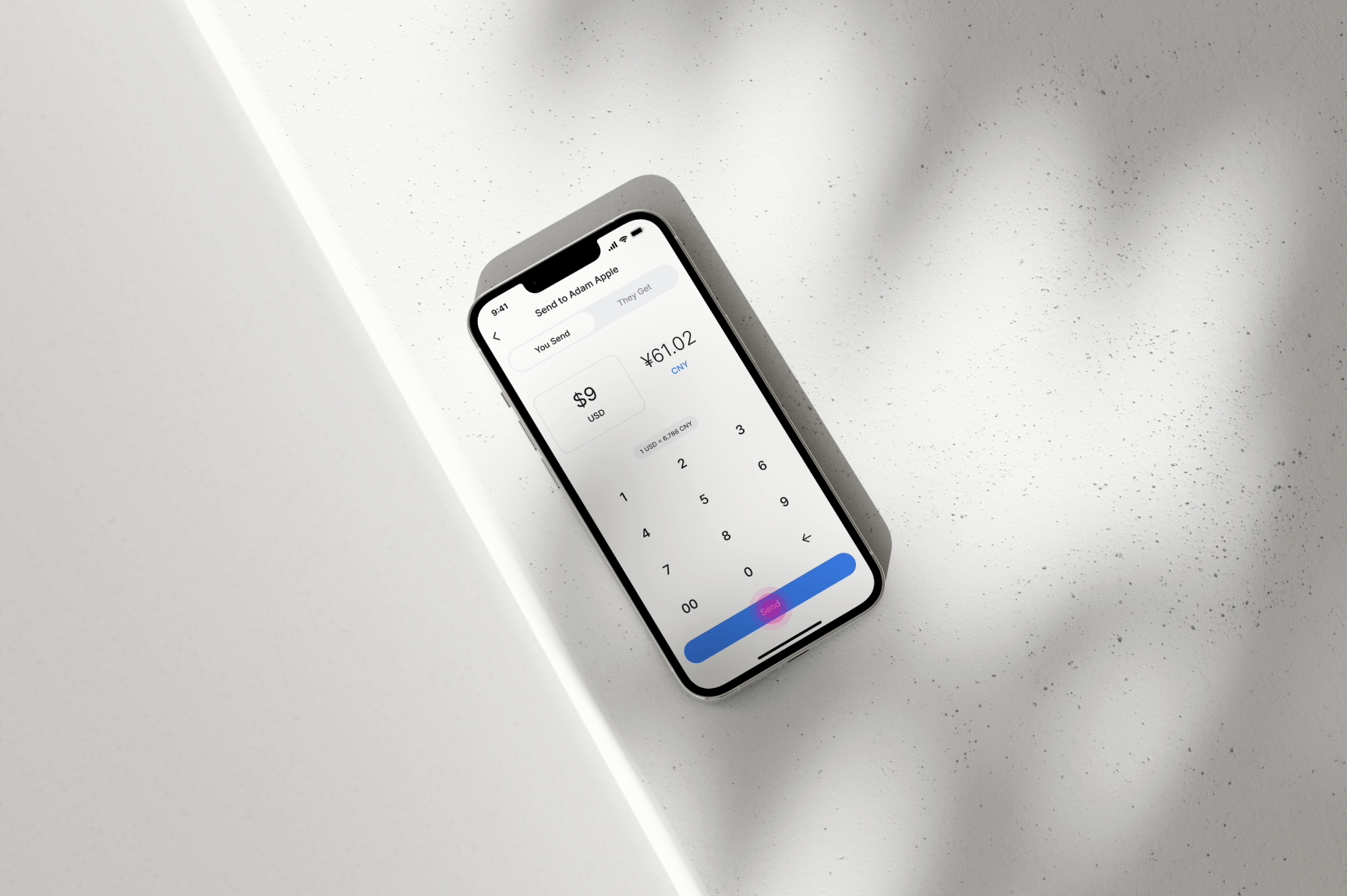
For convenience, the conversion rate is displayed below the entered amount.
Users can input the amount they wish to send, either in USD or the selected currency. Once the
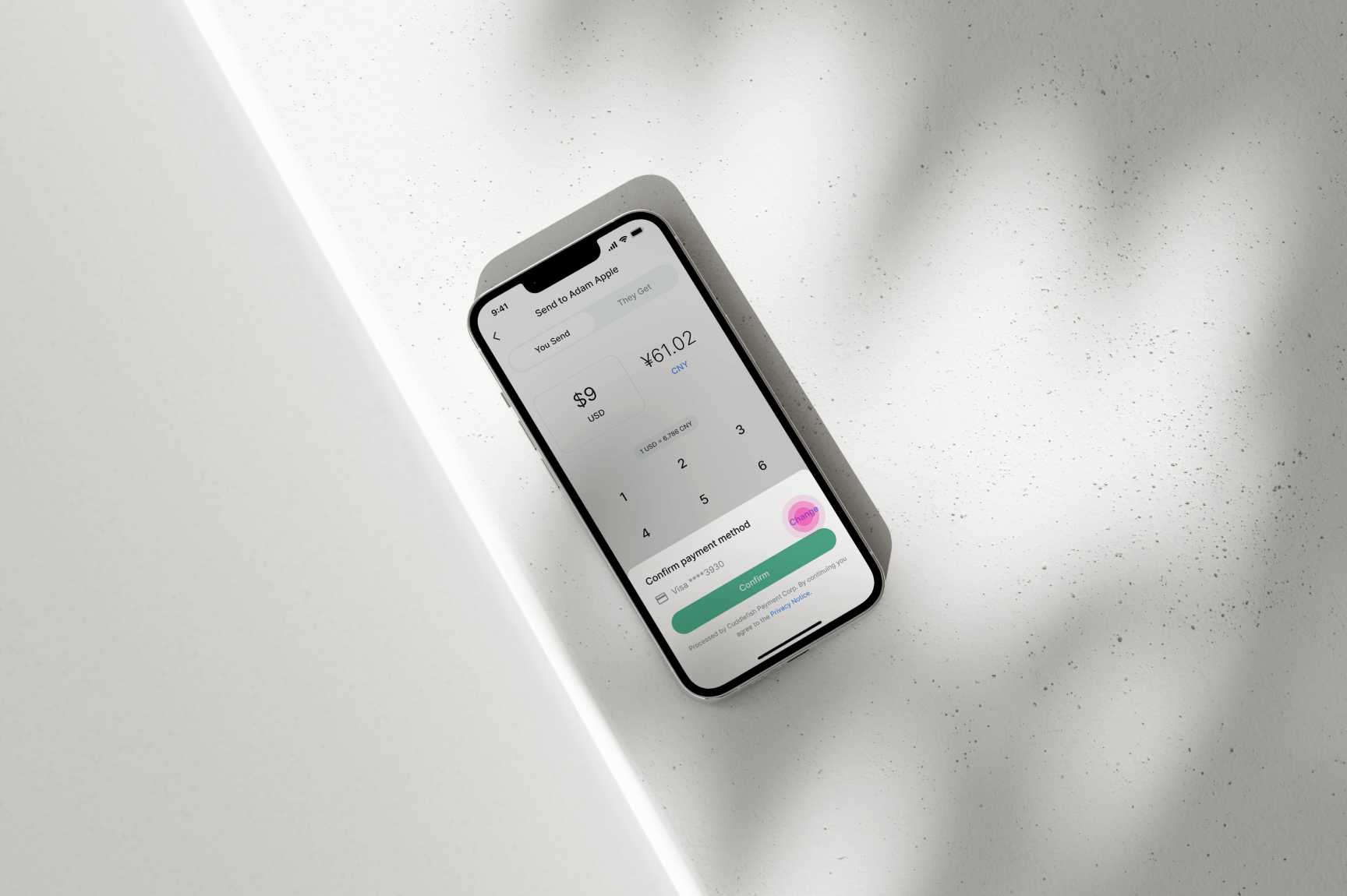
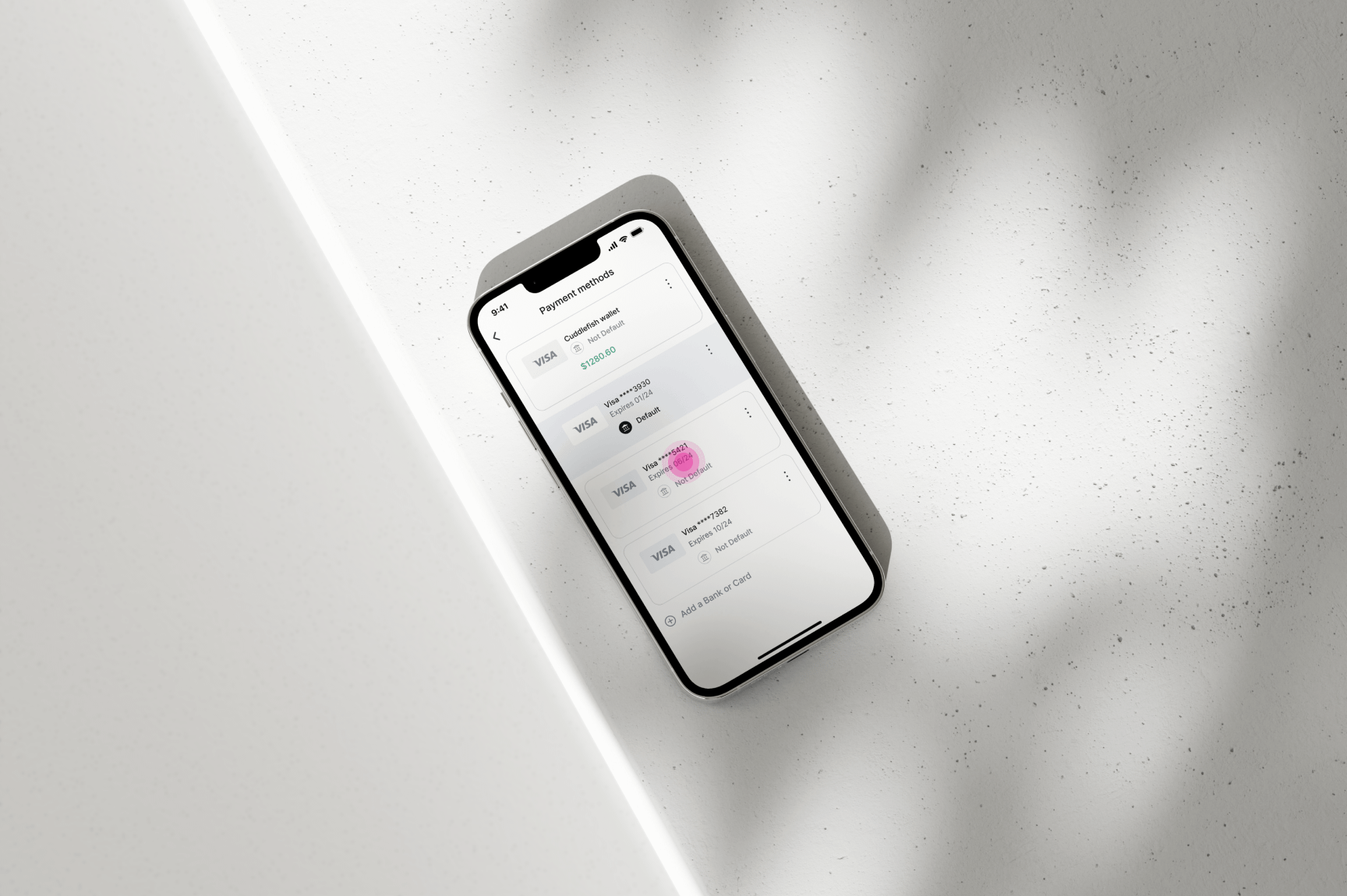
amount and currency are confirmed, they will be prompted to choose a payment method.
Finally, selecting the “Confirm” button completes the transaction seamlessly.
04
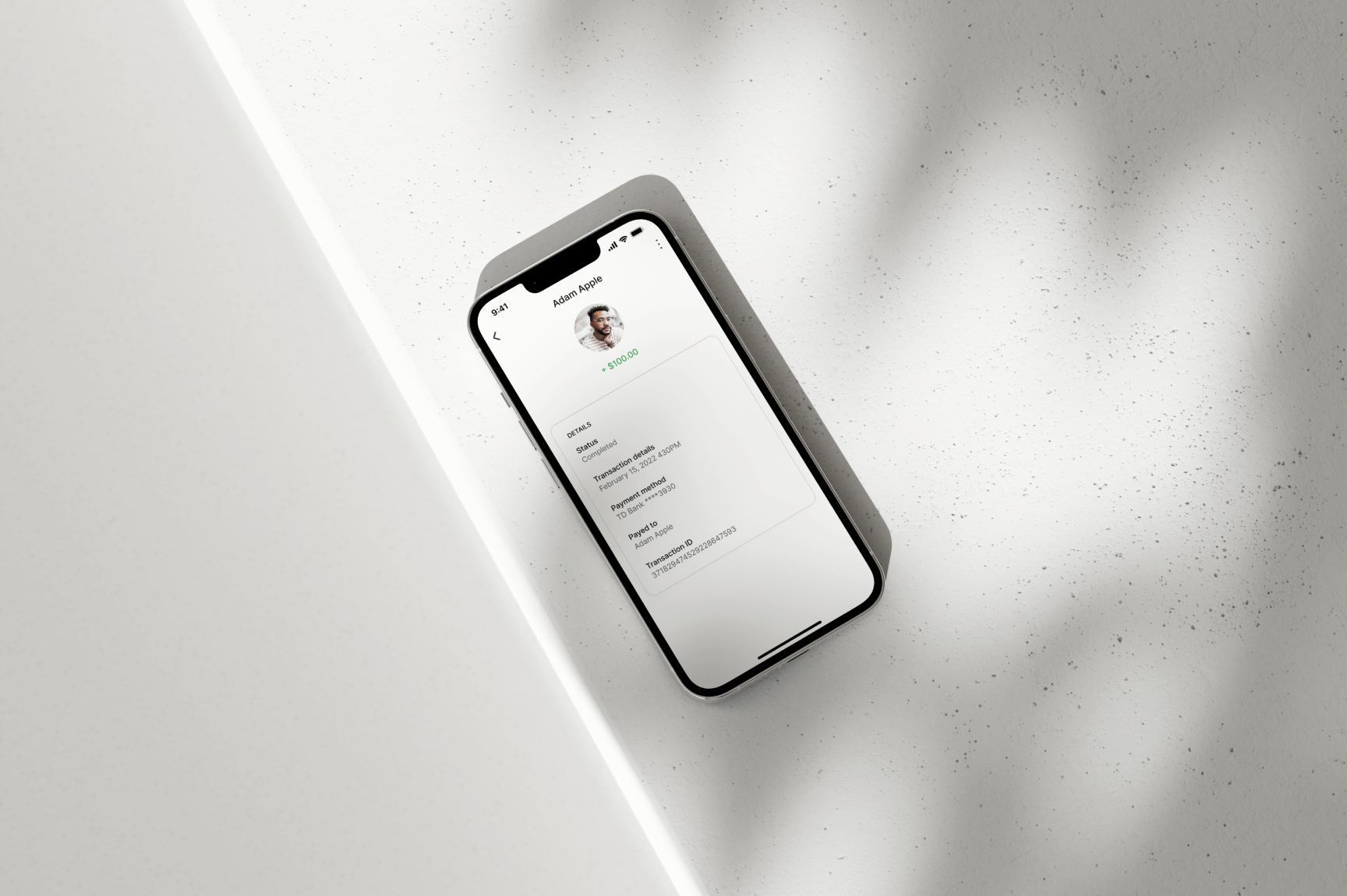
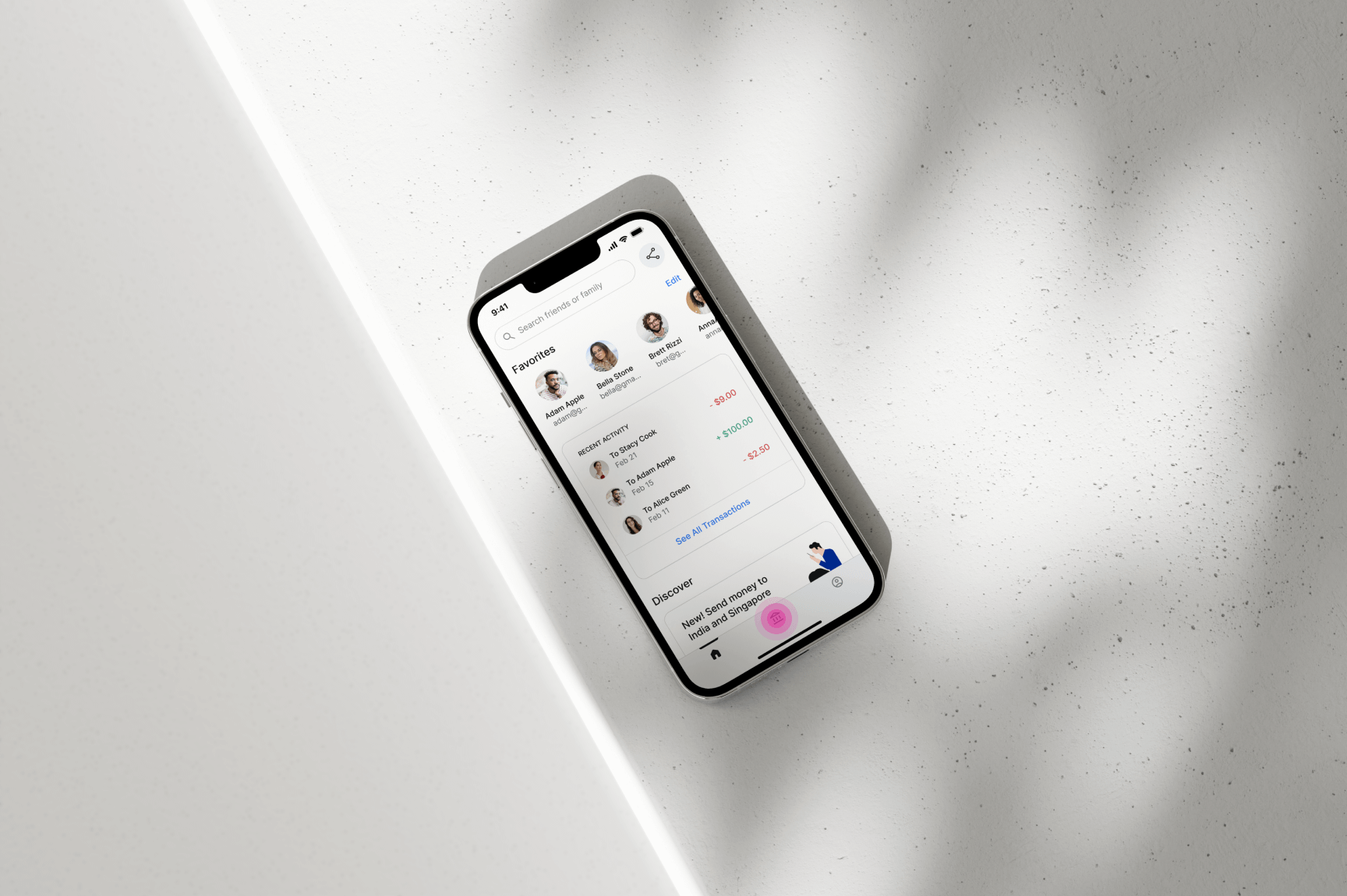
REVIEWING PREVIOUS TRANSACTIONS AND VIEWING TRANSACTION DETAILS
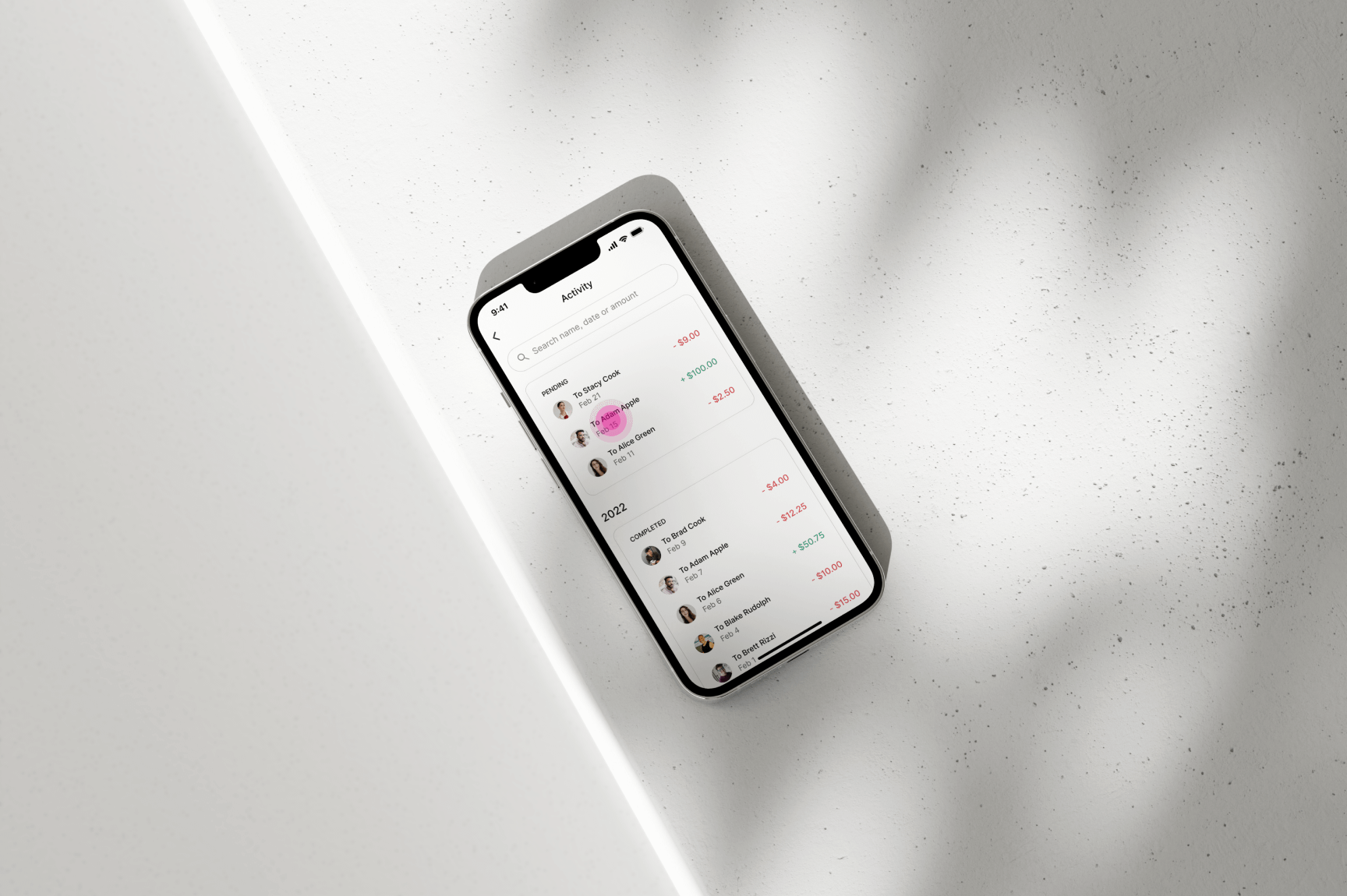
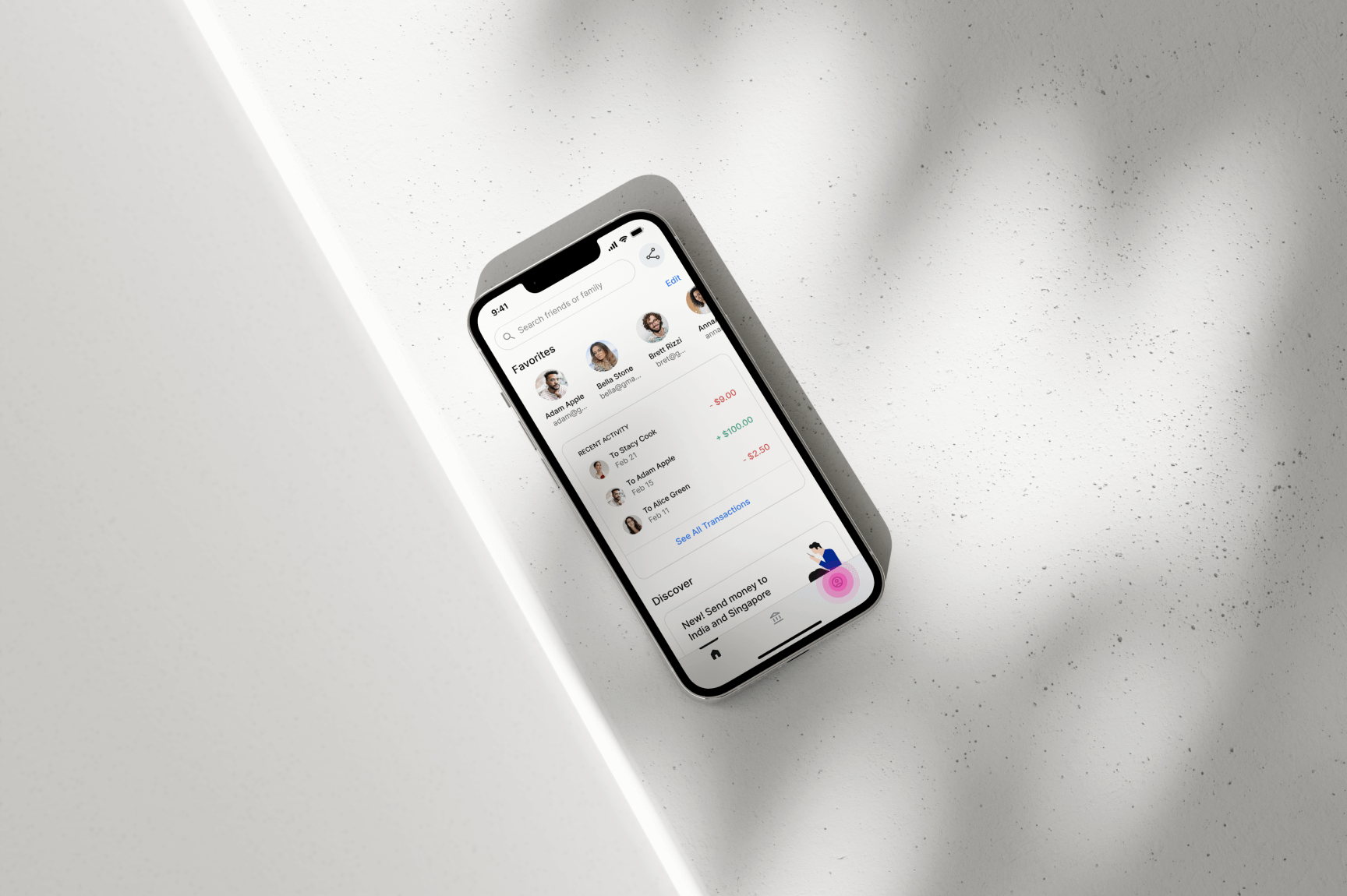
This section illustrates how users can review their transaction history. Pending and
completed transactions are grouped into separate sections to improve scanability and
organization. Each transaction displays key details, including the recipient's name,
the execution date, and the transaction amount.
Users can select any transaction to view additional details. Once selected, an expanded
view is opened, providing further information such as the payment method used and the
transaction ID. This design ensures clarity and easy access to critical transaction
information.
05
INVITING NEW FIREND OR FAMILY MEMBER TO APP DURING TRANSACTION PROCESS
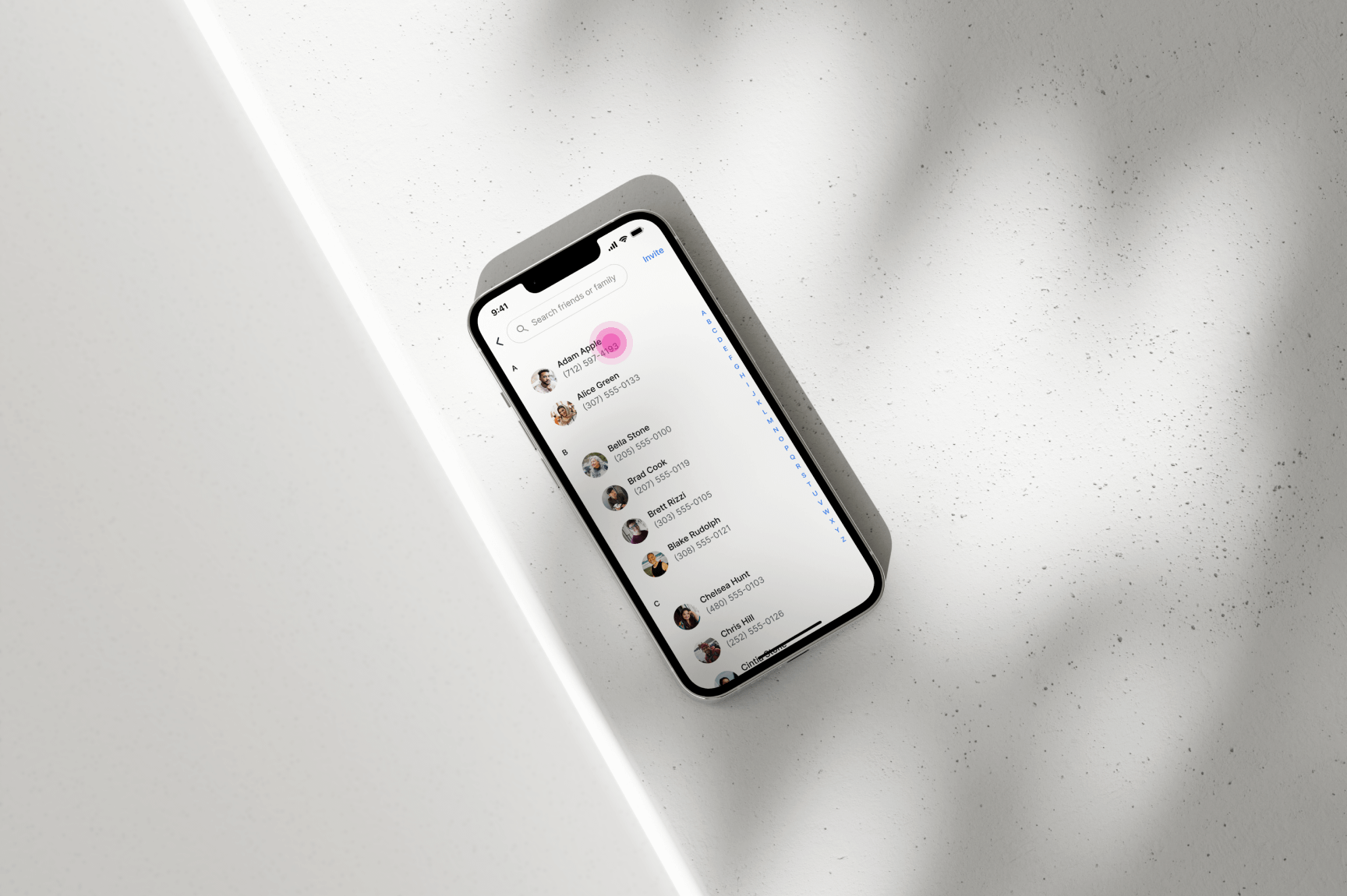
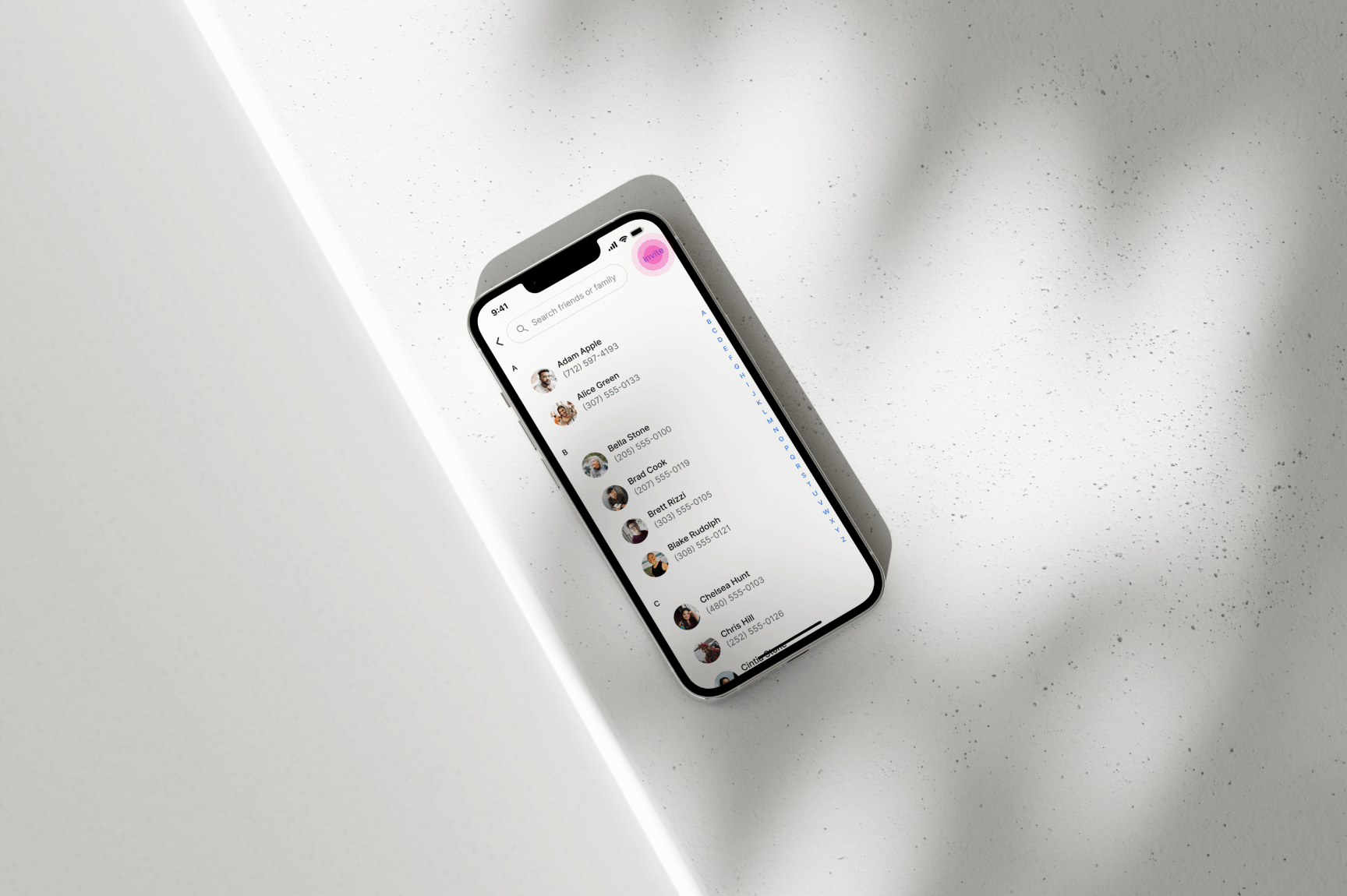
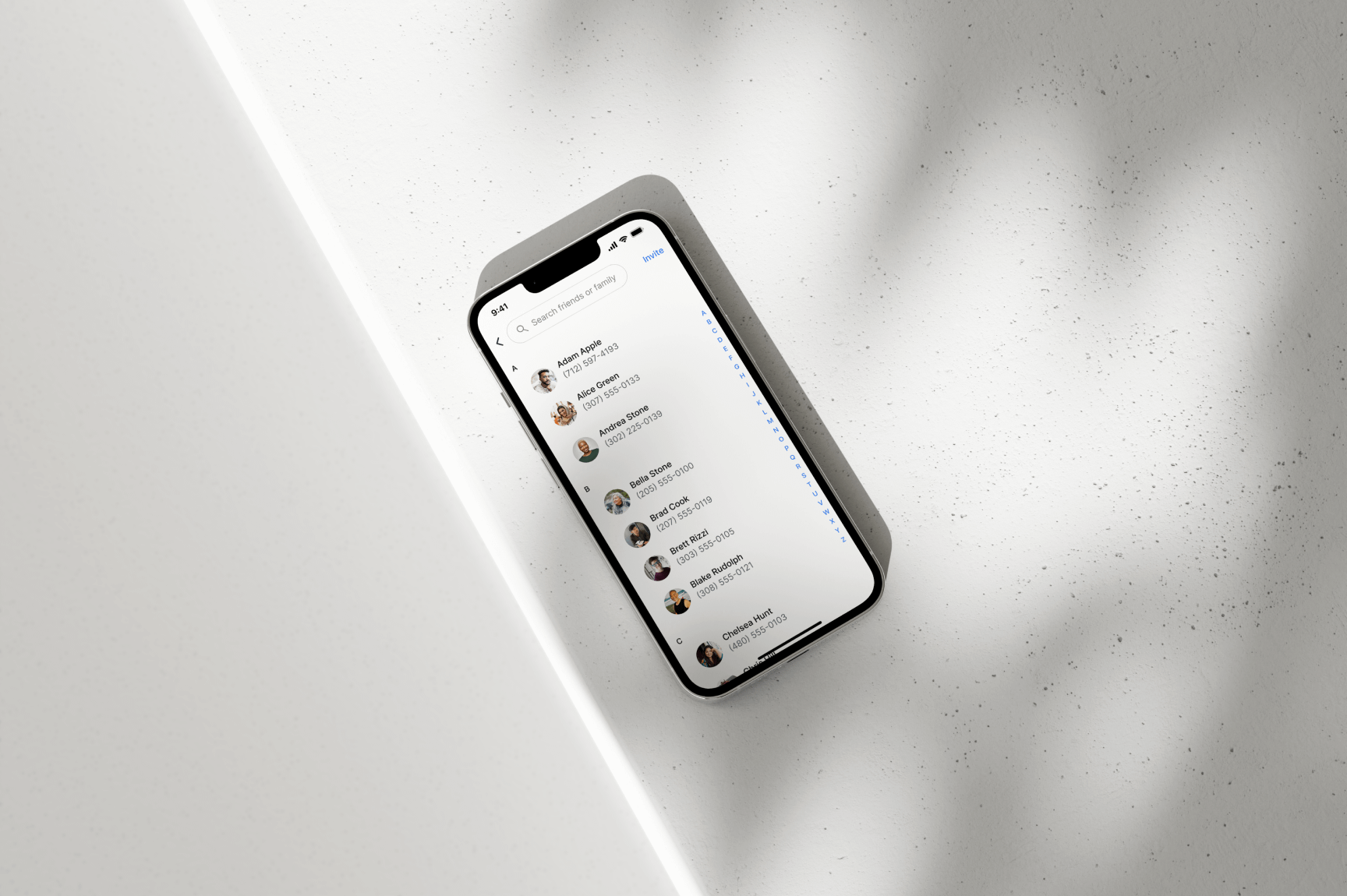
This section demonstrates how users can invite new friends or family members from their
mobile phone contacts to join the Cuddlefish app, enabling them to send or receive money.
Invitations can be sent during the money transfer process or through the “Account Details” tab.
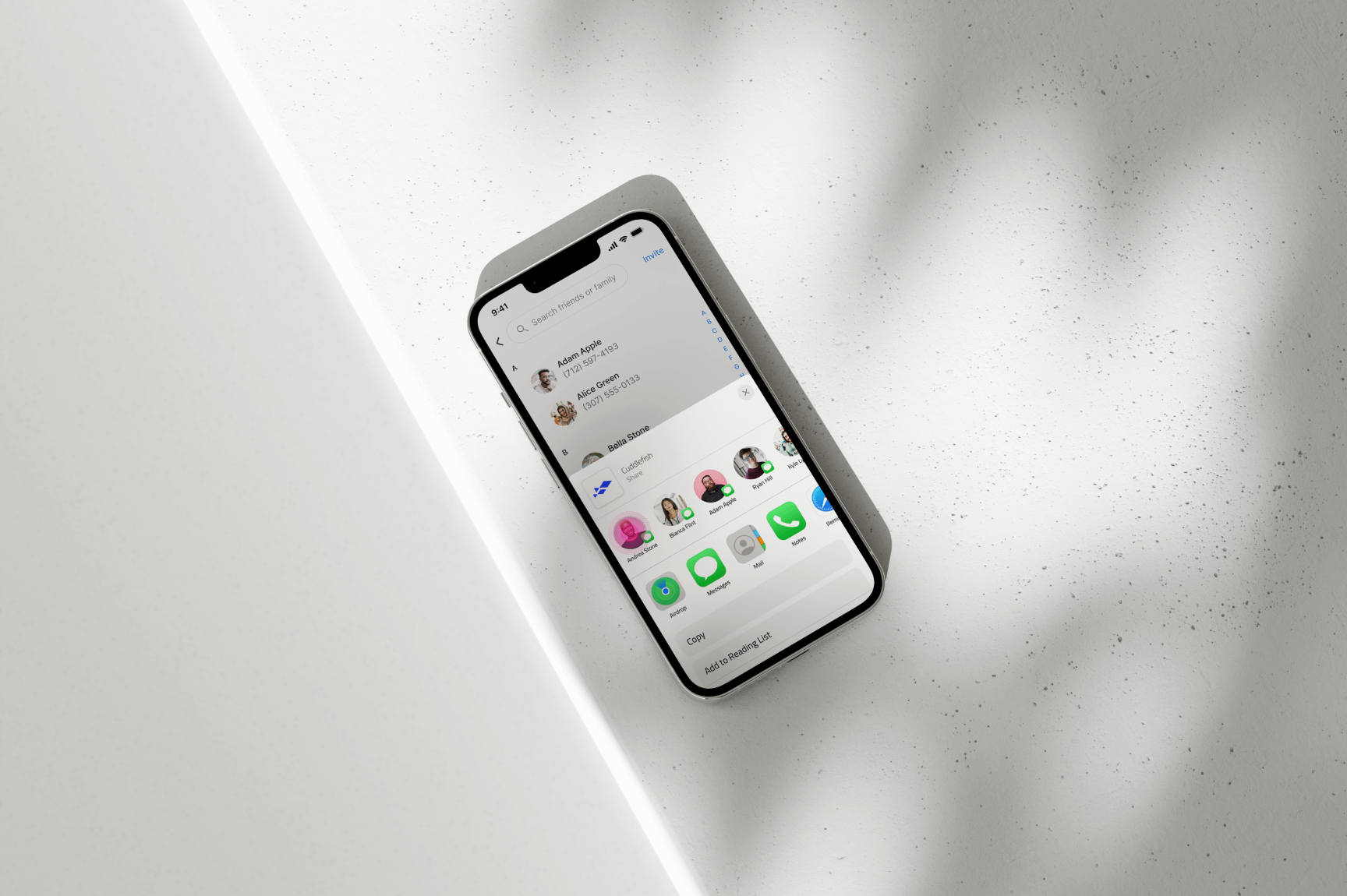
In this example, the invitation process occurs during a money transfer. When selecting a
recipient in the second step of the transfer, users can click the “Invite” hyperlink. This
action opens the native share sheet, allowing them to choose a contact to invite. The
appearance of the share sheet varies depending on the operating system; for this example,
the iOS share sheet is shown.
Once the user sends the invitation, the selected contact will receive a link to download
the Cuddlefish app. After downloading and signing up, the new recipient will automatically
be added to the user’s contact list within the app.
06
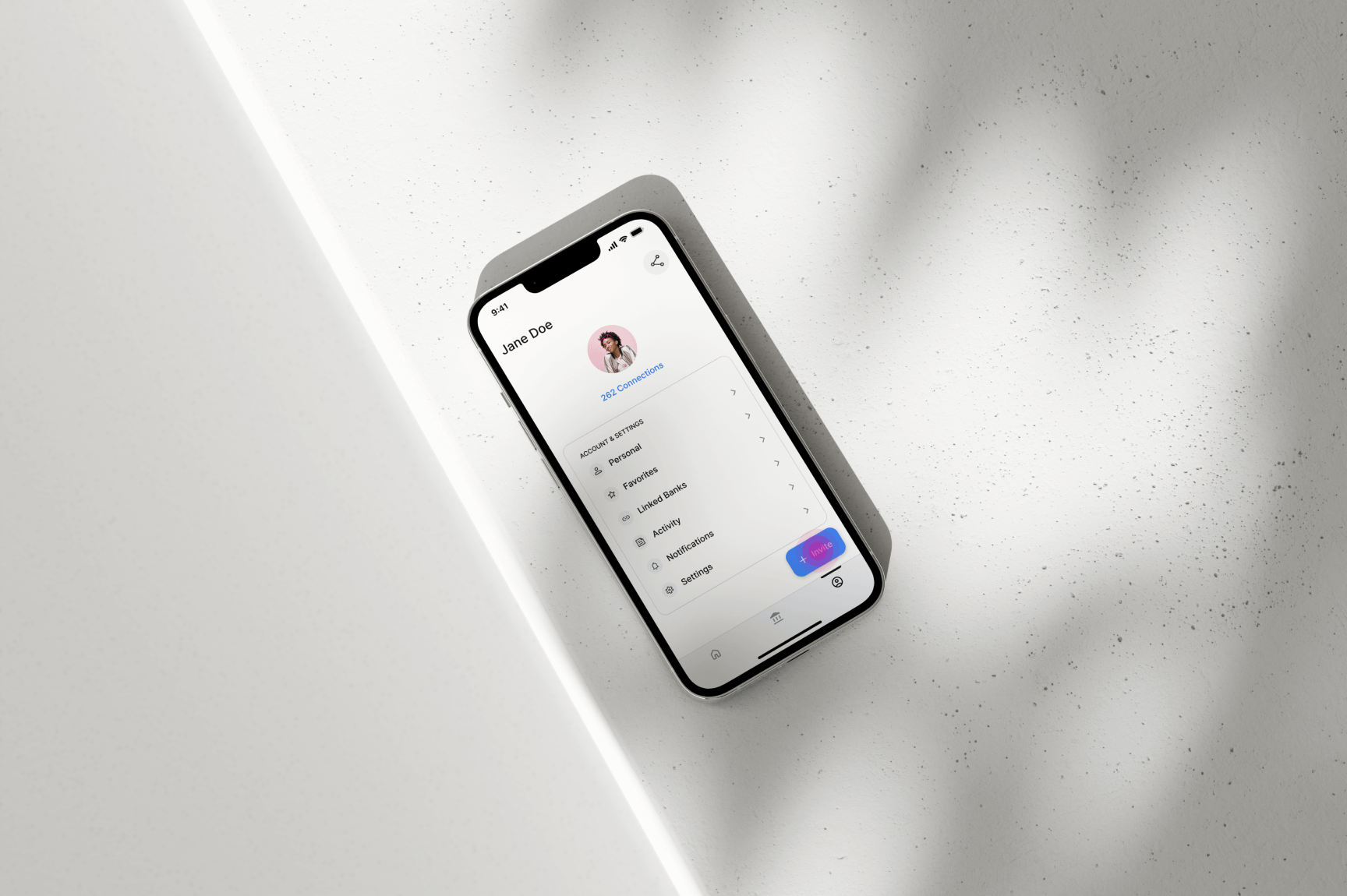
INVITING NEW FIREND OR FAMILY MEMBER TO APP THRU PROFILE DETAILS TAB
This section highlights how users can invite new friends or family members from their mobile phone contacts to join the
Cuddlefish app via the “Account Details” tab, rather than during a money transfer.
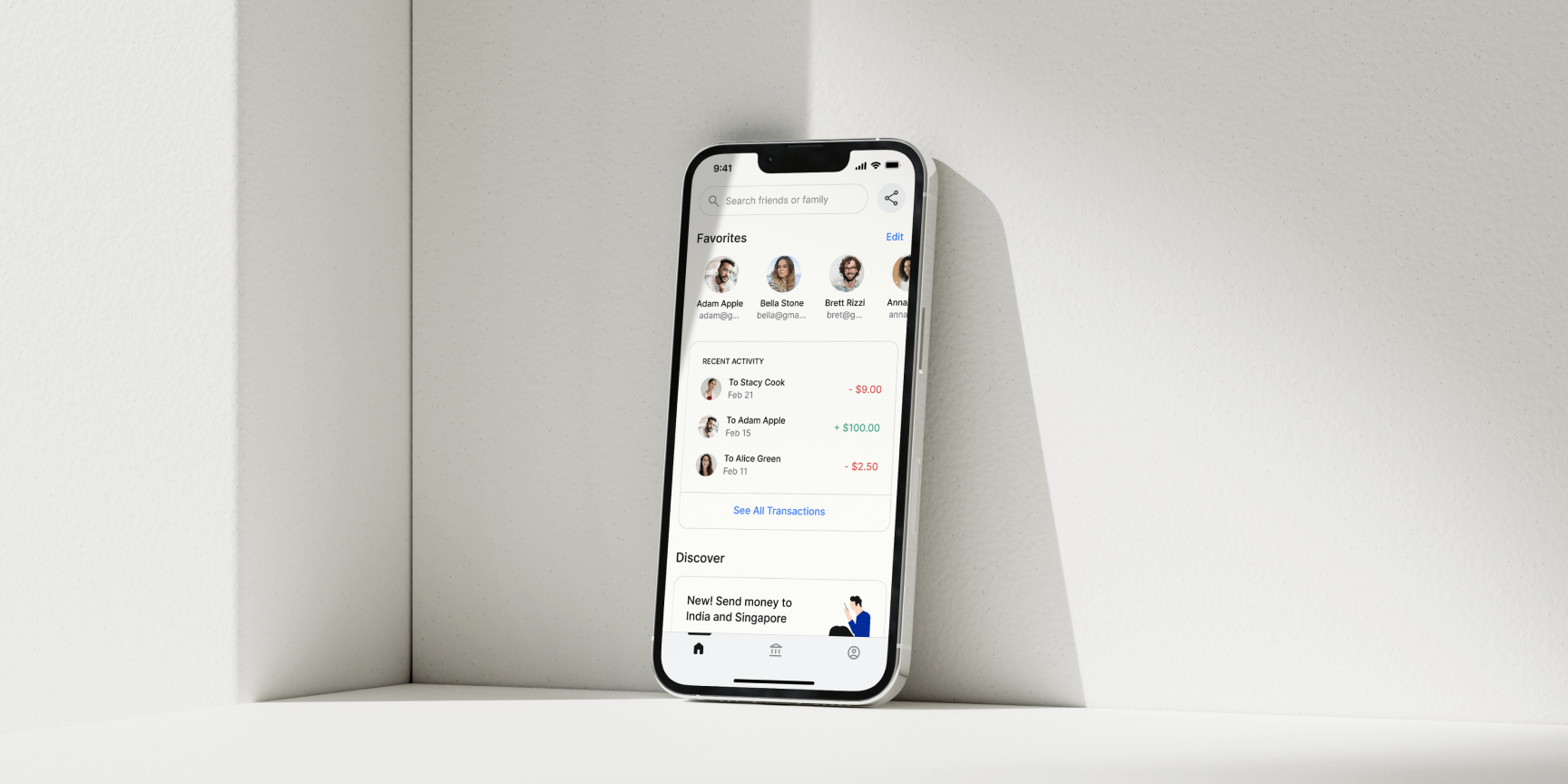
By selecting the “Account” icon in the bottom navigation bar, users are directed to the “Account
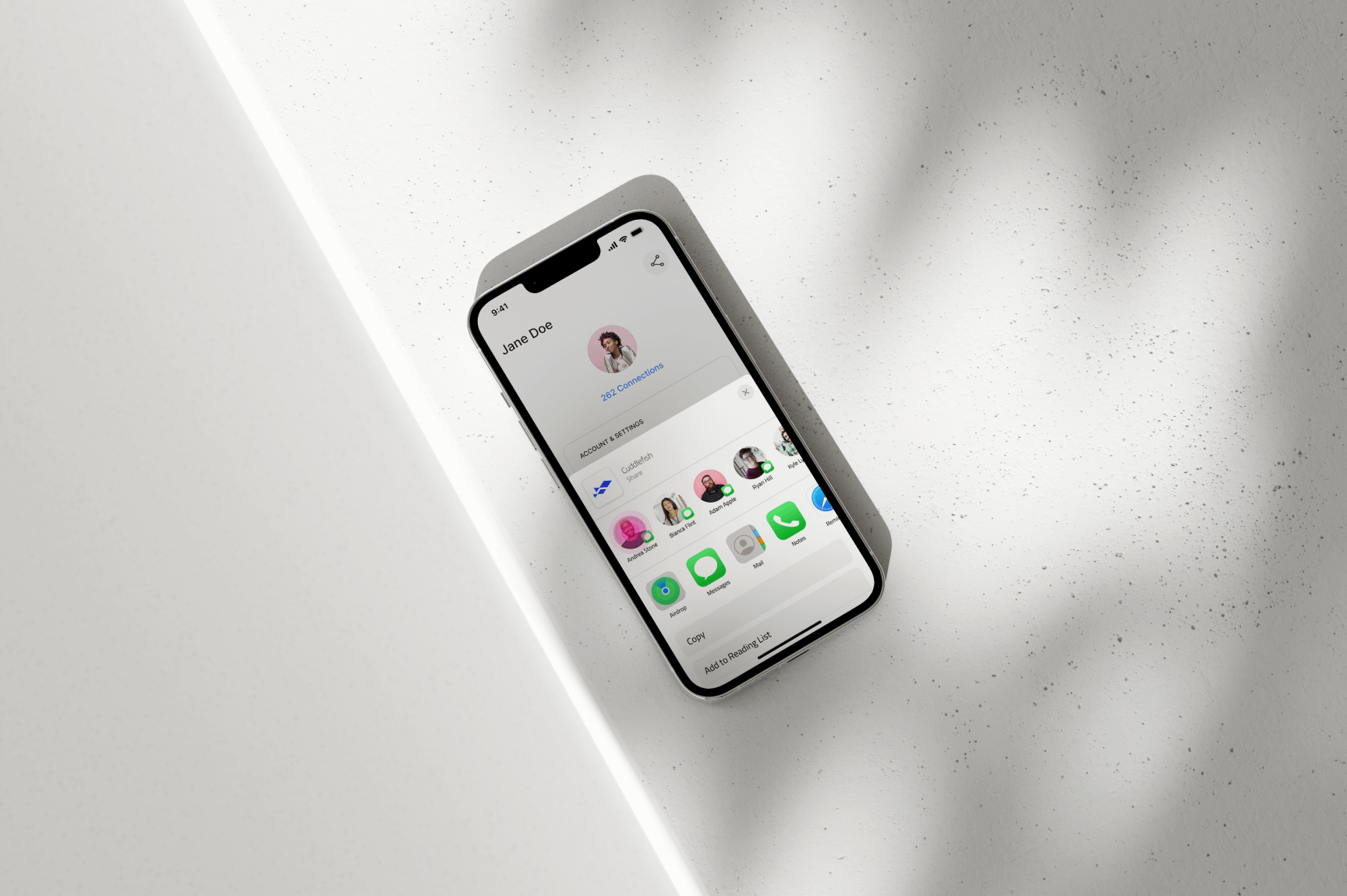
Details” screen. From this screen, they can tap the “Invite” FAB (Floating Action Button), which
opens the native share sheet. Users can then select the desired contact to send an invitation. Once
the contact accepts the invitation and signs up for the Cuddlefish app, they will be added to the
user’s contact list within the app.
07
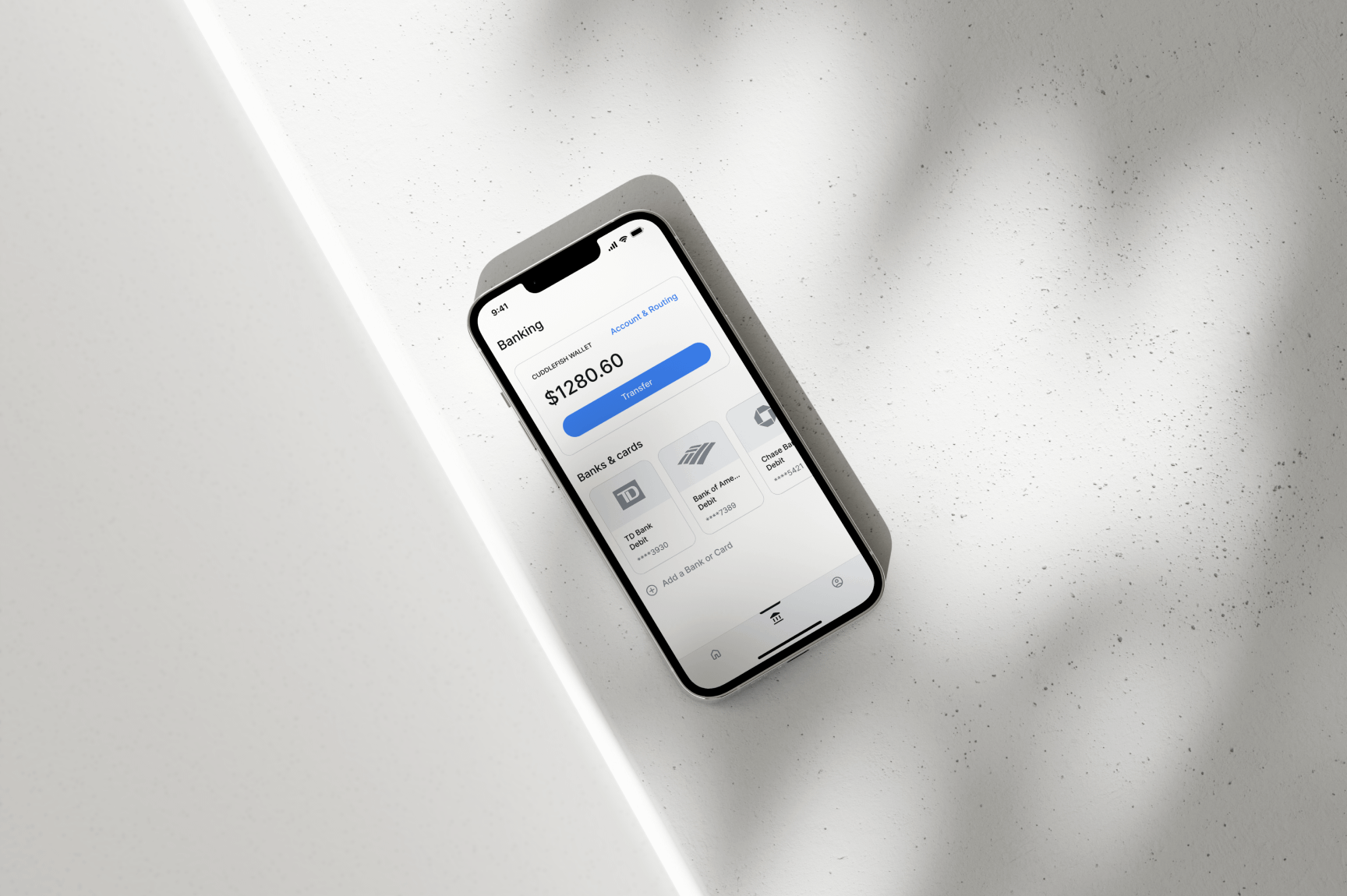
CONNECTING DEBIT/CREDIT CARD OR BANK ACCOUNT TO CUDDLEFISH APP
This section demonstrates how users can connect a payment method to the Cuddlefish app. Currently,
the app supports debit cards, credit cards, and direct bank account connections. The design is
structured to accommodate additional payment methods in the future if needed.
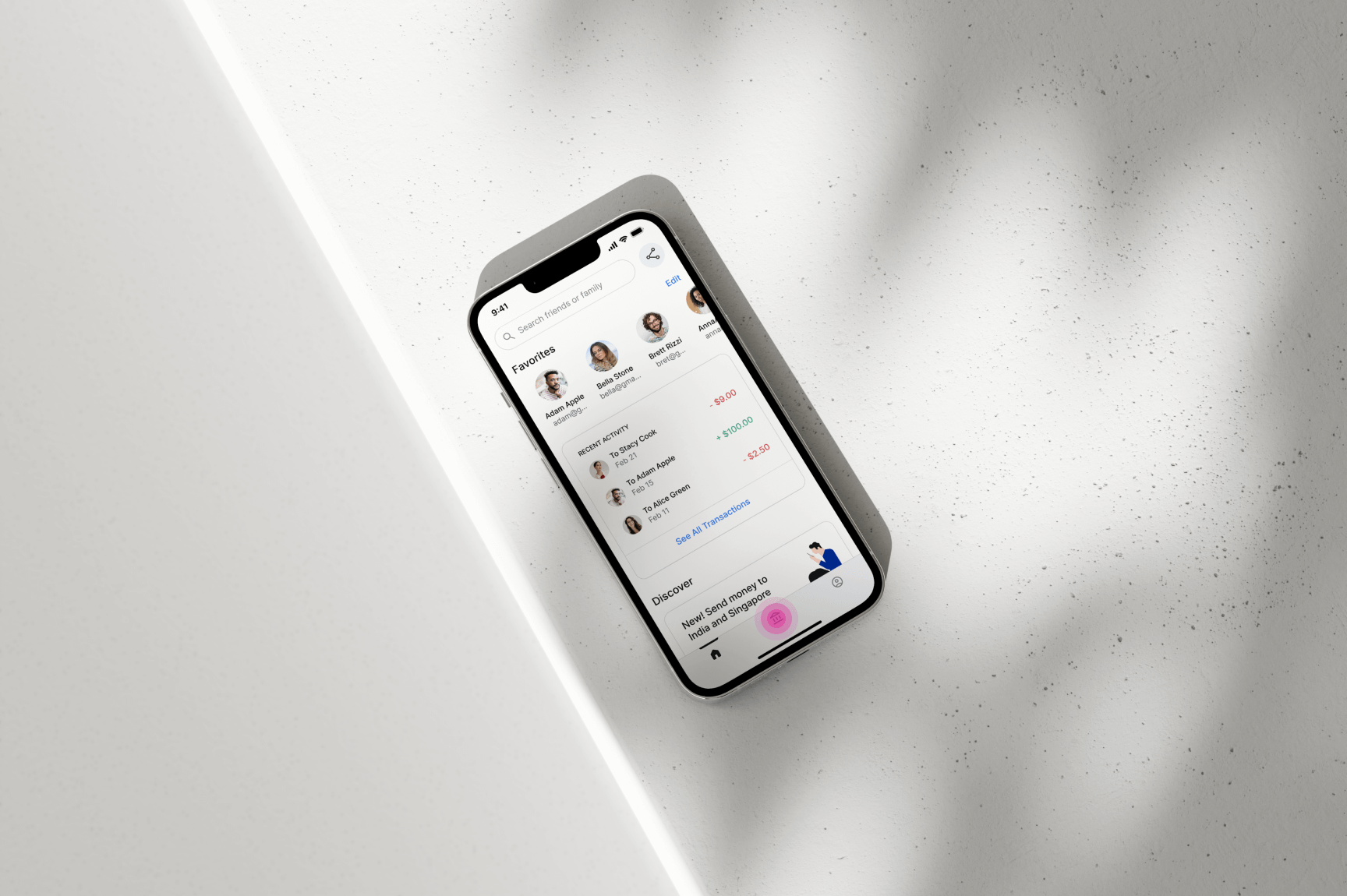
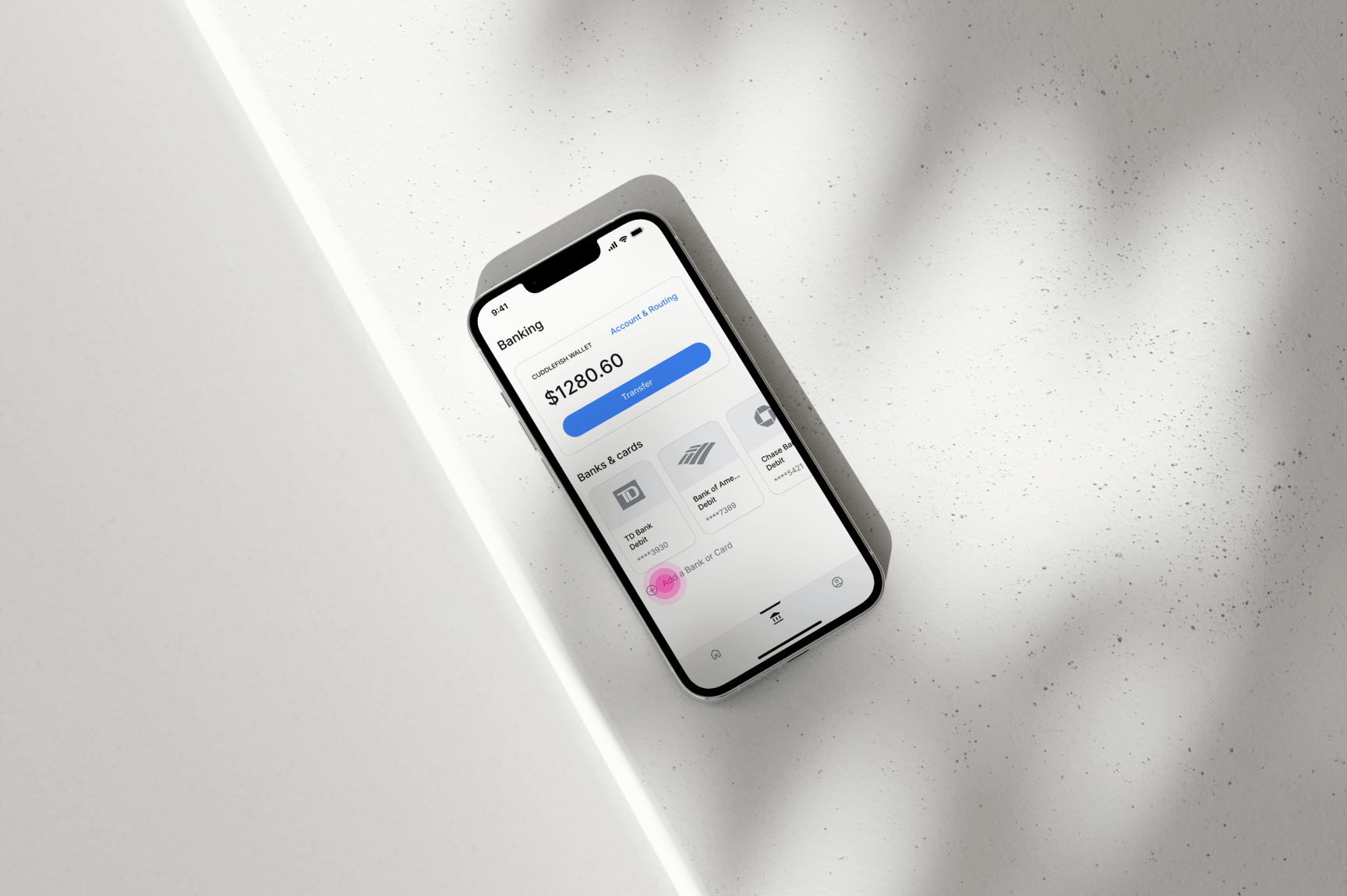
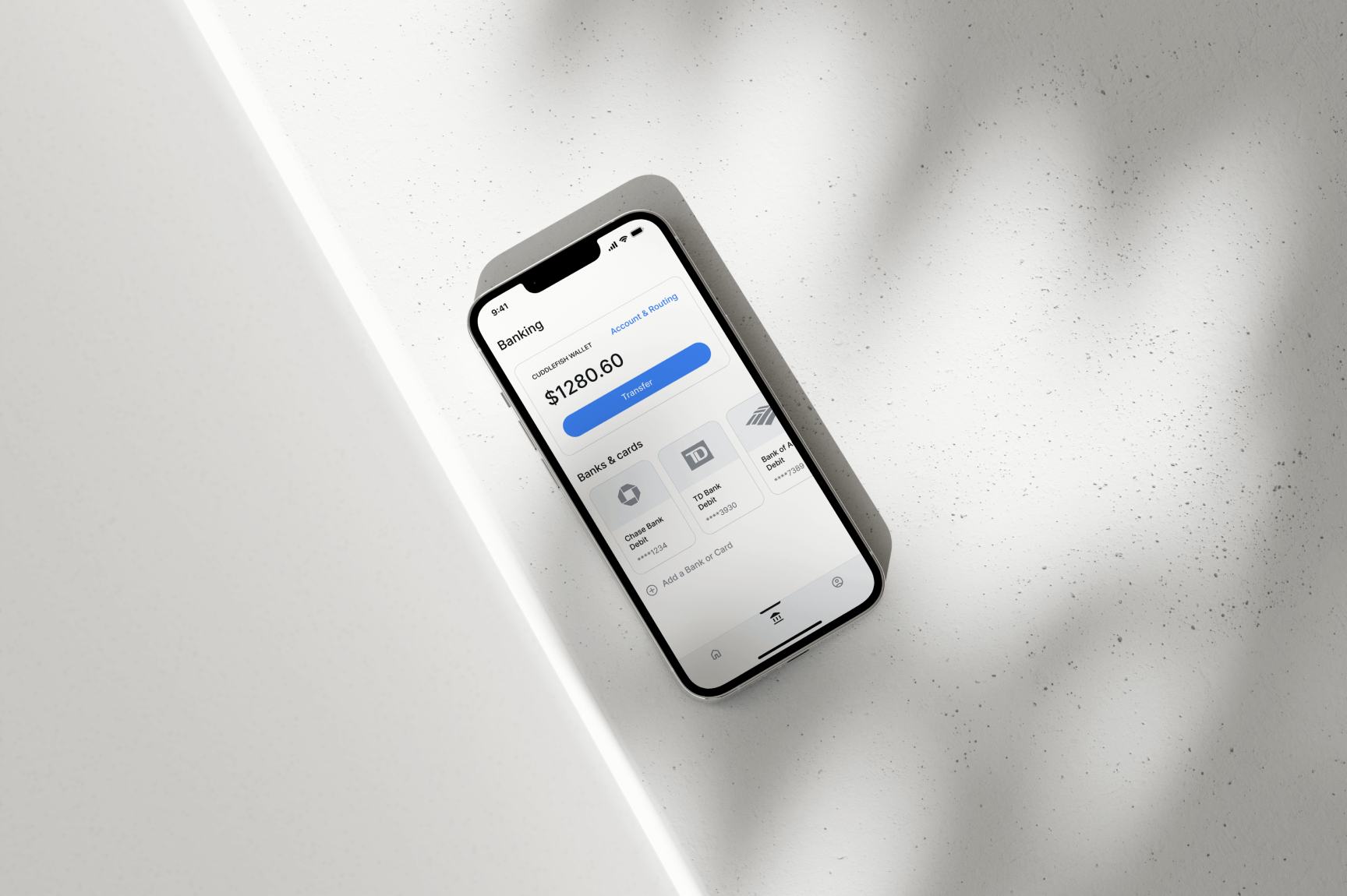
To add a payment method, users can tap the “Banking” icon located at the center of the
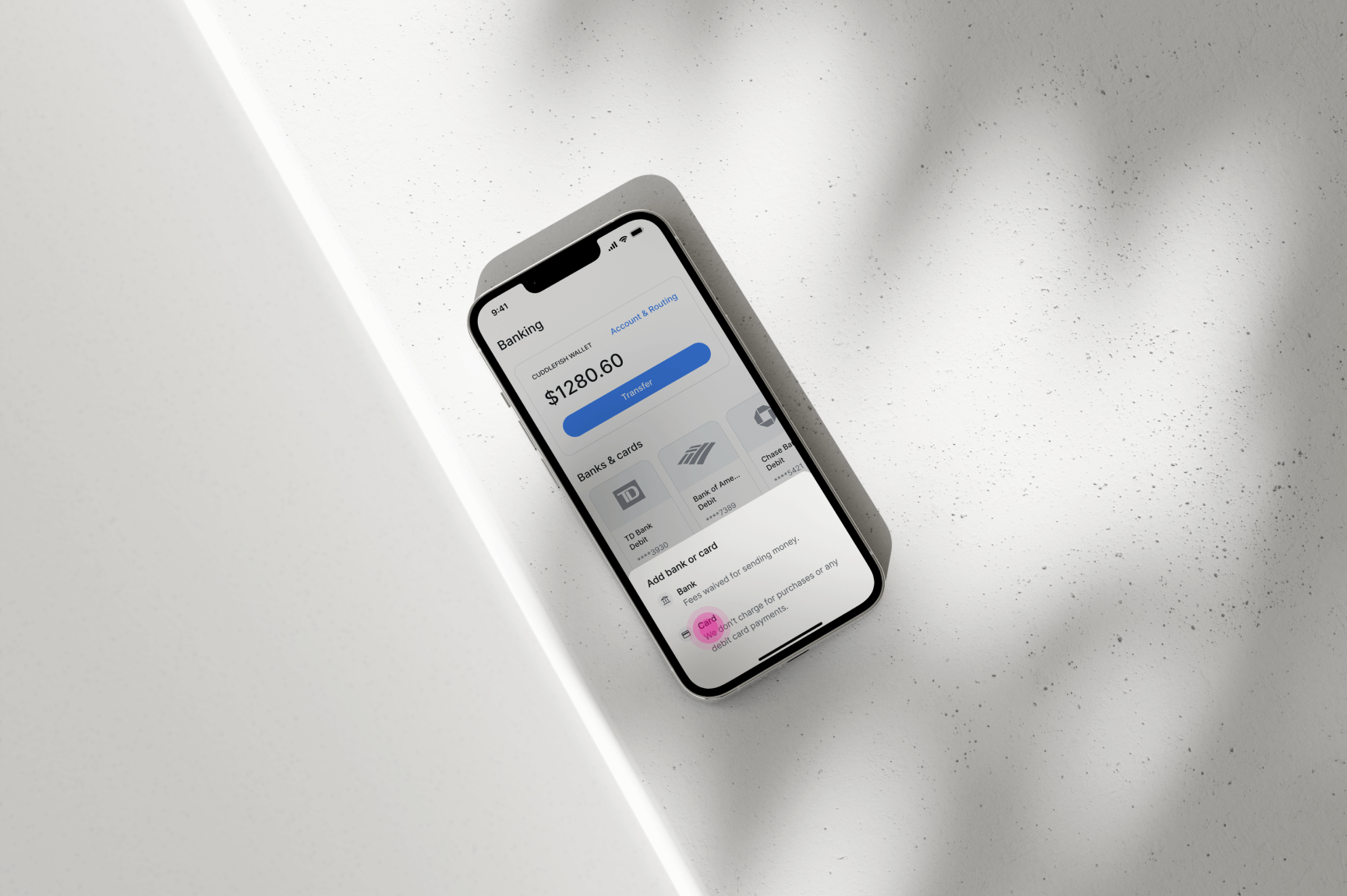
bottom navigation bar. From there, they can select the “Add a Bank or Card” link, which
opens a sheet displaying the available payment methods.
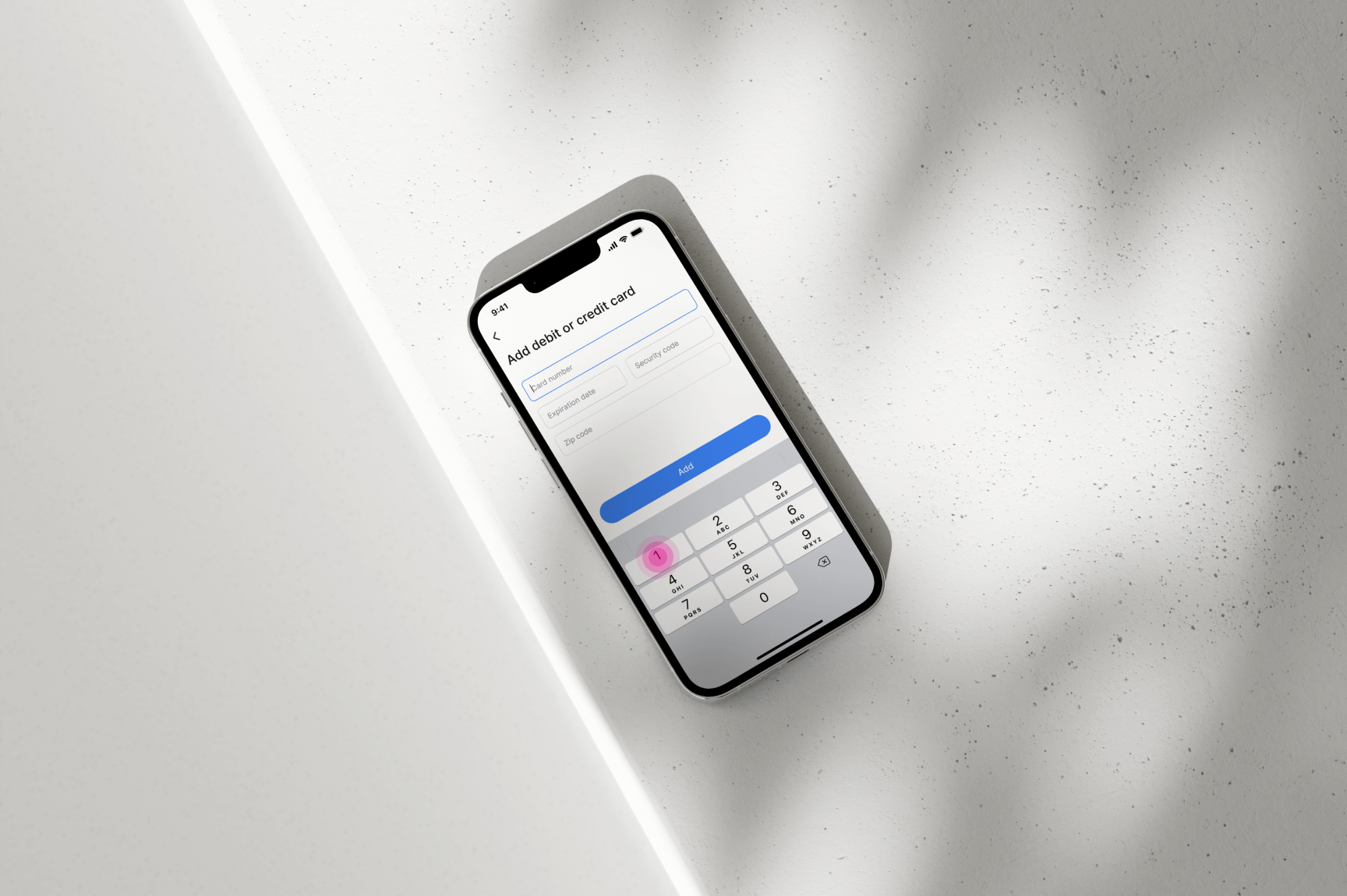
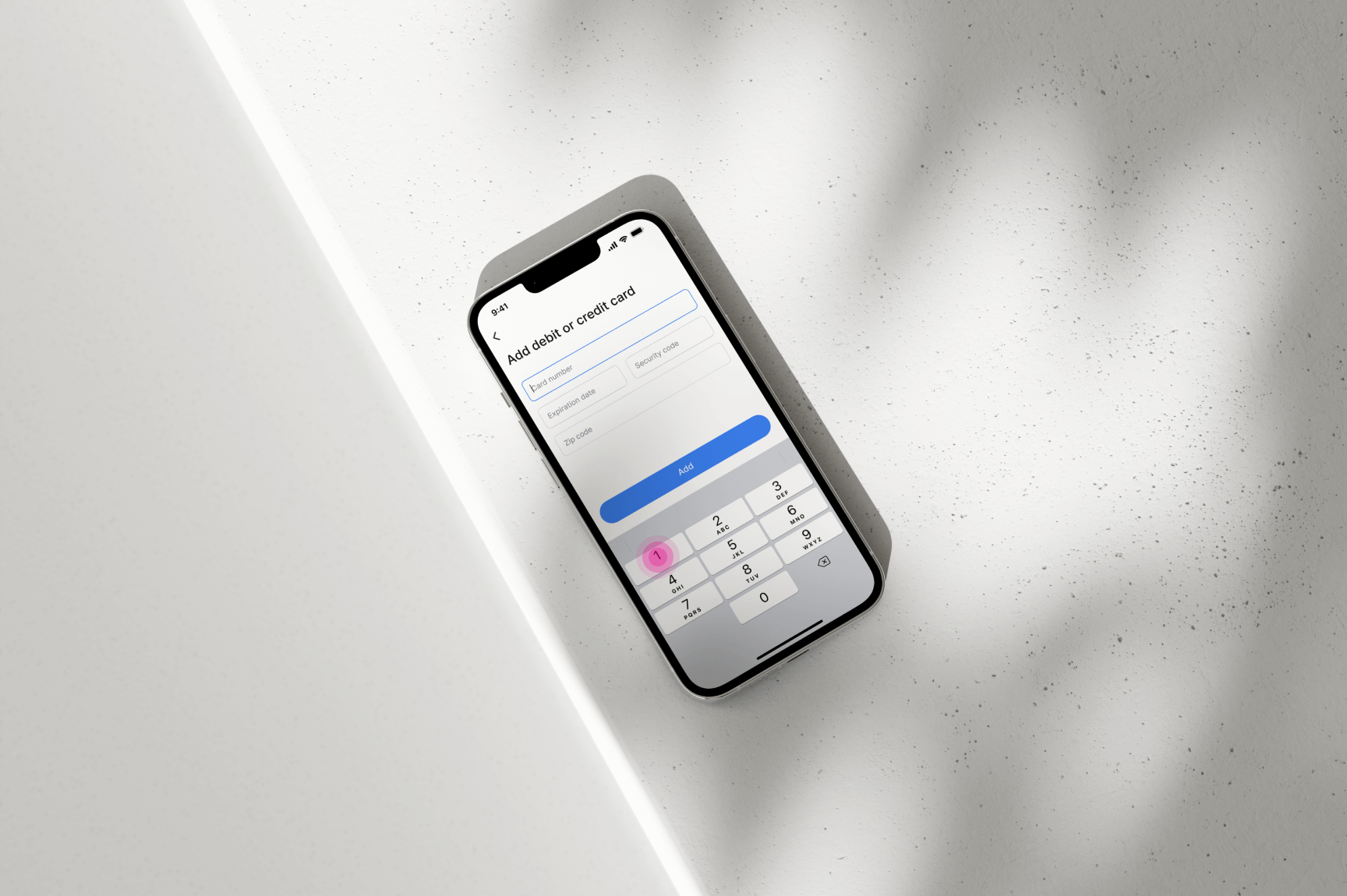
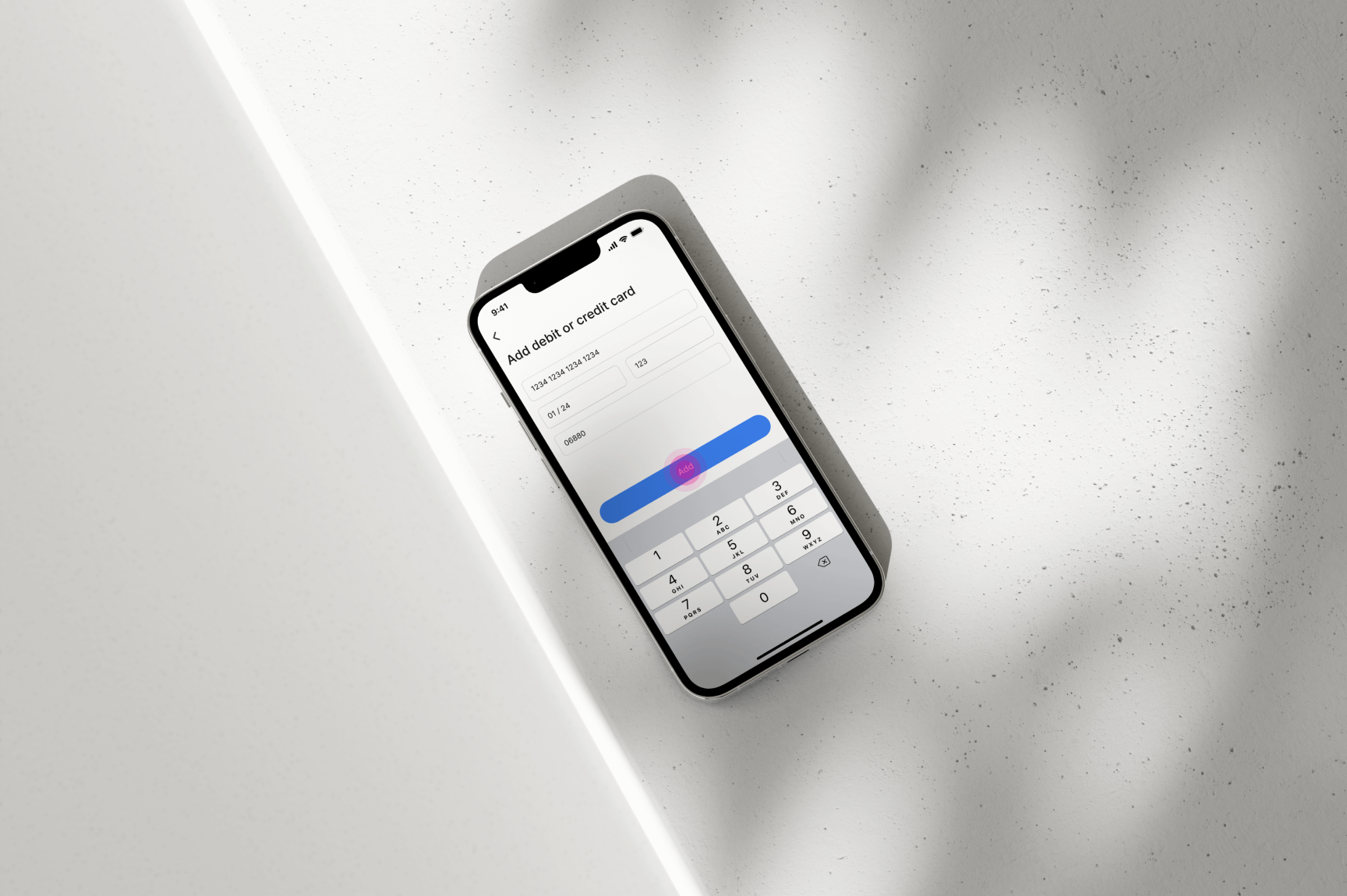
For example, if a user chooses to add a debit card, they are directed to a form where
they can input their card information. Once the information is entered, clicking the
“Add” button saves the new card details securely within the app. Saved payment methods
can be accessed and managed at any time through the “Banking” tab.
08
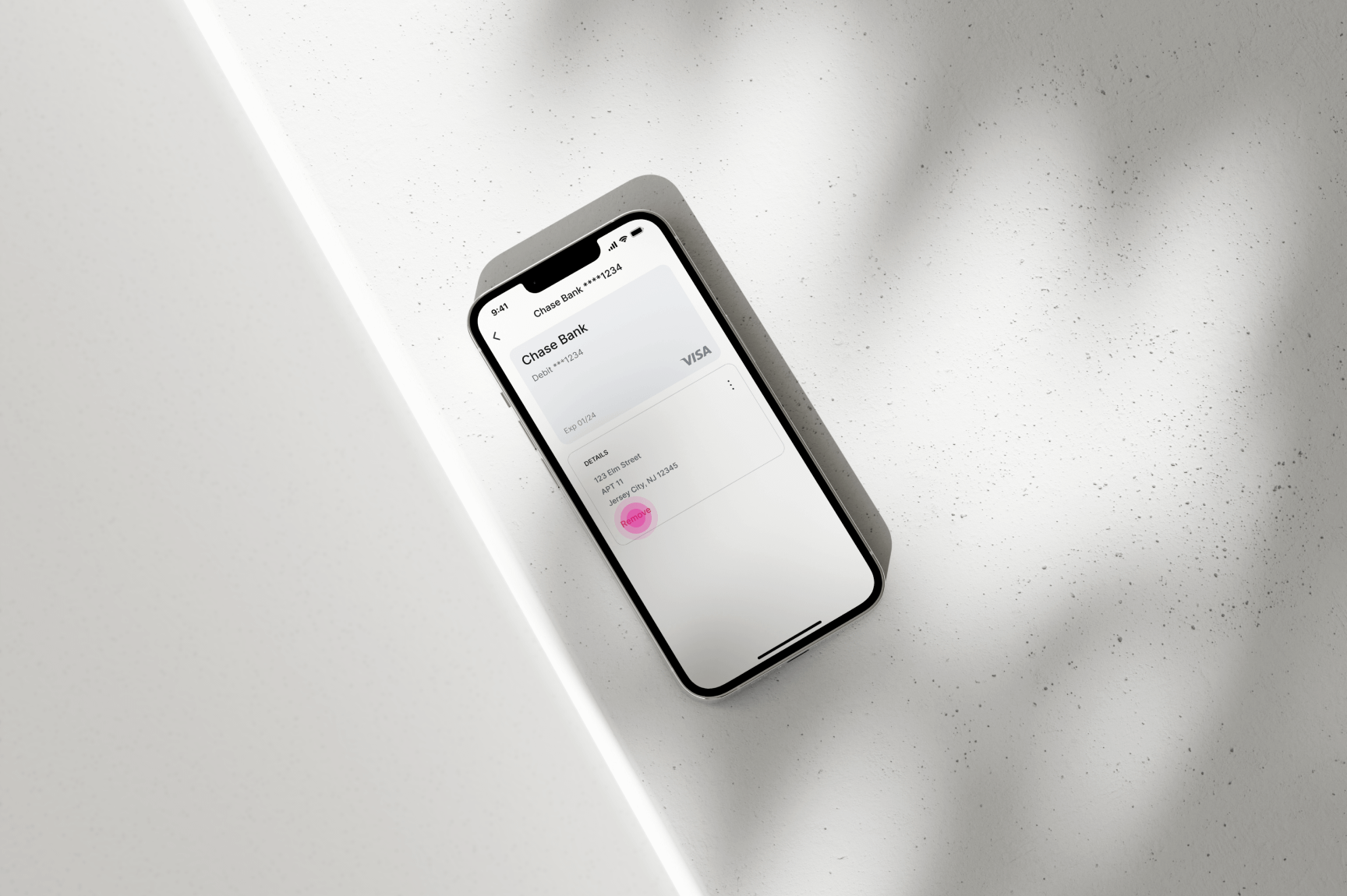
REMOVING DEBIT/CREDIT CARD OR BANK ACCOUNT FROM CUDDLEFISH APP
This section illustrates how users can disconnect a payment method from the Cuddlefish
app. To remove a payment method, users can tap the “Banking” icon located at the center
of the bottom navigation bar.
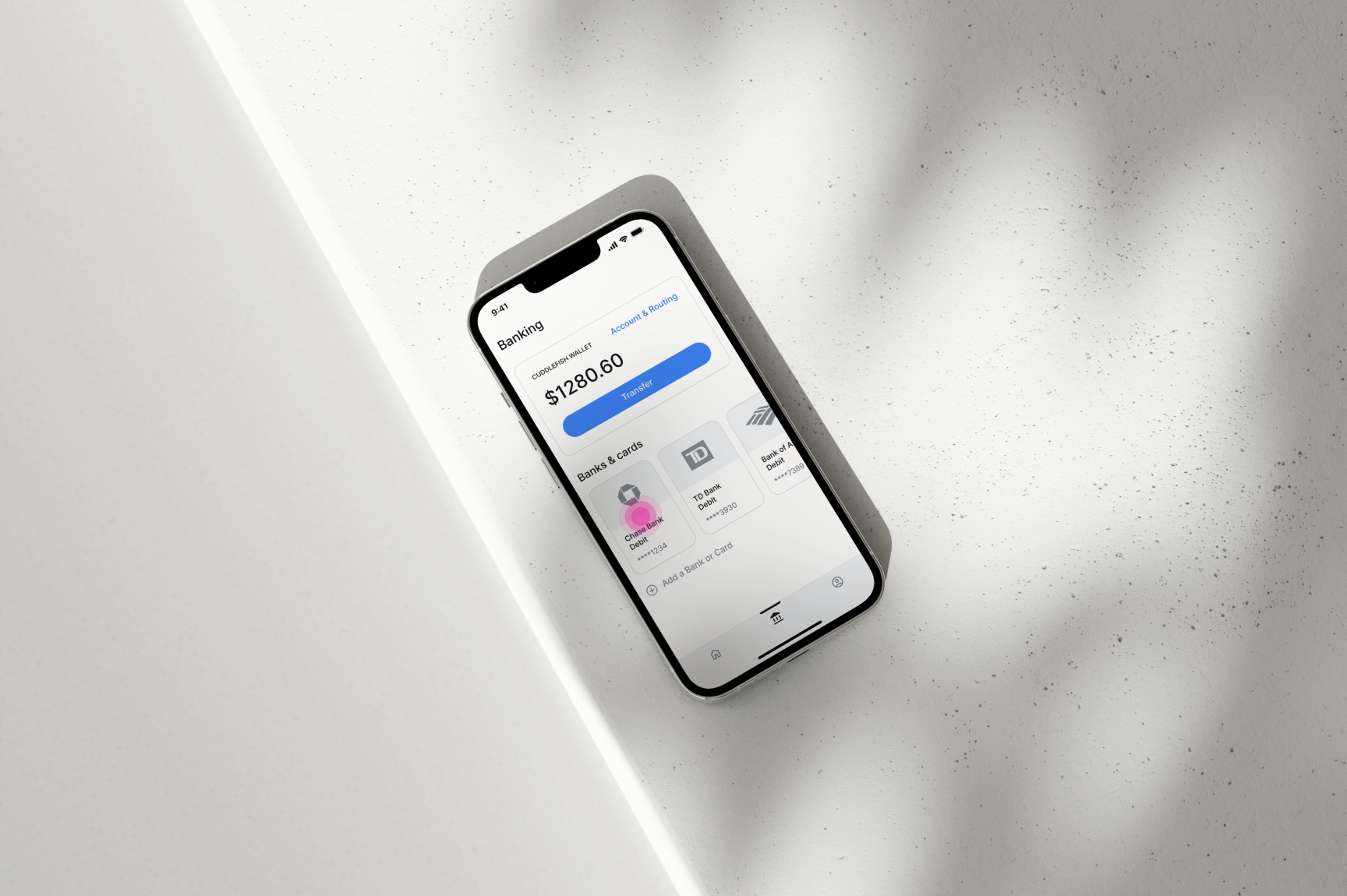
From the “Banking” screen, users can select a connected payment method, which navigates
them to the payment method details screen. On this screen, users can tap the “Remove”
link located within the “Details” tile. Once selected, all stored information associated
with the payment method is securely deleted from the Cuddlefish app.
09
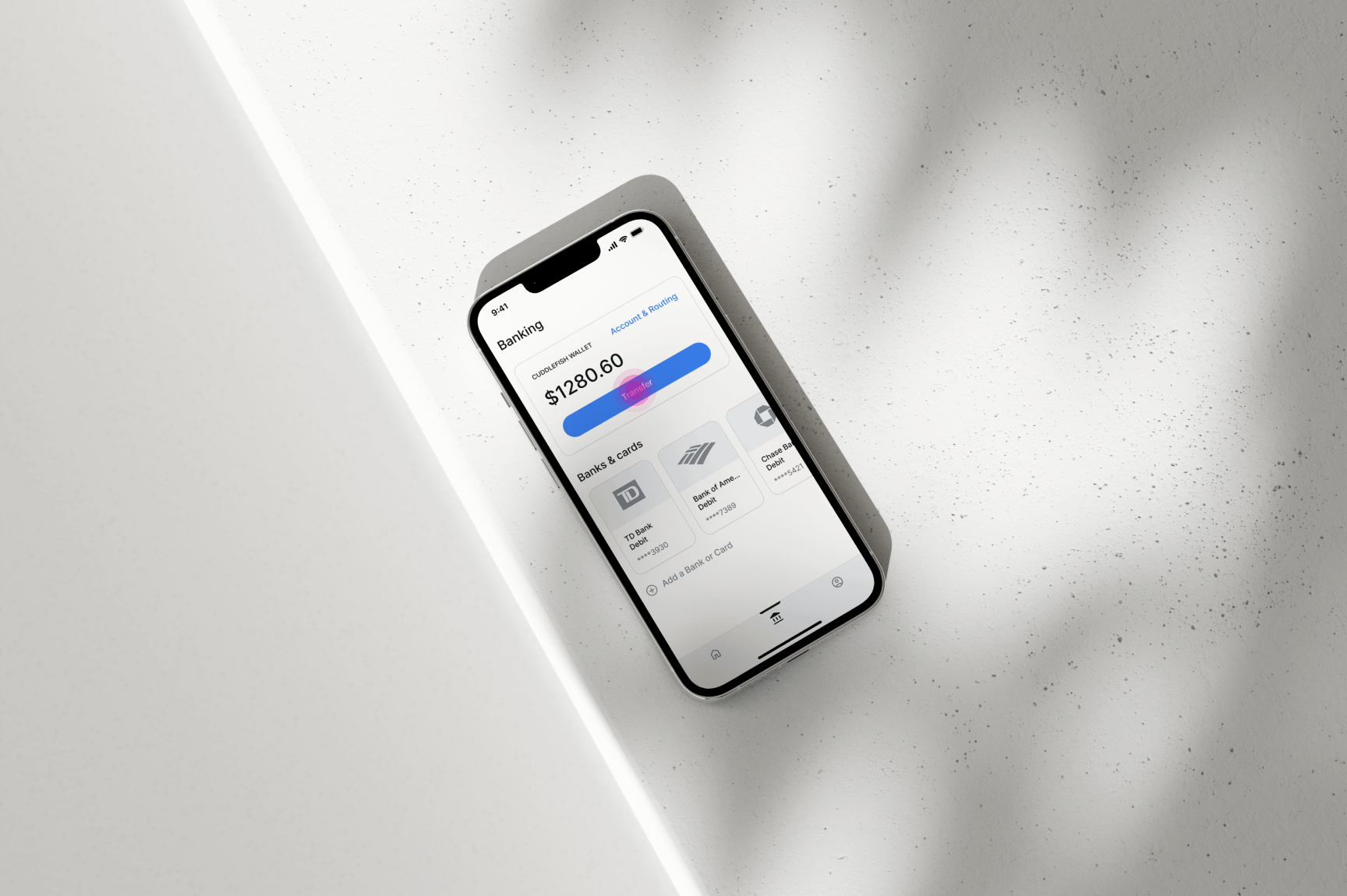
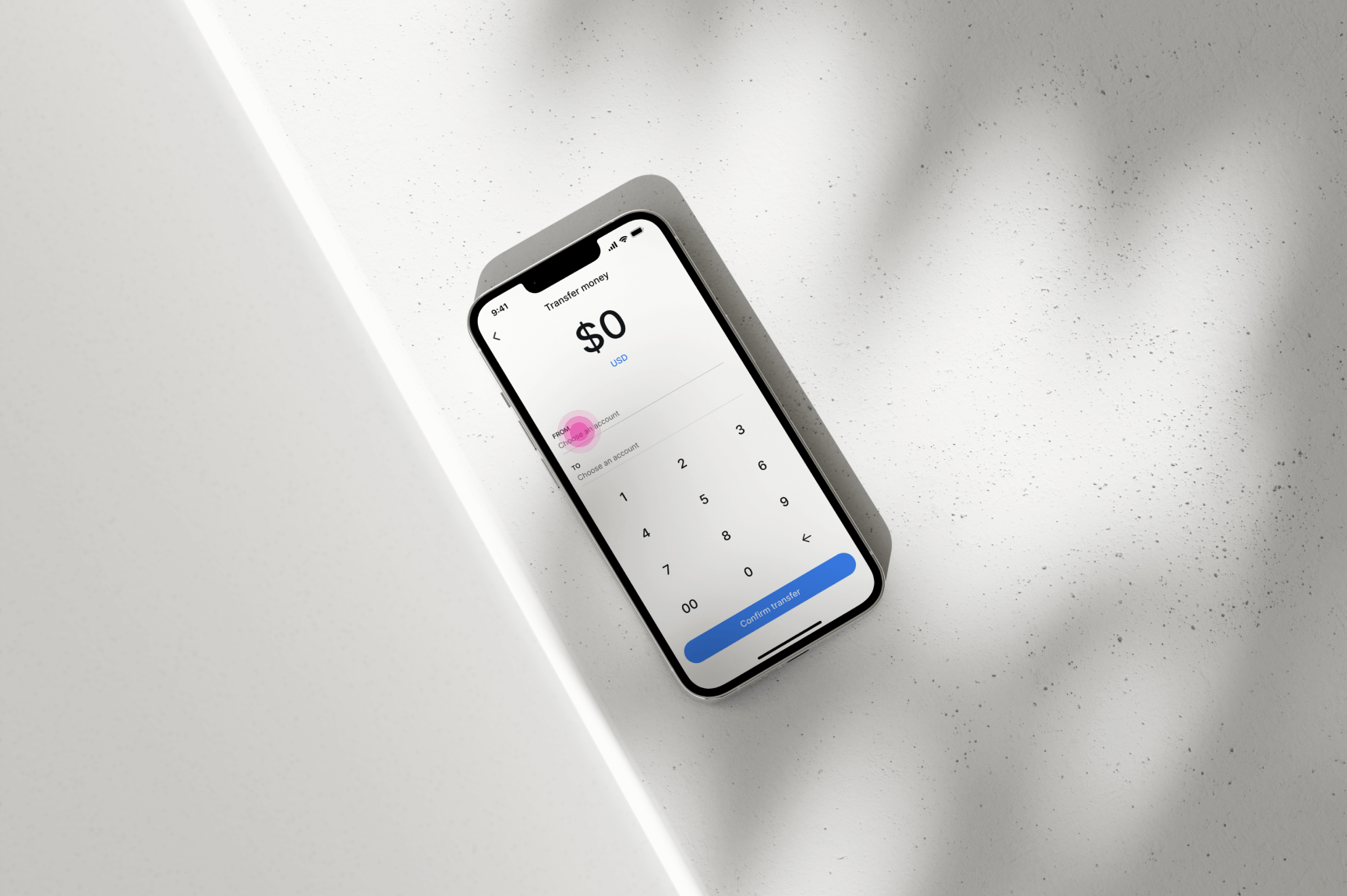
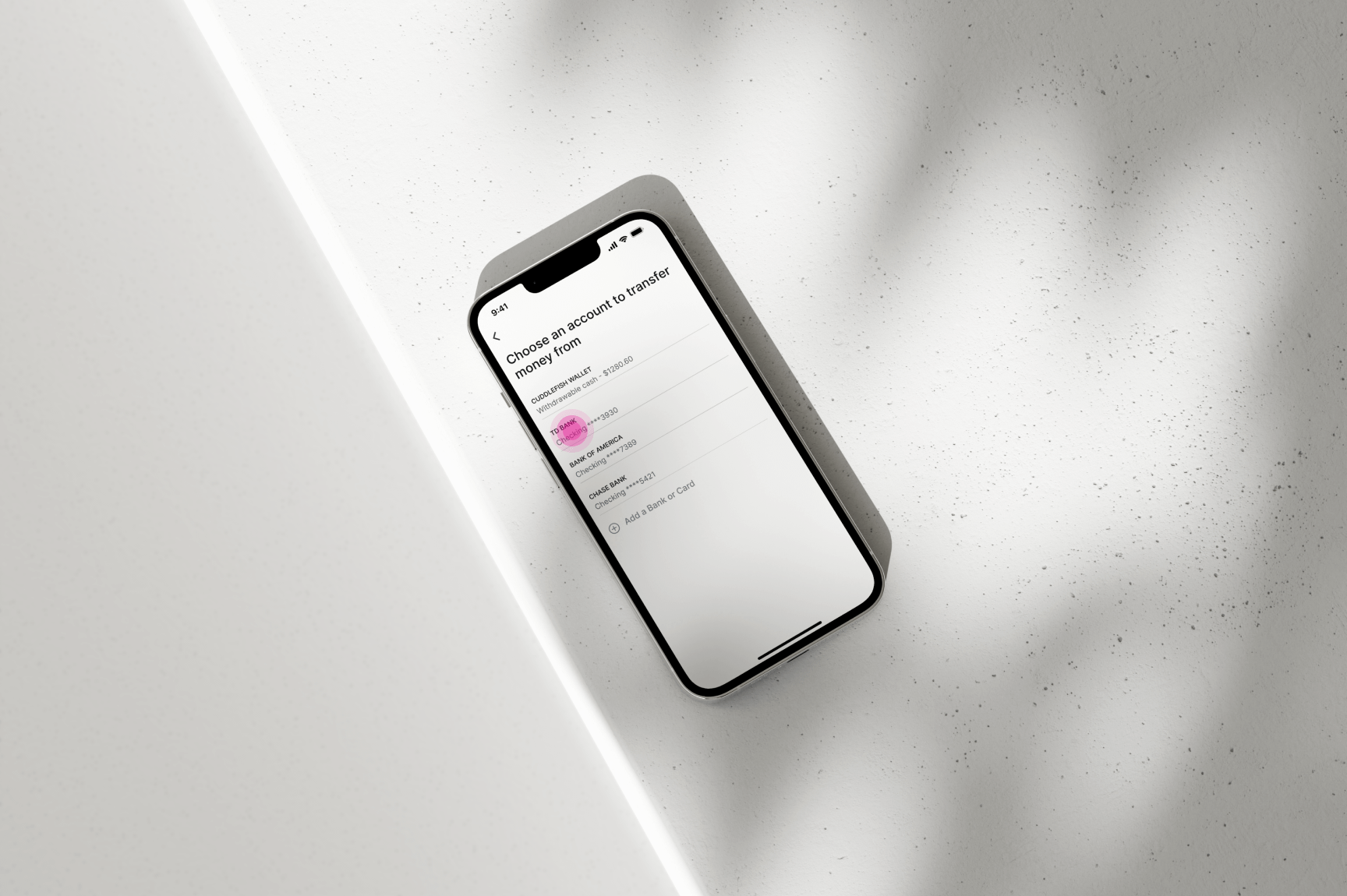
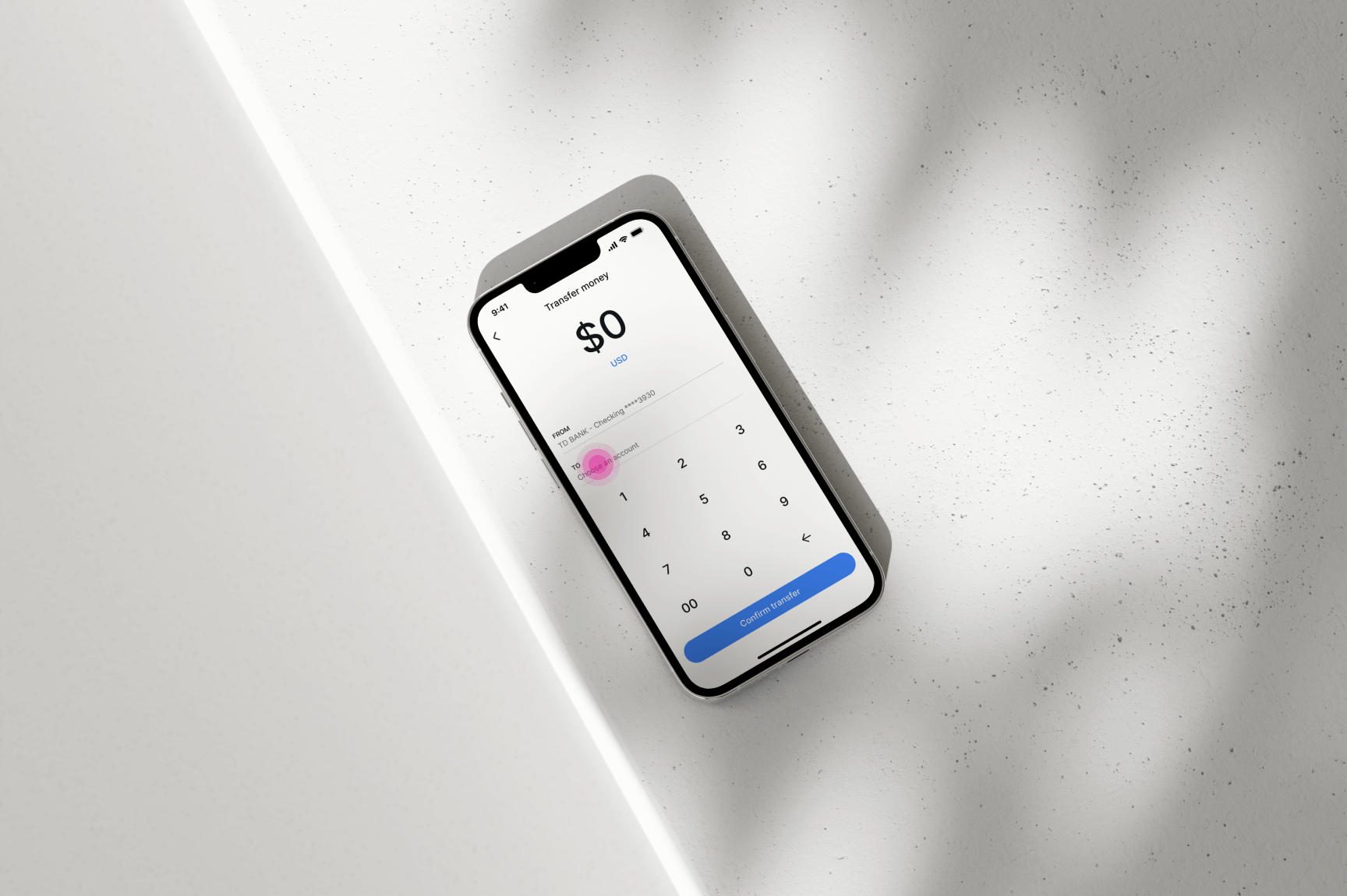
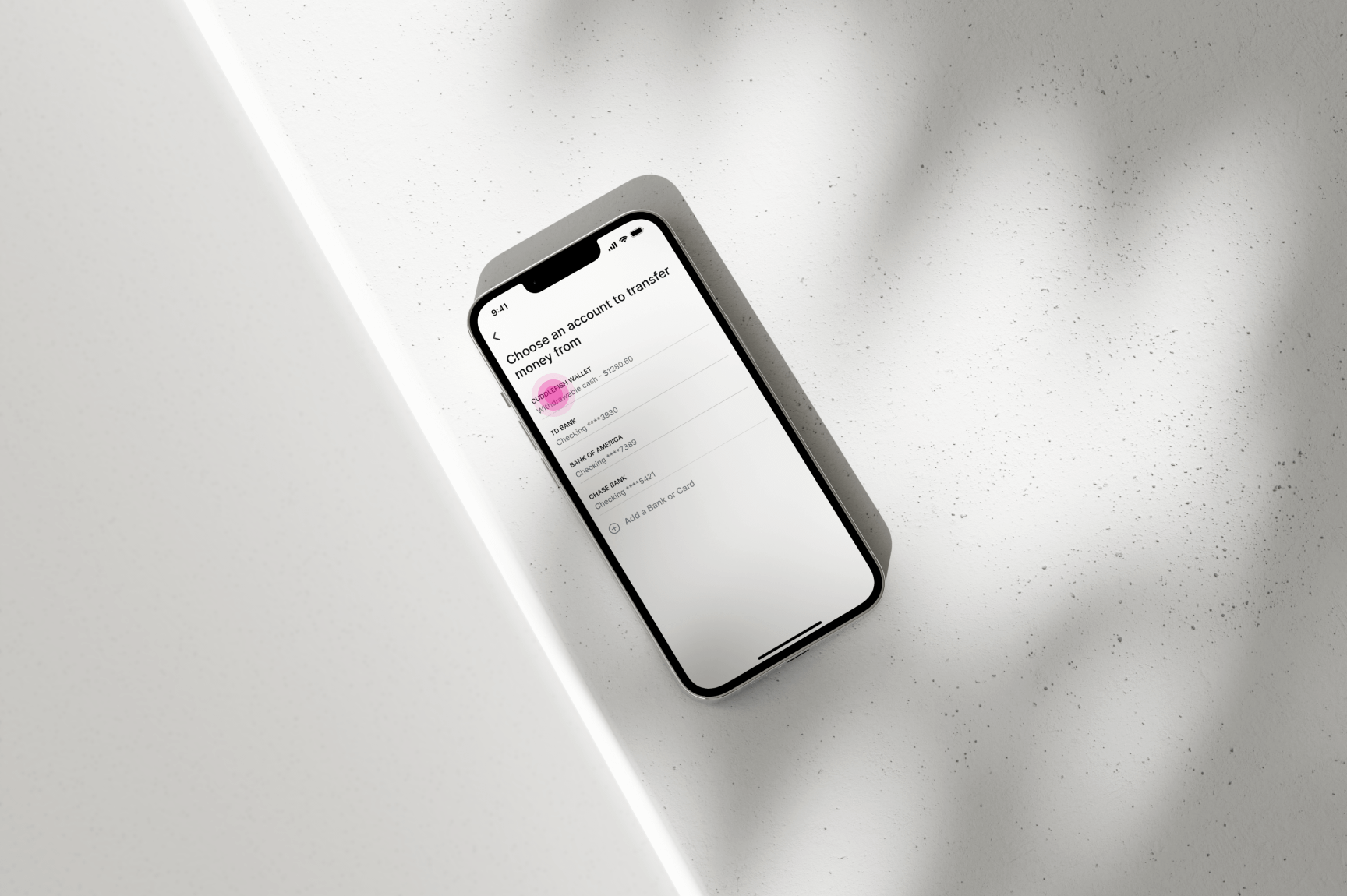
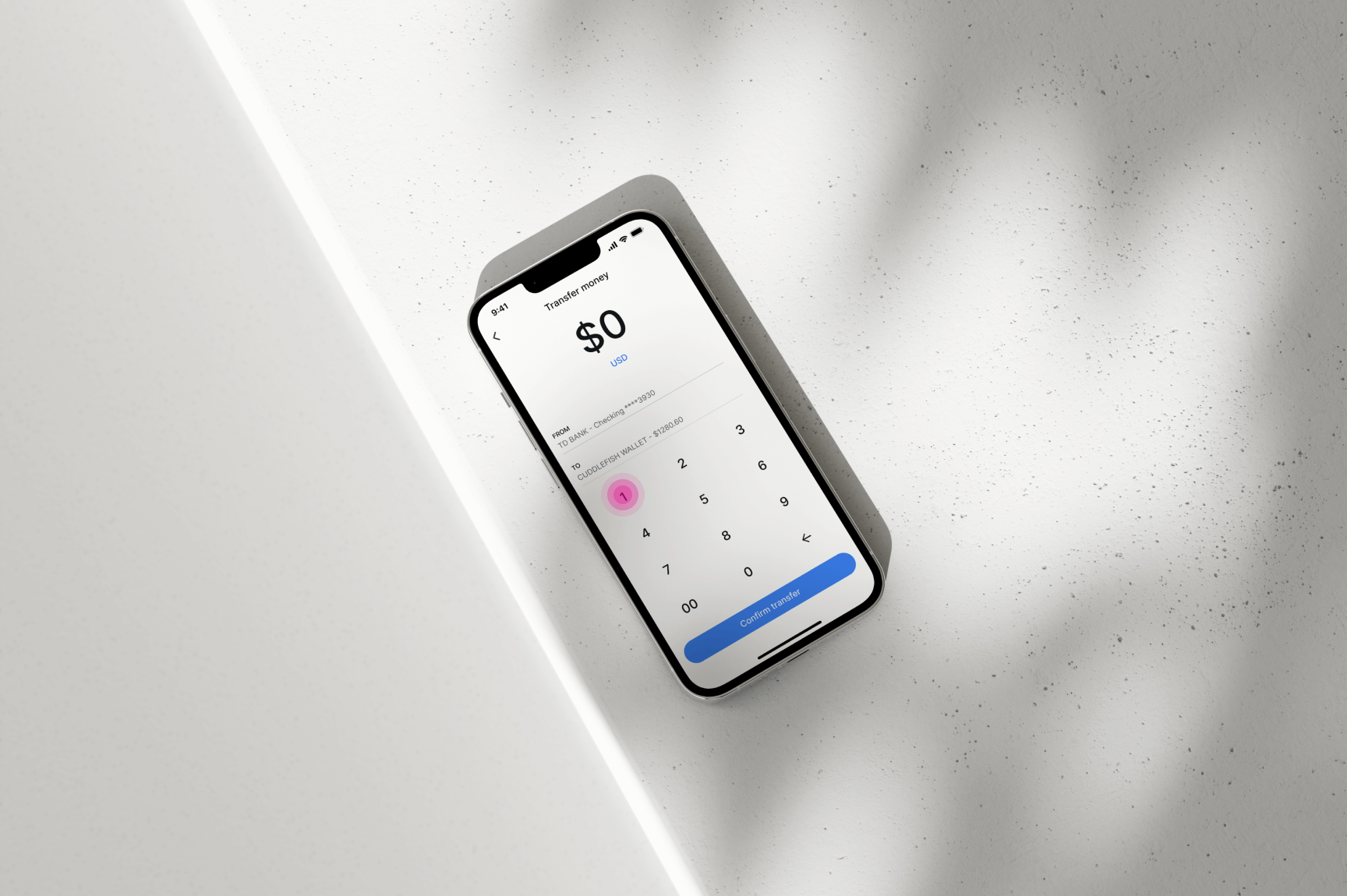
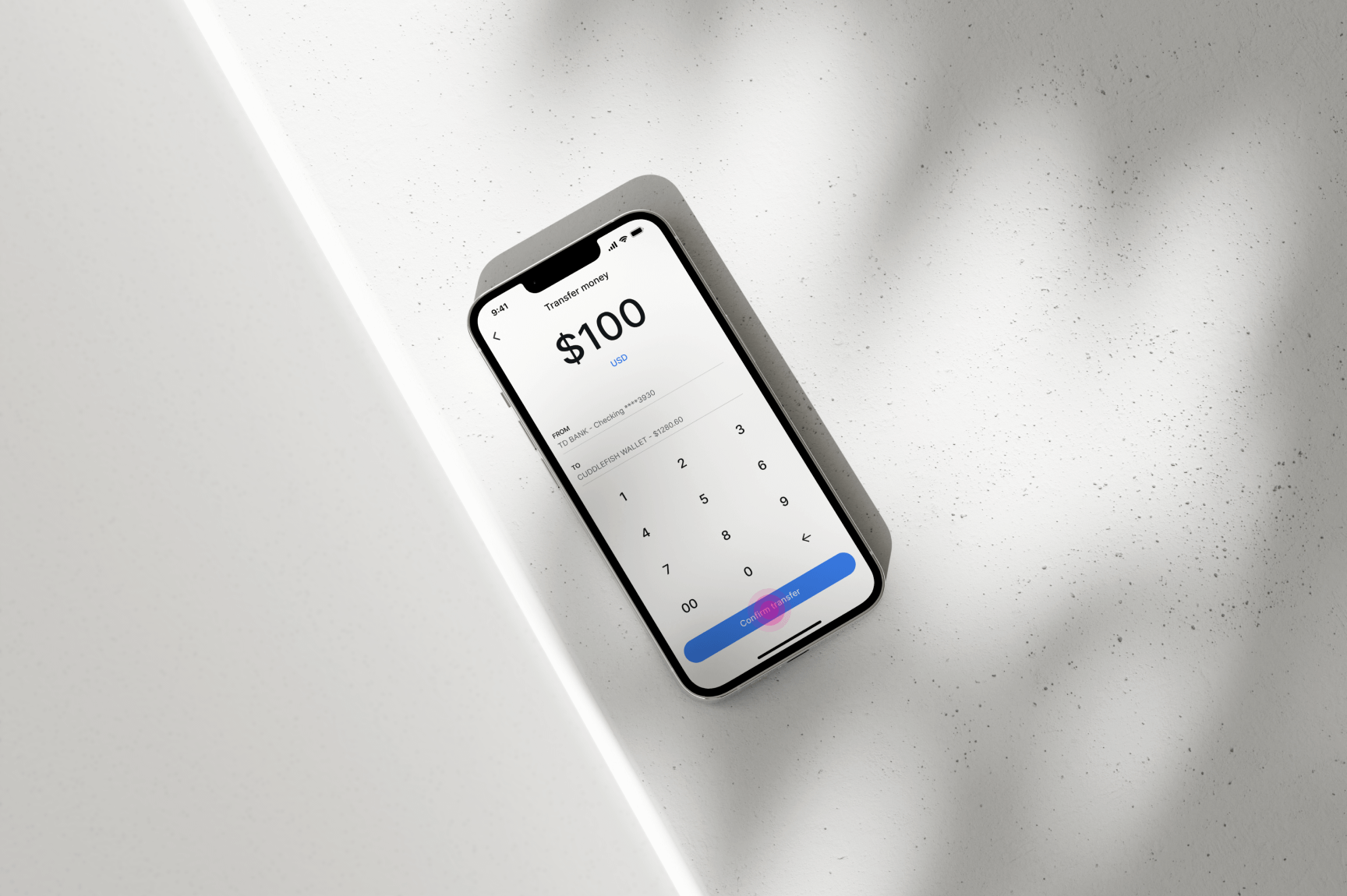
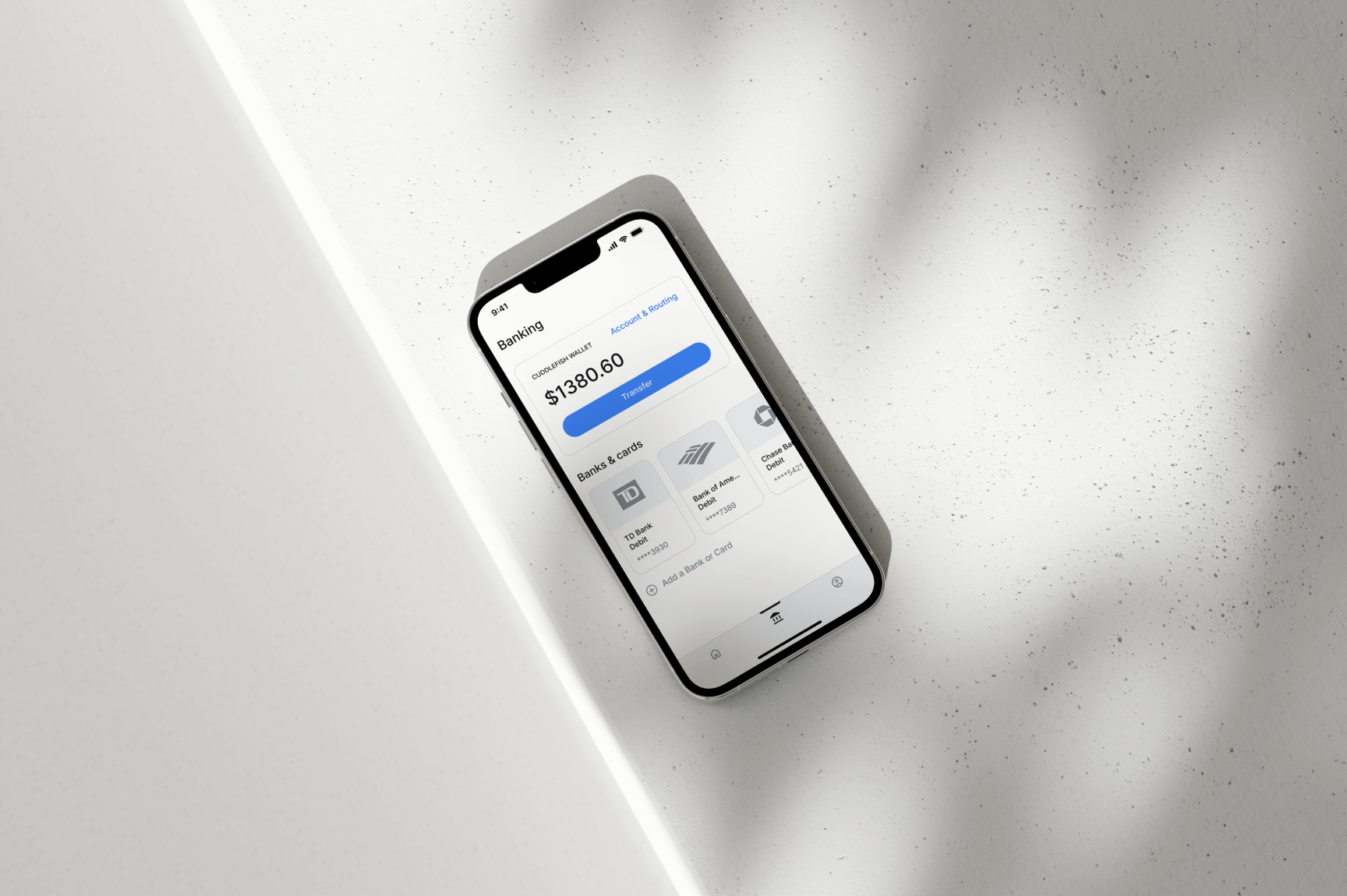
TRANSFERRING MONEY TO CUDDLEFISH WALLET
This section demonstrates how users can transfer funds to the Cuddlefish app’s internal
wallet. The Cuddlefish wallet functions as a stablecoin, maintaining a fixed value to
protect users from currency fluctuations. This feature is particularly beneficial for
users in countries with unstable economies, as it safeguards their funds from
inflation-induced devaluation.
To transfer funds to the Cuddlefish wallet, users can navigate to the “Banking” screen by
tapping the “Banking” icon in the bottom navigation bar. From there, they can select the
“Transfer” button, which directs them to the “Transfer Money” screen.
On this screen, users can choose their preferred payment method to transfer money from
and specify the amount they wish to transfer. The amount can be entered in their desired
currency. Once the details are confirmed, users can click the “Confirm” button to
complete the transaction.
For the Cuddlefish Series A prototype, I developed a scalable design language
that balances simplicity with flexibility to support the additional functionality
planned for iteration 2 of the app. As illustrated in the examples above, each key
feature is thoughtfully compartmentalized within distinct sections of the app and
displayed contextually.
For instance, the “Invite” link is only visible during the payment transfer process,
where users are prompted to select a recipient. This placement aligns with user
expectations and ensures intuitive navigation. By contrast, displaying all
functionalities on the homepage would risk overwhelming users and increasing cognitive
load, ultimately leading to a poor user experience.
“A designer knows he has achieved perfection not when there is nothing left to add,
but when there is nothing left to take away." Antoine de Saint-Exupery
“A designer knows he has achieved perfection not when there is nothing left to add,
but when there is nothing left to take away." Antoine de Saint-Exupery